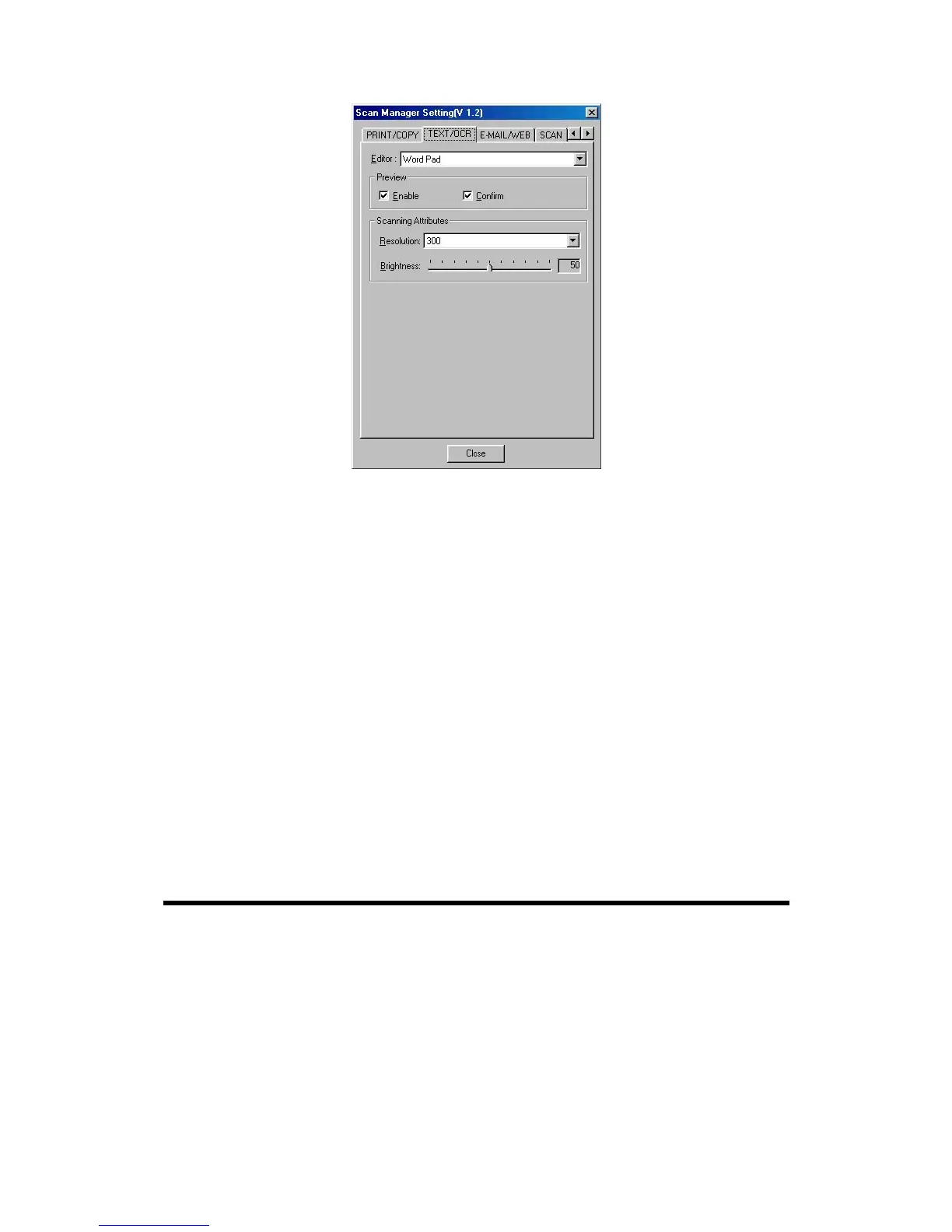
T
T
o
o
U
U
s
s
e
e
t
t
h
h
e
e
“
“
T
T
E
E
X
X
T
T
/
/
O
O
C
C
T
T
”
”
B
B
u
u
t
t
t
t
o
o
n
n
1. Place a typewritten text document face down on the scanning glass.
2. Press the “TEXT/OCR” Button on the scanner
Note: Skip to step 5, if you did not have “Enable” and “Confirm” checked
under “Preview” in Scan Manager.
3. The scanner will start prescanning automatically.
4. Click on the “OCR” button in the “PRESCAN” window to start scanning.
5. Click on “Yes” button to continue scanning the next page.
6. Click on “No” button when you finish scanning.
7. Word processing software will be launched and the recognized text will be
transferred to the default word processing software.
"PRINT/COPY" Button
Ensure to install and set up a printer driver before using this function.
T
T
o
o
S
S
e
e
t
t
U
U
p
p
P
P
r
r
i
i
n
n
t
t
e
e
r
r
1. Open the “Scan Manager Setting” window by clicking on the Windows
START button and choose PROGRAM, Genius Scanner (the model name of
your scanner), KYESCAN.
Genius Scanner
20






 To Next Page