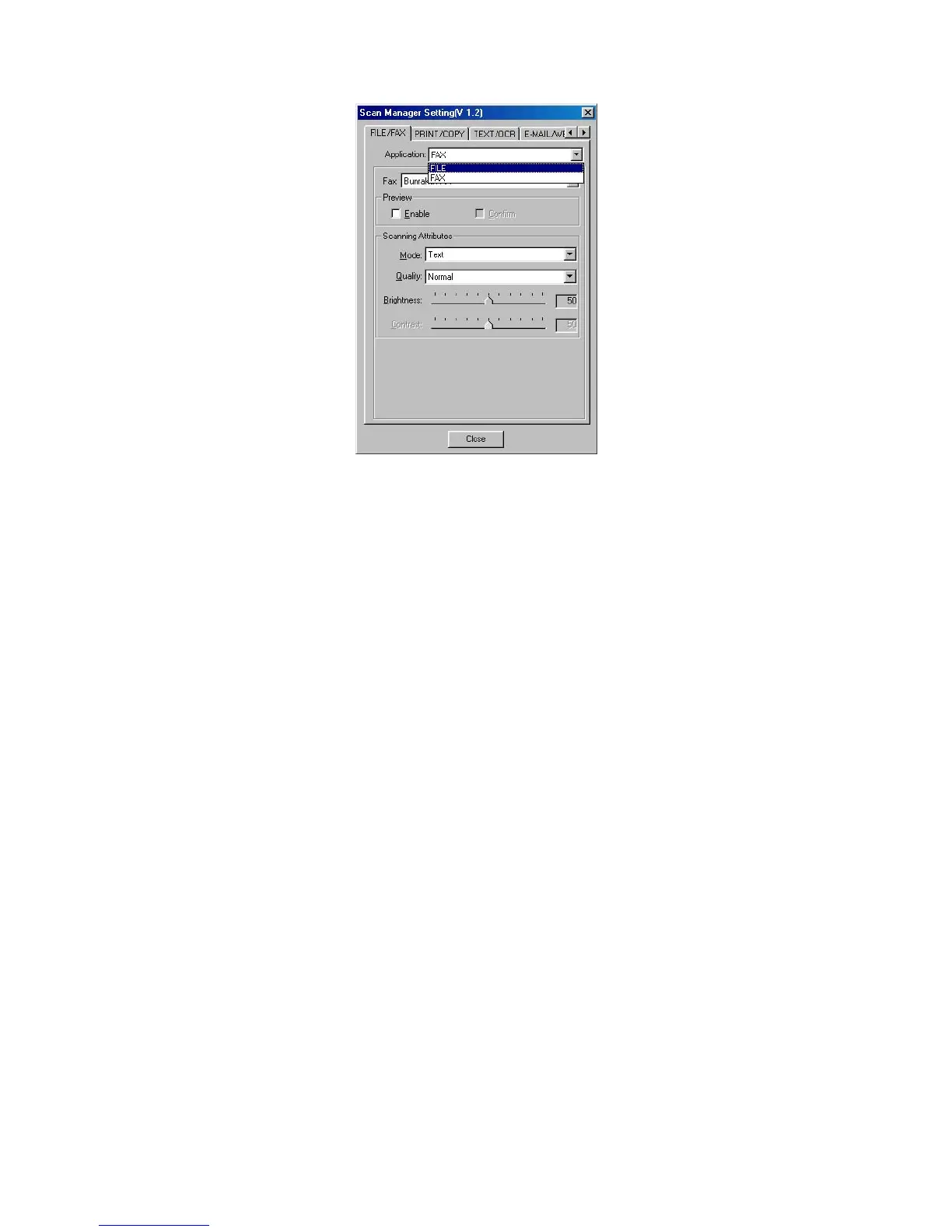
T
T
o
o
u
u
s
s
e
e
“
“
F
F
I
I
L
L
E
E
/
/
F
F
A
A
X
X
”
”
B
B
u
u
t
t
t
t
o
o
n
n
A
A
s
s
“
“
S
S
c
c
a
a
n
n
t
t
o
o
F
F
i
i
l
l
e
e
”
”
f
f
u
u
n
n
c
c
t
t
i
i
o
o
n
n
1. Place a document or picture face down on the scanning glass.
2. Press the “FILE/FAX” Button on the scanner,
Note: Skip to step 5, if you did not have “Enable” and “Confirm” checked
under “Preview” in Scan Manager.
3. The scanner will start prescanning automatically.
4. Click on the “Scan to Album” button in the “PRESCAN” window to start
scanning.
5. Click on “Yes” button to continue scanning the next page.
6. Click on “No” button when you finish scanning.
7. The Scanned Images will be filed into the default folder of “PageManager”.
A
A
s
s
“
“
S
S
c
c
a
a
n
n
t
t
o
o
F
F
a
a
x
x
”
”
f
f
u
u
n
n
c
c
t
t
i
i
o
o
n
n
1. Place a document or picture face down on the scanning glass.
2. Press the “FILE/FAX” Button on the scanner.
Note: Skip to step 5, if you did not have “Enable” and “Confirm” checked
under “Preview” in Scan Manager.
3. The scanner will start prescanning automatically.
Genius Scanner
23







 To Next Page