Wireless TwinTouch Optical Office sets in an area of 10 square meters, more
interference may occur between the receiver and your keyboard and mouse.
4. If you feel the mouse does not move smooth as usual or the keyboard does not
work when typing, then the batteries have lost their charge, so please replace
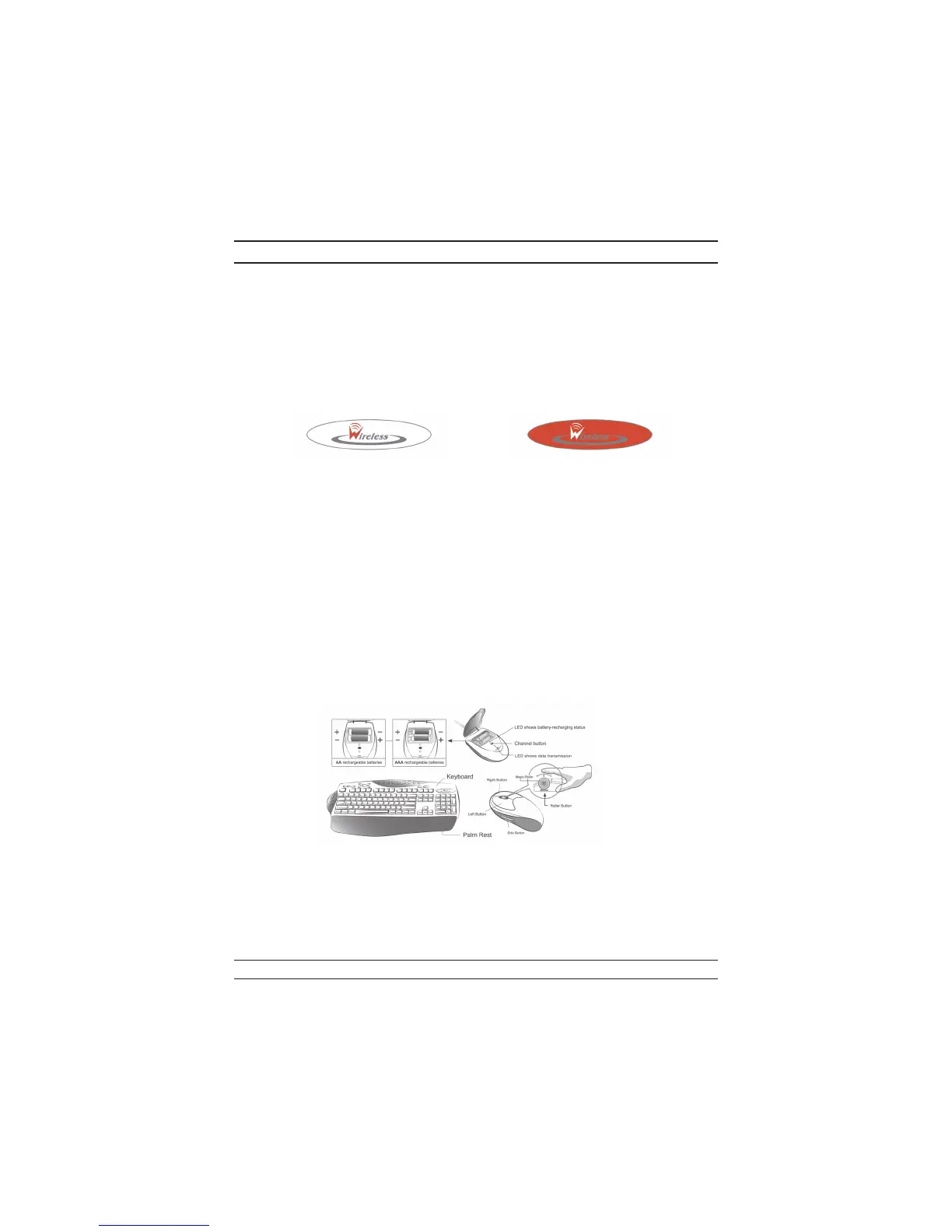
them. Also, the wireless icon will be blinking “red” when there is a battery-low
situation. The LED on the receiver shows the battery-recharging status (from
shining to LED completely “on” for battery full). You should set up the channel
every time you replace the batterires.
5. If you need to buy new batteries, please choose Ni-MH (Nickel-Metal-Hydride)
AA batteries, 1.2V, 1300 to 1600 mAH. Please do not mix or use other types
of batteries (Li-ion, Ni-Cd, Alkaline, etc.).
6. The Wireless TwinTouch Optical Office with radio frequency gives you free
movement and an enjoyable experience. For optimal performance, place the re-
ceiver at least 8 inches (about 20 cm) away from the mouse and other electrical
devices, such as the computer, monitor, and etc.
Software Installation
1. Make sure the mouse and keyboard is connected to the computer.
2. Put the Setup disk (or CD) into the disk drive.
3. Follow the instructions on the screen to finish the software installation.
Factory Setting
1. Mouse:
Button Assignments
The Button Assignment feature lets you work in a more efficient way because you
can assign the most frequently used commands in Windows to the mouse buttons.
Magic-Roller Press the “Magic-Roller” to surf the Internet and Windows docu
-
ments
2


 To Next Page