Left Button Provides traditional mouse functions such as click, double click and
drag.
Right Button You can assign this button frequently used keyboard and mouse func
-
tions in addition to features like EasyJump, Auto-Panning, Zoom, etc.
Roller ButtonYou can assign this button frequently used keyboard and mouse func
-
tions in addition to features like EasyJump, Auto-Panning, Zoom, etc.
Side Buttons You can assign certain functions (Application/Document, Horizontal
Scroll, Last/Next Page, and Zoom in/out) to the upper or lower side
button with the roller.
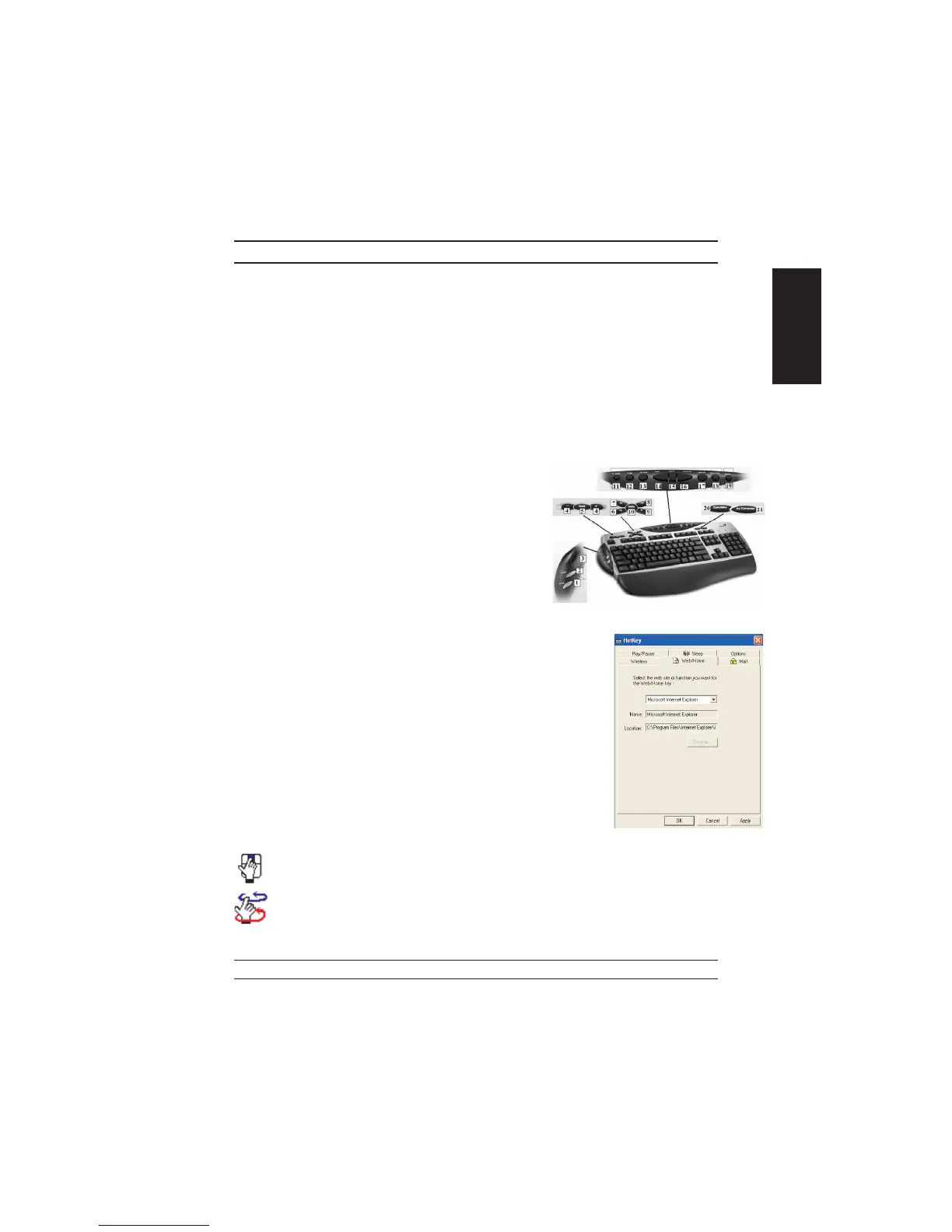
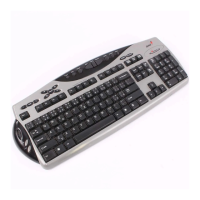
2. Keyboard:
1. Word: Open Word application
2. Excel: Open Excel application
3. Scroll Wheel: For fast browsing and switching
between applications. (If you want to select the
application, please switch the scroll wheel
again.)
4. Vol.-& +: decrease or increase volume
5. Mute: Remove the sound
6. Play & Pause: Play and pause of audio or video
CD’s
7. Rewind: Previous track of audio or video CD’s
8. Forward: Next track of audio or video CD’s
9. Stop: Stop play of audio or video CD’s
10. Media: Controls the playback of music CDs and
PC audio
11. E-mail: Open mail folder
12. Stop: Stop your command when using the browser
13. Refresh: Refresh the page
14. Back: See last page when viewing the Internet
15. www: Open browser in Netscape or IE
16. Forward: Go to next page when viewing the Internet
17. Search: Open the search function when you using browser
18. My favorite: Open my favorite web-site
19. Sleep: Turn system into sleep mode
20. Calculator: Open the calculator from Windows
21. My Computer: Open my computer folder from Windows
MouseMate Software Features
Browsing Speed You can adjust the browsing speed when you surf the
Internet or Windows documents.
Browsing
Direction
Move the “Magic-Roller” forward and the screen will
browse to the top of the document. Move it in reverse and
the document will go in the opposite direction
3
ENGLISH


 To Next Page