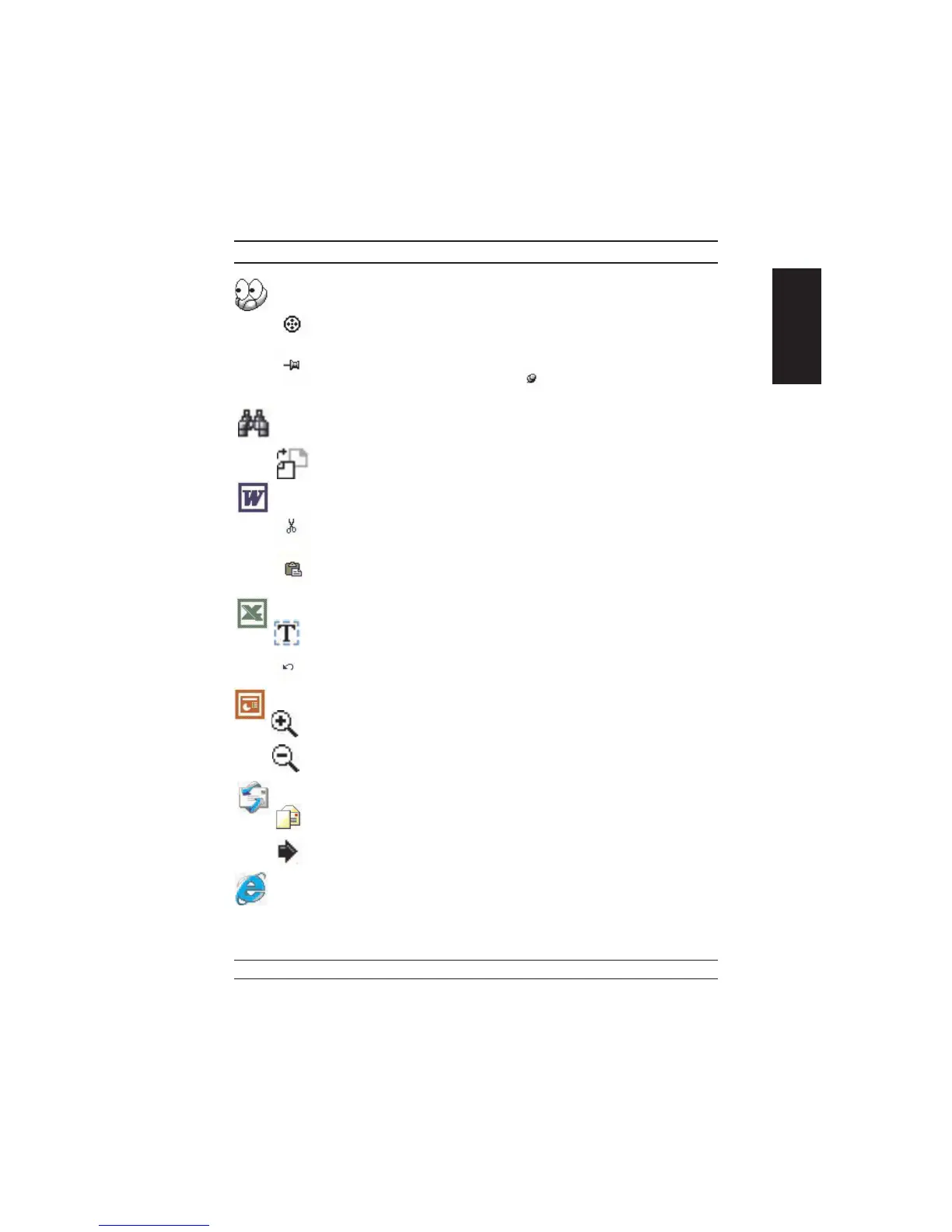
Click this application button to show the mouse control panel. You can check
or modify the mouse properties.
Click this function and the pan icon appears. You can move the mouse
in any direction in a document or a spreadsheet. The farther you move
the pointer from the pan icon, the faster you can pan in that direction.
Click this function and Office EasyJump Frisbee will always be on the
screen and the button will change to . Click it again to cancel this
effect.
This is a programmable application button. Press the right button on this icon
and a dialog box will display for you to select an executable program. Click
on this button to launch your specific application.
Click this function to implement the “replace” function in the current
application.
Click on this application to launch Microsoft Word.
Click this function to perform the “cut” function in Word.
Click this function to implement the “paste” function in Word.
Click on this application to launch Microsoft Excel.
Click this function to implement the “select all” function in Excel.
Click this function to perform the “undo” function in Excel.
Click on this application to launch Microsoft Power Point.
Click this function to implement the “zoom in” function in PowerPoint.
Click this function to implement the “zoom out” function in Power
-
Point.
Click on this application to launch Outlook Express or any other email client
application installed in your system.
Click this function to open a new email.
Click this function to forward a selected email in your mailbox.
Click on this application to open Microsoft Internet Explore or any other
Internet browser installed in your system.
5
ENGLISH


 To Next Page