EasyManua.ls Logo

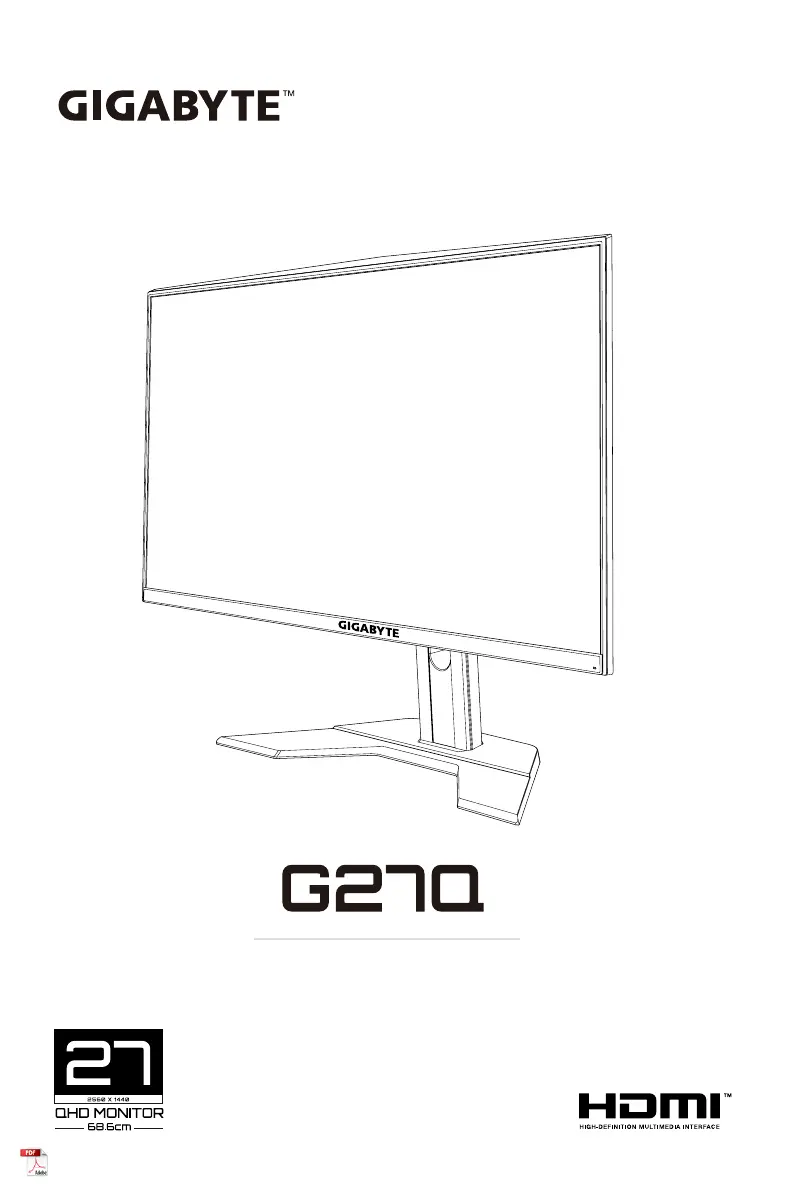
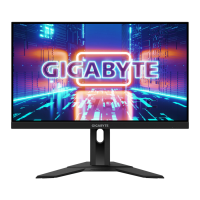
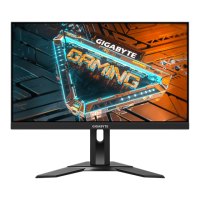
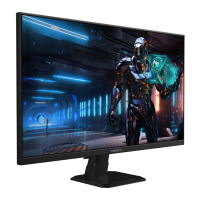
Gigabyte G27Q - User Manual

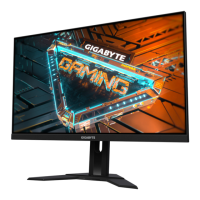
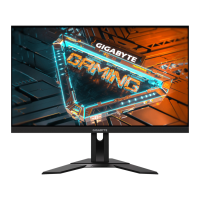
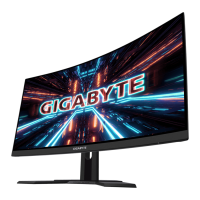
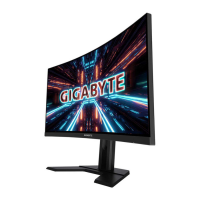
Gigabyte G27Q
41 pages
Print Icon
To Next Page IconTo Next Page
Loading...
-1-
LCD Monitor User's Manual
GRMING MONITOR
USER GUIDEUSER GUIDE

Questions and Answers

Summary

Copyright

Disclaimer

Safety Information

Regulatory Notices

Compliance statements and standards for various regions.

Canadian Department of Communications Statement

Industry Canada compliance statement.

European Union (EU) CE Declaration of Conformity

EU directives compliance for the product.

WEEE Symbol Statement

Explanation of the WEEE symbol and proper disposal procedures.

End of Life Directives-Recycling

Information regarding product recycling and disposal.

Japan Class 01 Equipment Statement

Japanese compliance statement for Class 01 equipment.

Japan VCCI Class B Statement

Japanese VCCI Class B compliance statement.

China RoHS Compliance Statement

Statement regarding hazardous substances in China.

Safety Precautions

Introduction

Unpacking

Step-by-step guide on how to unpack the monitor.

Package Contents

List of items included in the product packaging.

Product Overview

General description of the monitor's features.

Front View

Details and identification of components on the monitor's front.

Rear View

Details and identification of ports and connectors on the monitor's rear.

Getting Started

Installing the Monitor Base

Instructions for attaching the monitor stand.

Adjusting the Viewing Angle

Guidance on setting the optimal screen angle.

Adjusting the Tilt Angle

Instructions for tilting the screen for comfortable viewing.

Adjusting the Screen Orientation

How to adjust the screen's height or rotation.

Installing a Wall-Mount Bracket (Optional)

Steps for mounting the monitor on a wall.

Making Connections

Guide on connecting the monitor to a computer and other devices.

Using the Device

Turning the Power On;Off

Steps to power the monitor on and off.

User Comfort Recommendations

Tips for comfortable and ergonomic monitor usage.

Selecting the Input Source

How to choose the active video input signal.

Operations

Quick Menu

Accessing and navigating the monitor's quick settings menu.

Hot Key

Description of functions assigned to hot keys.

Function Key Guide

Overview of the main menu navigation using the control button.

Dashboard

Explanation of the dashboard feature for displaying system information.

GameAssist

Features designed to enhance the gaming experience.

Device Settings

Configure the Device Settings

Guide to customizing various monitor settings.

Gaming

Settings related to optimizing the monitor for gaming.

Picture

Settings for adjusting image quality and display modes.

Display

Settings related to the monitor's display output.

System

Settings for the monitor's internal system and OSD.

Audio

Settings for audio output and volume control.

OSD Settings

Configuration options for the On-Screen Display menu.

Quick Switch

Customizing hot key functions for quick access.

Other Settings

Miscellaneous system configuration options.

Language

Setting the display language for the OSD menu.

Save Settings

Instructions for saving customized display configurations.

Reset all

Restoring the monitor to its factory default settings.

Appendices

Specifications

Technical data and characteristics of the monitor.

Supported Timing List

List of compatible video resolutions and refresh rates.

Troubleshooting

Basic Care

Guidelines for cleaning and maintaining the monitor.

Notes on USB Charging

Information on USB charging compatibility.

GIGABYTE Service Information

Details on how to obtain customer support and service.

Summary

Copyright

Disclaimer

Safety Information

Regulatory Notices

Compliance statements and standards for various regions.

Canadian Department of Communications Statement

Industry Canada compliance statement.

European Union (EU) CE Declaration of Conformity

EU directives compliance for the product.

WEEE Symbol Statement

Explanation of the WEEE symbol and proper disposal procedures.

End of Life Directives-Recycling

Information regarding product recycling and disposal.

Japan Class 01 Equipment Statement

Japanese compliance statement for Class 01 equipment.

Japan VCCI Class B Statement

Japanese VCCI Class B compliance statement.

China RoHS Compliance Statement

Statement regarding hazardous substances in China.

Safety Precautions

Introduction

Unpacking

Step-by-step guide on how to unpack the monitor.

Package Contents

List of items included in the product packaging.

Product Overview

General description of the monitor's features.

Front View

Details and identification of components on the monitor's front.

Rear View

Details and identification of ports and connectors on the monitor's rear.

Getting Started

Installing the Monitor Base

Instructions for attaching the monitor stand.

Adjusting the Viewing Angle

Guidance on setting the optimal screen angle.

Adjusting the Tilt Angle

Instructions for tilting the screen for comfortable viewing.

Adjusting the Screen Orientation

How to adjust the screen's height or rotation.

Installing a Wall-Mount Bracket (Optional)

Steps for mounting the monitor on a wall.

Making Connections

Guide on connecting the monitor to a computer and other devices.

Using the Device

Turning the Power On;Off

Steps to power the monitor on and off.

User Comfort Recommendations

Tips for comfortable and ergonomic monitor usage.

Selecting the Input Source

How to choose the active video input signal.

Operations

Quick Menu

Accessing and navigating the monitor's quick settings menu.

Hot Key

Description of functions assigned to hot keys.

Function Key Guide

Overview of the main menu navigation using the control button.

Dashboard

Explanation of the dashboard feature for displaying system information.

GameAssist

Features designed to enhance the gaming experience.

Device Settings

Configure the Device Settings

Guide to customizing various monitor settings.

Gaming

Settings related to optimizing the monitor for gaming.

Picture

Settings for adjusting image quality and display modes.

Display

Settings related to the monitor's display output.

System

Settings for the monitor's internal system and OSD.

Audio

Settings for audio output and volume control.

OSD Settings

Configuration options for the On-Screen Display menu.

Quick Switch

Customizing hot key functions for quick access.

Other Settings

Miscellaneous system configuration options.

Language

Setting the display language for the OSD menu.

Save Settings

Instructions for saving customized display configurations.

Reset all

Restoring the monitor to its factory default settings.

Appendices

Specifications

Technical data and characteristics of the monitor.

Supported Timing List

List of compatible video resolutions and refresh rates.

Troubleshooting

Basic Care

Guidelines for cleaning and maintaining the monitor.

Notes on USB Charging

Information on USB charging compatibility.

GIGABYTE Service Information

Details on how to obtain customer support and service.

Gigabyte G27Q Specifications

General IconGeneral
NVIDIA G-SYNCNo
Flicker-free technologyYes
Color depth8 bit
Color gamut92 %
Pixel pitch0.2331 x 0.2331 mm
Screen shapeFlat
Display diagonal27 \
Display technologyLED
Native aspect ratio16:9
Supported video modes1440p
Viewable size, vertical335.66 mm
sRGB coverage (typical)120 %
Contrast ratio (dynamic)12000000:1
Contrast ratio (typical)1000:1
Display number of colors1.67 billion colours
Display diagonal (metric)69 cm
Viewable size, horizontal596.74 mm
Display brightness (typical)350 cd/m²
Supported graphics resolutions2560 x 1440
High Dynamic Range (HDR) technologyHigh Dynamic Range (HDR) 400
USB hub version3.2 Gen 1 (3.1 Gen 1)
DisplayPort version1.2
Headphone connectivity3.5 mm
USB upstream port typeUSB Type-B
LED indicatorsStatus
Tilt angle range-5 - 20 °
Cable lock slot typeKensington
Panel mounting interface100 x 100 mm
Energy efficiency scaleA to G
Power consumption (standby)0.3 W
Power consumption (typical)65 W
Power consumption (PowerSave)0.5 W
RMS rated power4 W
Product colorBlack
Market positioningGaming
Package typeBox
Package depth218 mm
Package width737 mm
Package height294 mm
Package weight9700 g
Cables includedAC, DisplayPort, HDMI, USB
Harmonized System (HS) code85285210
Weight and Dimensions IconWeight and Dimensions
Depth (with stand)203 mm
Height (with stand)519 mm
Weight (with stand)6700 g
Depth (without stand)56 mm
Width (without stand)619 mm
Height (without stand)365.5 mm

Related product manuals