GA-M52S-S3P Motherboard - 86 -
English
Step 6:
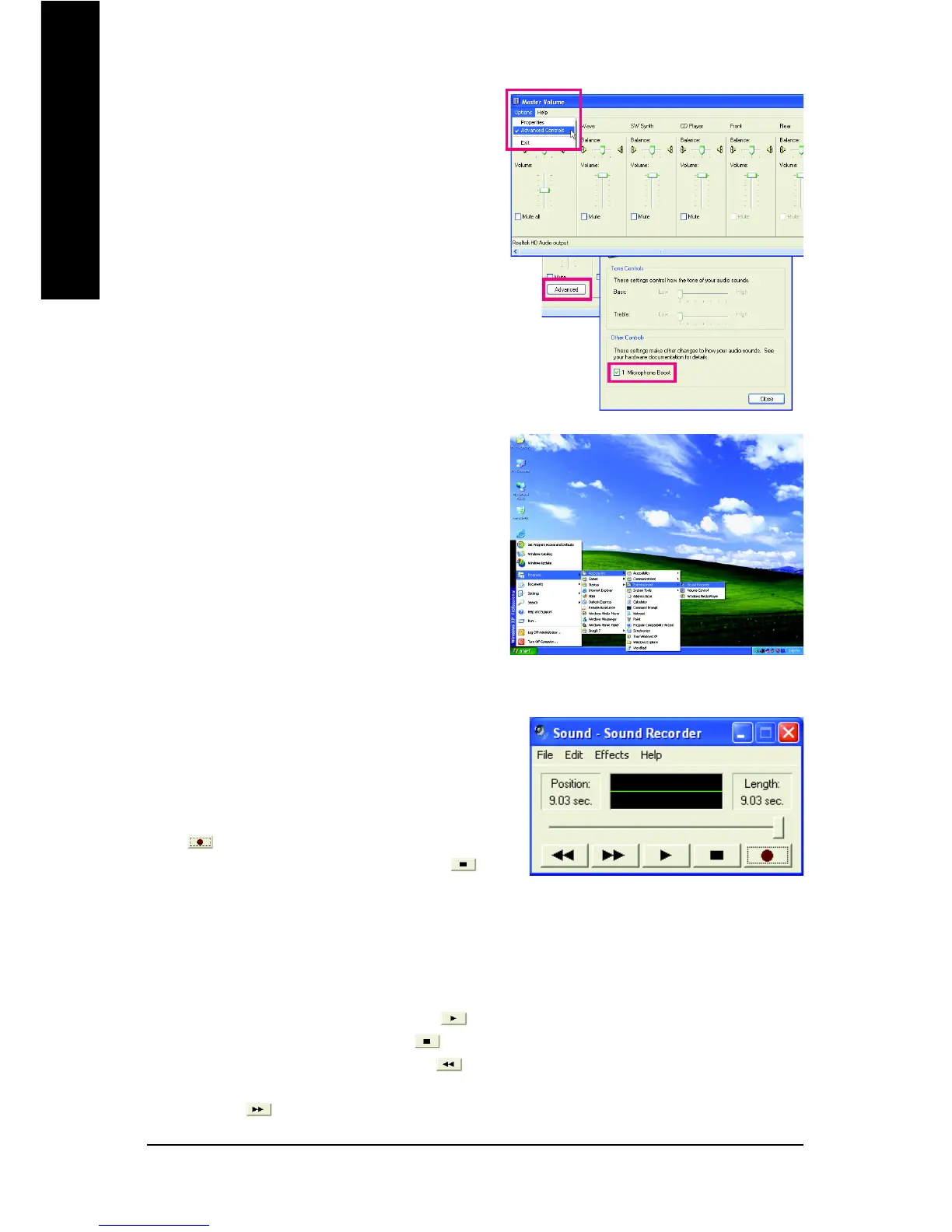
To raise the recording and playing sound for the
microphone, go to Options in Master Volume and
select Advanced Controls. Click the Advanced
button under a volume control option (e.g. Front Green
In, Front Pink In). In the Other Controls field, select
the 1 Microphone Boost check box.
Step 7:
After completion, click Start, point to Programs,
point to Accessories, point to Entertainment, and
then click Sound Recorder to begin the sound
recording.
5-2-4 Using the Sound Recorder
Recording the Sound:
1. Make sure you have connected the audio input
device (e.g. microphone) to the computer.
2. On the File menu, choose New.
3. To record a sound file, click the Recording but-
ton .
4. To stop the recording, click the Stop button .
Be sure to save the recording upon completion.
Playing the Sound:
1. On the File menu, choose Open.
2. In the Open dialog box, select the sound (.wav)
file you wish to play.
3. To play a sound file, click the Play button .
4. To stop playing, click the Stop button .
5. You may use the Fast Forward button to
move to the beginning of a file or the Fast Back-
ward button to the end.


 To Next Page
 Loading...