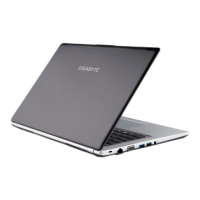
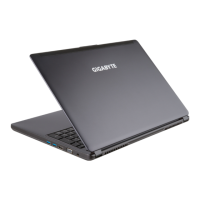
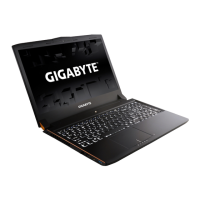
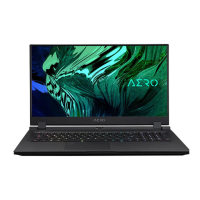
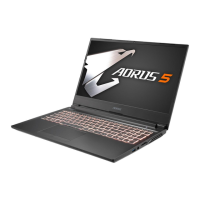
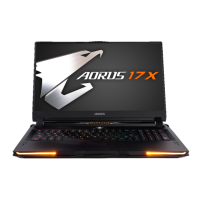
This document is a user's manual for the GIGABYTE P15 Notebook, providing essential information for initial setup, operation, and maintenance.
Function Description:
The GIGABYTE P15 is a notebook PC designed for general computing tasks. It features a standard laptop form factor with an integrated display, keyboard, touchpad, and various ports for connectivity. The notebook is pre-installed with an operating system (Windows 7 or Windows 10, depending on the model) and includes a system recovery feature to restore the device to its factory default settings. It supports external peripherals through USB ports, an optical drive, and video output via D-Sub and HDMI. The notebook also incorporates a webcam, built-in microphone, and audio input/output jacks for multimedia and communication.
Important Technical Specifications:
- Power Adapter Information:
- Input Voltage: 100-240Vac
- Input Frequency: 50-60Hz
- Rating Output Voltage: 19.5V
- Connectivity:
- LAN RJ45 port
- USB Port 3.0 (multiple)
- USB Port 2.0
- HDMI output
- D-Sub output
- Microphone input Jack
- Headphone output Jack
- Storage:
- Supports HDD (Hard Disk Drive) installation in a caddy bay.
- Flash Memory Card Reader
- Optical Drive: Integrated optical drive (ODD bay).
- Memory: HDD & Memory Compartment for upgrades/maintenance.
- Integrated Peripherals:
- Webcam with on/off indicator
- Built-In Mic
- Touchpad and buttons
- Security: Kensington Lock Port
Usage Features:
- First-Time Setup:
- Battery Installation: Insert the battery pack into the compartment and slide the switch to the "Lock" position.
- Power Connection: Connect the power cord to the AC adapter, then the AC adapter to the DC-in jack on the left side of the notebook, and finally the power cord to a power outlet.
- Initial Boot: Ensure the notebook is connected to a grounded power adapter. Do not turn off the P15 until the operating system (Windows) has been configured. Volume will not function until Windows Setup is complete. Follow on-screen prompts to complete Windows OS setup.
- Hotkeys: The notebook utilizes function key combinations (Fn + another key) to access various controls:
Fn+~: Play/Pause (in Audio/Video Programs)Fn+F1: Touchpad Toggle (ON/OFF)Fn+F2: Turn LCD Backlight OFF (Press any key or use Touchpad to turn on)Fn+F3: Mute ToggleFn+F5/F6: Volume Decrease/IncreasesFn+F7: Display ToggleFn+F8/F9: Brightness Decreases/IncreasesFn+F10: PC Camera Power on and offFn+F11: Airplane Mode Toggle (on/off)Fn+F12: Sleep ToggleFn+NumLK: Number Lock ToggleFn+ScrLK: Scroll Lock ToggleCaps Lock: Caps Lock Toggle
- LED Indicators:
- Number Lock Activated
- Caps Lock Activated
- Scroll Lock Activated
- Power Status LED
- Battery Status LED
- HDD Status LED
- Airplane Mode Status LED
- Power Button: Located on the top view of the notebook.
Maintenance Features:
- System Recovery:
- The laptop has a hidden partition with a full backup image of the operating system to restore to factory default settings. This feature is only available on devices with preinstalled OS.
- Windows 7 Recovery Guide:
- Turn off and restart the laptop.
- During startup, press and hold
F9 to launch the tool.
- Click "Recovery" on the option window to start.
- A progress bar will show; ensure the AC adapter is plugged in.
- Reboot after completion.
- Caution: Selecting "Recovery" will delete personal data and files and reset the OS to factory defaults.
- Windows 10 Recovery Guide:
- Turn off and restart the laptop.
- During startup, press and hold
F9 to launch the tool.
- Choose "Troubleshoot" to enter recovery settings, or "Continue" to exit and proceed to Windows 10 (for data backup).
- Two options for system recovery:
- Reset this PC:
- "Keep my files": Removes apps, resets settings to pure O/S (without GIGABYTE app), but keeps personal files.
- "Remove everything": Removes all apps, settings, and personal files.
- "Just remove my files": Only personal data and files removed, computer settings kept.
- "Fully clean the drive": Drive completely restored to factory default settings (takes more time).
- GIGABYTE Utility: Restores PC settings to factory default settings.
5. If choosing "GIGABYTE Utility", click "Yes" to start.
6. A progress indicator bar will show; ensure the AC adapter is plugged in.
7. After completion, click "Shutdown".
- Caution: "GIGABYTE Utility" will delete all personal data and files.
- HDD Installation (Caddy Bay):
- Install the HDD into the Caddy bay.
- Unplug two screws and open the back cover.
- Unplug one screw and take out the ODD bay.
- Install the Caddy bay into the notebook and lock the screws.
- Warranty & Service: Refer to the warranty card or the GIGABYTE service website for related information:
http://www.gigabyte.com/support-downloads/technical-support.aspx
- FAQ: Refer to the GIGABYTE FAQ website for frequently asked questions:
http://www.gigabyte.com/support-downloads/faq.aspx

 Need help?

 To Next Page
 General