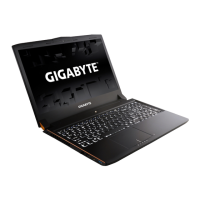
The GIGABYTE P35 is a high-performance notebook designed for a range of computing tasks. This manual provides comprehensive guidance for setting up, using, and maintaining the device, ensuring users can maximize its capabilities.
Function Description
The GIGABYTE P35 notebook serves as a versatile personal computer, capable of handling various applications from everyday productivity to more demanding tasks. It comes with a pre-installed operating system, typically Microsoft Windows, which is configured during the initial setup. The notebook is designed to be portable, allowing users to work or play on the go. Its core function is to provide a complete computing experience, integrating processing, display, input, and storage capabilities into a compact form factor.
Usage Features
The GIGABYTE P35 offers a rich set of usage features, starting with its intuitive setup process. Upon first power-on, users are guided through the Windows setup, including personal information entry and system configuration. The notebook's design incorporates several ports and indicators for easy connectivity and status monitoring.
Top View & Front View Features:
- Webcam and Webcam Status LED Indicator: For video conferencing and capturing images, with an LED to indicate active use.
- Webcam: The integrated camera for video communication.
- Light Sensor: Automatically adjusts screen brightness based on ambient light conditions.
- Microphone: Built-in for audio input during calls or recordings.
- Power Button: To turn the notebook on or off.
- TouchPad: A multi-touch surface for navigation and interaction with the operating system.
- LED Indicators: A set of LEDs providing status updates for:
- Bluetooth Status LED: Indicates Bluetooth connectivity.
- Wireless LAN Status LED: Shows Wi-Fi activity.
- HDD Status LED: Flashes during hard drive activity.
- Battery Status LED: Displays the charging status and battery level.
- Power Status LED: Indicates if the notebook is powered on.
- Battery Life Indicator (Battery Mode): Provides a visual representation of battery charge levels even when the laptop is shut down, in standby, or hibernation, with different LED patterns for various charge percentages (<10%, 11-30%, 31-50%, 51-70%, 71-90%, >90%).
- Swappable Storage Bay: A unique feature allowing users to easily swap out storage devices.
- Power Check Button: For quick battery status checks.
Left View Features:
- Kensington Lock Slot: For securing the notebook physically.
- Ethernet Port: For wired network connections.
- USB 2.0 Port: For connecting various USB devices.
- Headphone Jack: For audio output to headphones or external speakers.
- Microphone Jack: For connecting an external microphone.
- SD Card Reader: For reading and writing data to SD memory cards.
Right View Features:
- MiniDisplayPort: For connecting to external displays.
- USB 3.0 Port: High-speed USB port for data transfer.
- USB 3.0 Port (USB Charge): A high-speed USB port that also supports charging devices even when the notebook is off.
- HDMI Port: For high-definition video and audio output to external displays.
- External Display (VGA) Port: For connecting to older external monitors.
- DC-in Jack: For connecting the AC adapter to power and charge the notebook.
Base View Features:
- Memory Compartment: Provides access to the RAM modules for upgrades or maintenance.
- Subwoofer: Enhances audio output with deeper bass.
- Speakers: Integrated for audio playback.
Hotkeys:
The notebook incorporates a series of hotkeys, activated by pressing and holding the <Fn> key in combination with other function keys, to quickly access various controls:
- Fn+ESC (Eject ODD): Ejects the optical disc drive (if present).
- Fn+F1 (Sleep): Puts the computer into Sleep mode.
- Fn+F2 (Wireless LAN): Enables or disables the Wireless LAN function.
- Fn+F3 (Brightness Down): Decreases screen brightness.
- Fn+F4 (Brightness Up): Increases screen brightness.
- Fn+F5 (Display Toggle): Switches display output between the notebook screen, an external monitor, and both.
- Fn+F6 (Touchpad Toggle): Turns the internal touchpad on or off.
- Fn+F7 (Speaker Toggle): Turns the speaker on or off.
- Fn+F8 (Volume Down): Decreases the sound volume.
- Fn+F9 (Volume Up): Increases the sound volume.
- Fn+F10 (Screen Display Toggle): Turns the screen display on or off.
- Fn+F11 (Bluetooth): Enables or disables the Bluetooth function.
- Fn+F12 (Webcam): Turns the internal webcam on or off.
- Fn+Space (Keyboard Backlight Toggle): Turns the keyboard backlight on or off.
Swappable Bay Application:
The swappable bay allows for easy installation and removal of a 9.5mm HDD/SSD. Users can unlock the bay locker, draw out the swappable bay, connect the HDD or SSD by sliding it into the connector, gently push the plastic frame outwards, slide the drive into place until it clicks, and then lock the swappable bay locker.
GIGABYTE Smart Manager:
This icon-based control interface, accessible from the desktop, provides intuitive access to common system settings and GIGABYTE exclusive utilities. Its interface and features may vary by model.
RAID 0/1 Setup:
The notebook supports RAID 0/1 configuration for enhanced storage performance or data redundancy. This involves changing the SATA Mode selection in the BIOS from AHCI to RAID, then using the Intel Rapid Storage program in Windows to create a volume. This feature requires two storage drives of the same specification and capacity for RAID 1, or two drives of the same specification (different capacities are acceptable) for RAID 0.
Maintenance Features
The GIGABYTE P35 includes several features to help users maintain their system, including backup and recovery options.
Smart USB Backup Guide:
This application allows users to create a recovery USB disk with the original recovery image. This is crucial for restoring the system in case of data loss or system issues.
- Process:
- Plug in a USB disk with at least 20GB capacity (data on the USB disk will be erased).
- Install "Smart USB Backup" from the driver disk or GIGABYTE's website.
- Run the "Smart USB Backup" application.
- Select the USB disk from the list and start creating the recovery USB disk.
- Once created, the system can be restored by pressing F12 during startup and selecting "boot from recovery USB disk."
Recovery Guide (System Recovery):
The notebook has a hidden partition containing a full backup image of the operating system, allowing users to restore the system to factory default settings.
- Windows 7 Recovery:
- Turn off and restart the laptop.
- Press and hold F9 during startup to launch the tool.
- Click "Recovery" on the option screen to begin.
- Caution: This process will delete personal data and files and reset the operating system to factory defaults.
- Windows 8.1 Recovery:
- Turn off and restart the laptop.
- Press and hold F9 during startup to launch the tool.
- Choose "Troubleshoot" to enter recovery settings. Users can also choose "Continue" to exit and proceed to Windows 8.1 for data backup.
- Two options for system recovery:
- Refresh your PC: Improves system stability without losing files, but PC settings are restored to factory defaults, and apps from discs/websites are removed (a list is saved on the desktop).
- Reset your PC: Removes all files and resets the PC completely to factory defaults. Users can choose "Just remove my files" or "Fully clean the drive" (which takes longer).
- Advanced options: Include System Restore, System Image Recovery, Automatic Repair, Command Prompt, UEFI Firmware Settings, and Startup Settings.
Warranty & Service:
Information regarding warranty and service is available on the GIGABYTE website and the warranty card.
FAQ:
Frequently Asked Questions are available on the GIGABYTE support website.
Important Warning:
Users are advised not to remove the built-in lithium battery. For any service needs, they should contact their local GIGABYTE Authorized Service Center.

 Need help?
 General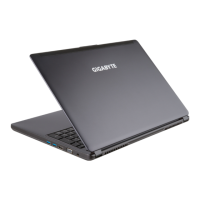

 To Next Page