EasyManua.ls Logo

Gigaset 108 - User Manual

Gigaset 108
143 pages
Print Icon
To Next Page IconTo Next Page
Loading...
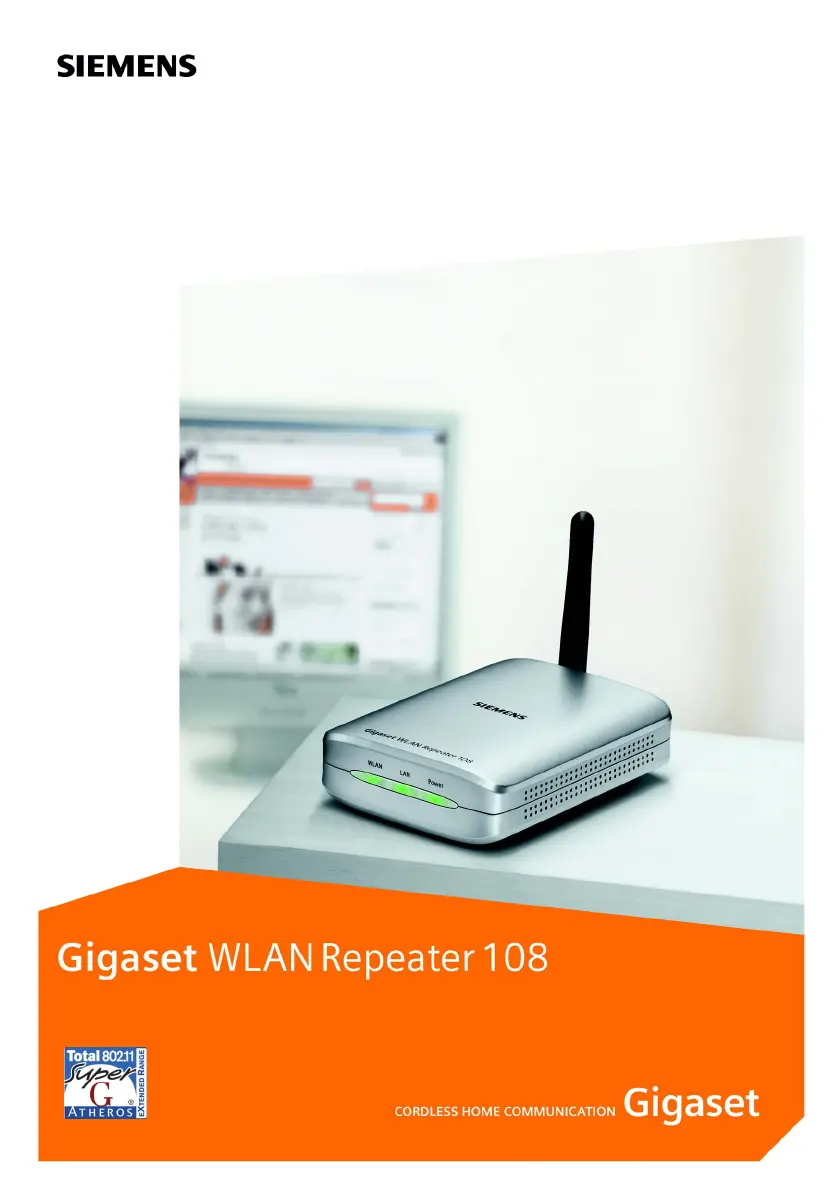
Gigaset WLAN Repeater 108 / englisch / A31008-M1030-B101-2-7619 / cover_front.fm / 05.12.2005
Template 2005_05_02

Table of Contents

Other manuals for Gigaset 108

Questions and Answers

  • R
    rthompsonAug 7, 2025
    Why is my Gigaset WLAN Repeater 108 not working in Repeater Operating Mode?
    • M
      Michelle MartinezAug 7, 2025
      If the Gigaset WLAN Repeater 108 is not working correctly in Repeater Operating Mode, ensure that the repeater function is activated on both the Gigaset WLAN Repeater 108 and your access point.
  • J
    Janice RomeroAug 16, 2025
    What should I do if no LED lights up on the front panel of my Gigaset Repeater?
    • D
      Devon MccarthyAug 16, 2025
      If no LED lights up on the front panel, it's likely the device isn't properly connected to the mains power supply. Verify that the mains adapter plug is fully inserted into the device and that the power socket is working. You can test the socket using a known working device, such as a desk lamp.
  • T
    teresasheltonAug 20, 2025
    What to do if the suggested steps don't fix my Gigaset WLAN Repeater 108 problem?
    • P
      Peter HughesAug 20, 2025
      Download the new firmware from the Gigaset WLAN Repeater 108 product page on the website and load it onto your device.
  • J
    Jeffrey MillerOct 25, 2025
    Why can't I access my Gigaset WLAN Repeater 108 from my PC wirelessly?
    • M
      michelewagnerOct 25, 2025
      There could be several reasons why you cannot access your Gigaset WLAN Repeater 108 from your PC wirelessly. It could be that you are not properly connected to the Gigaset WLAN Repeater 108, so check the parameters in the Gigaset WLAN Adapter Monitor. Another reason could be that the PC's network settings are incorrect; ensure the IP address and subnet mask are correctly set or that obtaining an IP address automatically is activated. If your PC is configured to automatically obtain IP addresses, but the DHCP server of your Gigaset WLAN Repeater 108 is switched off, manually assign a static IP address for your PC in your Gigaset WLAN Repeater 108 address block. Finally, the IP address of your Gigaset WLAN Repeater 108 might have changed if you activated the 'Obtained automatically' option. ...
  • L
    Laura CampbellOct 29, 2025
    How to fix a wireless connection issue with Gigaset Repeater 108?
    • Y
      ylewisOct 29, 2025
      If you cannot establish a wireless connection to the Gigaset WLAN Repeater 108, consider these potential causes and solutions: * **Range:** You might be too far from the device. Try reducing the distance to the Gigaset WLAN Repeater 108 and align the antennas of the devices involved. * **SSID Broadcast:** If you've deactivated the SSID broadcast option, the Gigaset WLAN Repeater 108 won't appear in the network overview. Manually enter the SSID of the Gigaset WLAN Repeater 108 in your wireless network adapter settings to establish the connection. * **Encryption:** If encryption (WEP/WPA) is activated on your Gigaset WLAN Repeater 108, ensure you apply the same encryption settings to your wireless network adapter. * **MAC Filter:** If the MAC filter is active on your Gigaset WLAN Re...
  • M
    Michelle FrazierNov 2, 2025
    What to do if I can't access the Gigaset Repeater 108 from a PC via LAN cable?
    • B
      Bryan HaysNov 2, 2025
      If you cannot access the Gigaset WLAN Repeater 108 from a PC via LAN, it may be due to several reasons. First, the connection between the PC and the Gigaset WLAN Repeater 108 might be interrupted. Check the cable connection, ensuring the LED for the LAN socket lights up. Another cause might be incorrect network settings on the PC. Ensure the PC has the correct configuration for connecting to the Gigaset WLAN Repeater 108, such as a correctly set IP address and subnet mask, or that automatically obtaining an IP address is activated. If your PC is configured to automatically obtain IP addresses, but the DHCP server of your Gigaset WLAN Repeater has been switched off, manually assign a static IP address for your PC in the Gigaset WLAN Repeater 108 address block. Lastly, the IP address of your...
  • C
    Crystal FieldsNov 10, 2025
    Why isn't the LAN socket LED lighting up on my Gigaset Repeater 108?
    • T
      Thomas MclaughlinNov 11, 2025
      If the LED for the Gigaset WLAN Repeater 108 LAN socket doesn't light up, consider these possibilities: * **No Device Connected:** You may not have any devices connected. Connect a device using the LAN cable supplied. * **Improper Connection:** The device may not be properly connected. Make sure the LAN cable connectors are firmly seated in the correct connection sockets on both the Gigaset WLAN Repeater 108 and the connected terminal. * **Power/Readiness:** Your Gigaset WLAN Repeater 108 may not be connected to the mains power supply or ready for use. Check if the Power LED is continuously lit and, if needed, restart the device by briefly disconnecting it from the power. * **Device Status:** The connected device might not be switched on or ready for use. Check the status of the c...

Summary

Safety Precautions

Trademarks

Lists registered trademarks of Microsoft, Mozilla, and Atheros Communications.

Introduction to Gigaset WLAN Repeater 108

Possible Uses

Details various functions and operating modes of the device.

Use as Repeater

Explains extending wireless network coverage.

Use as Access Point in conjunction with a Router

Describes connecting to a wired network for wireless access.

Use as Wireless Network Adapter

Explains the device's function as a wireless network adapter.

Accessing Internet with a PC

Provides wireless Internet access for a single PC.

Security Functions

Discusses encryption and authentication methods for network protection.

First Steps

System Requirements

Lists necessary hardware and software for operating the device.

Device Displays and Connections

Front Panel LEDs

Describes the LED indicators on the front of the device.

Back Panel Sockets

Details sockets and the reset button on the back panel.

Setting Up the Gigaset WLAN Repeater 108

Connecting the Gigaset WLAN Repeater 108

To a Wired Network (LAN), PC, or Modem

Instructions for connecting via Ethernet cable to network devices.

Wireless Connection to a PC

Steps for establishing a wireless connection to a PC.

Connecting to the Mains Power Supply

Understanding the User Interface

Launching the User Interface

Guides on accessing and logging into the device's configuration interface.

The Start Screen

Describes the main screen and its functions for configuration.

User Interface Elements

Explains UI elements like Log Off button, Help, and wizard buttons.

Basic Setup Wizard

Regional Options Setup

Steps for selecting country, time zone, and date/time formats.

Operating Mode Selection

Choosing between Repeater, Access Point, or Ethernet Adapter modes.

Wireless Network Settings

Configures wireless network parameters like channel and SSID.

Local Network Settings

Configures IP address type, subnet mask, and DHCP server settings.

Security Setup Wizard

Changing the System Password

Guides on changing the default admin password for security.

SSID Configuration

Explains how to set or change the wireless network name (SSID).

Setting Data Encryption

Details options for securing wireless traffic using WEP or WPA.

WPA2;WPA Security with PSK

Instructions for configuring WPA2/WPA security with a pre-shared key.

WEP Encryption Setup

Describes how to set up WEP encryption for wireless security.

Wireless Access Control

Explains restricting access using MAC address filtering.

Saving Security Settings

Guides on saving the wizard's configuration changes.

Configuring Advanced Settings

Operating Mode Settings

Allows changing the device's operating mode to Repeater, Access Point, or Ethernet adapter.

Local Network Configuration

Configuration of IP addresses and DHCP settings for the local network.

Wireless Network Configuration

Settings for wireless network like channel, SSID, and security.

Administration Settings

Access to system settings like regional options, password, and firmware updates.

Administration Tasks

Regional Options Setup

Settings for country, time zone, date and time formats, and time server.

System Password Management

How to assign or change the system password for security.

Configuration Backup and Restore

Procedures for backing up and restoring device settings.

Factory Reset Procedure

Instructions to revert the device to its original factory settings.

Firmware Update Process

Process for updating the device's software to the latest version.

System Log Management

How to view and manage device logs for troubleshooting.

Status Information

Status Overview

Provides a summary of the device's current operating status.

Local Network Status

Displays IP address, subnet mask, and DHCP server status.

Wireless Network Status

Shows status of wireless connection, SSID, channel, and clients.

Device Information

Information about system uptime, firmware version, hardware, etc.

Appendix - Network Configuration

Console & Set-Top Box Wireless Setup

Example configuration for connecting game consoles wirelessly.

Network Integration Guide

Steps for configuring network settings in Windows OS.

Automatic IP Address Assignment

How the DHCP server assigns IP addresses automatically.

Static IP Address Assignment

Instructions for manually setting static IP addresses for PCs.

Troubleshooting Issues

Device Specifications

Product Approval and Compliance

Product Disposal Guidelines

Customer Support and Service

Guarantee Information

UK Guarantee Certificate

Details of the manufacturer's guarantee terms for UK products.

Ireland Guarantee Certificate

Details of the manufacturer's guarantee terms for Ireland products.

Swedish Warranty Terms

Manufacturer's warranty conditions for products sold in Sweden.

Finnish Warranty Terms

Warranty terms and conditions for products purchased in Finland.

Danish Warranty Terms

Manufacturer's warranty conditions for products sold in Denmark.

Glossary of Terms

Document Index

Gigaset 108 Specifications

General IconGeneral
BrandGigaset
Model108
CategoryRepeater
LanguageEnglish

Related product manuals