Gira smart home app 3
1
User interface
1.1
Structure of the user interface
Note
Differences in the views
The figures in the tile or detail views may differ from the views in your project,
as the texts, functions and symbols can all be individually configured as desired.
Accordingly, this document makes reference only to the basic functions.
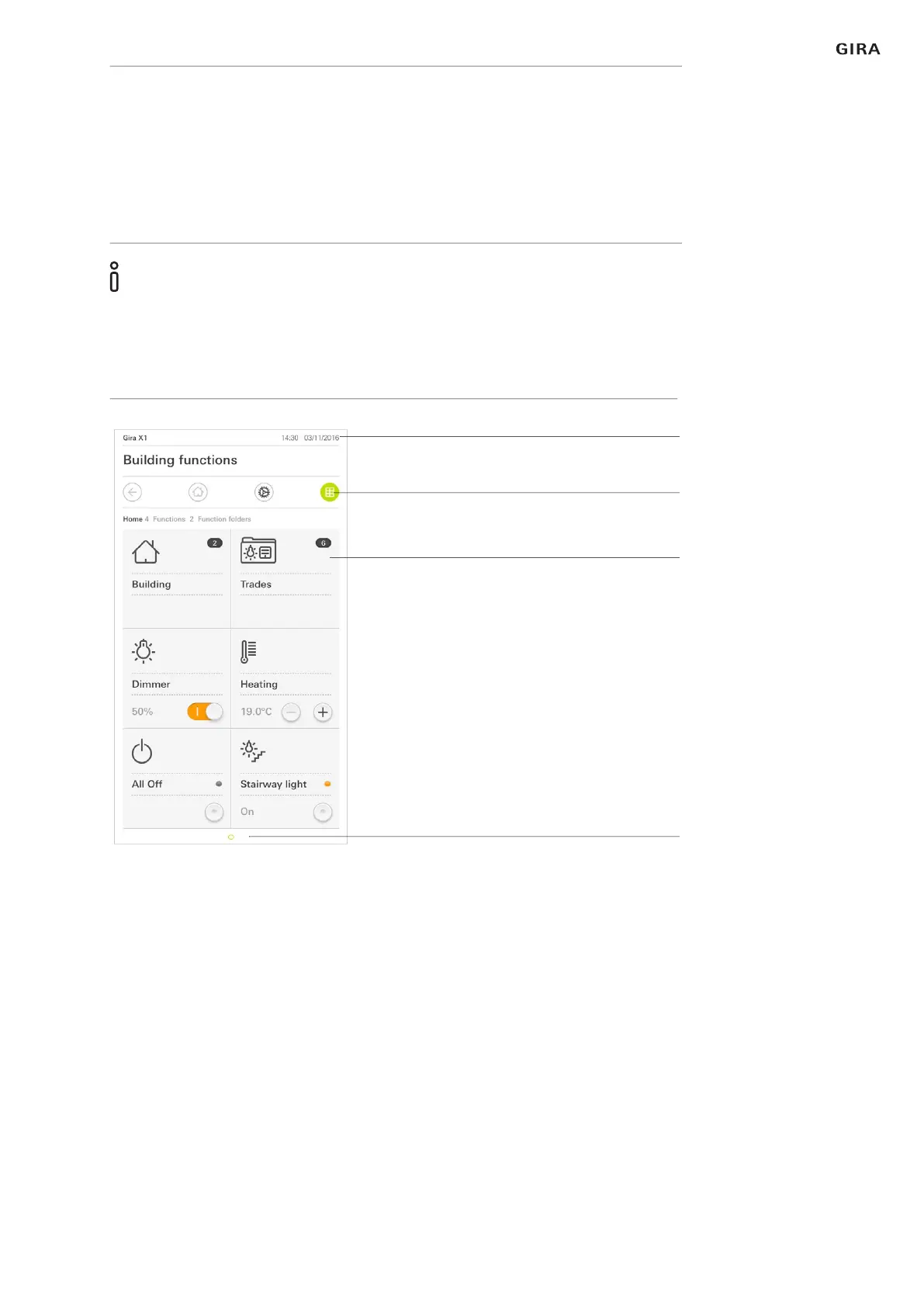
The user interface is divided into four areas:
[1] Status bar [see 1.2]
[2] Navigation bar [see 1.3]
[3] Action area [see 1.4]
[4] Orientation guide
At the lower edge of the screen you will see a circle for every available func-
tion or page. The circle marked shows the current position. By swiping hori-
zontally, you can change the function or page. This also causes the marked
circle to shift.
Fig. 1
User interface
[1]
[2]
[3]
[4]


 To Next Page