EasyManua.ls Logo

Global G200 - User Manual

Global G200
37 pages
Print Icon
To Next Page IconTo Next Page
Loading...
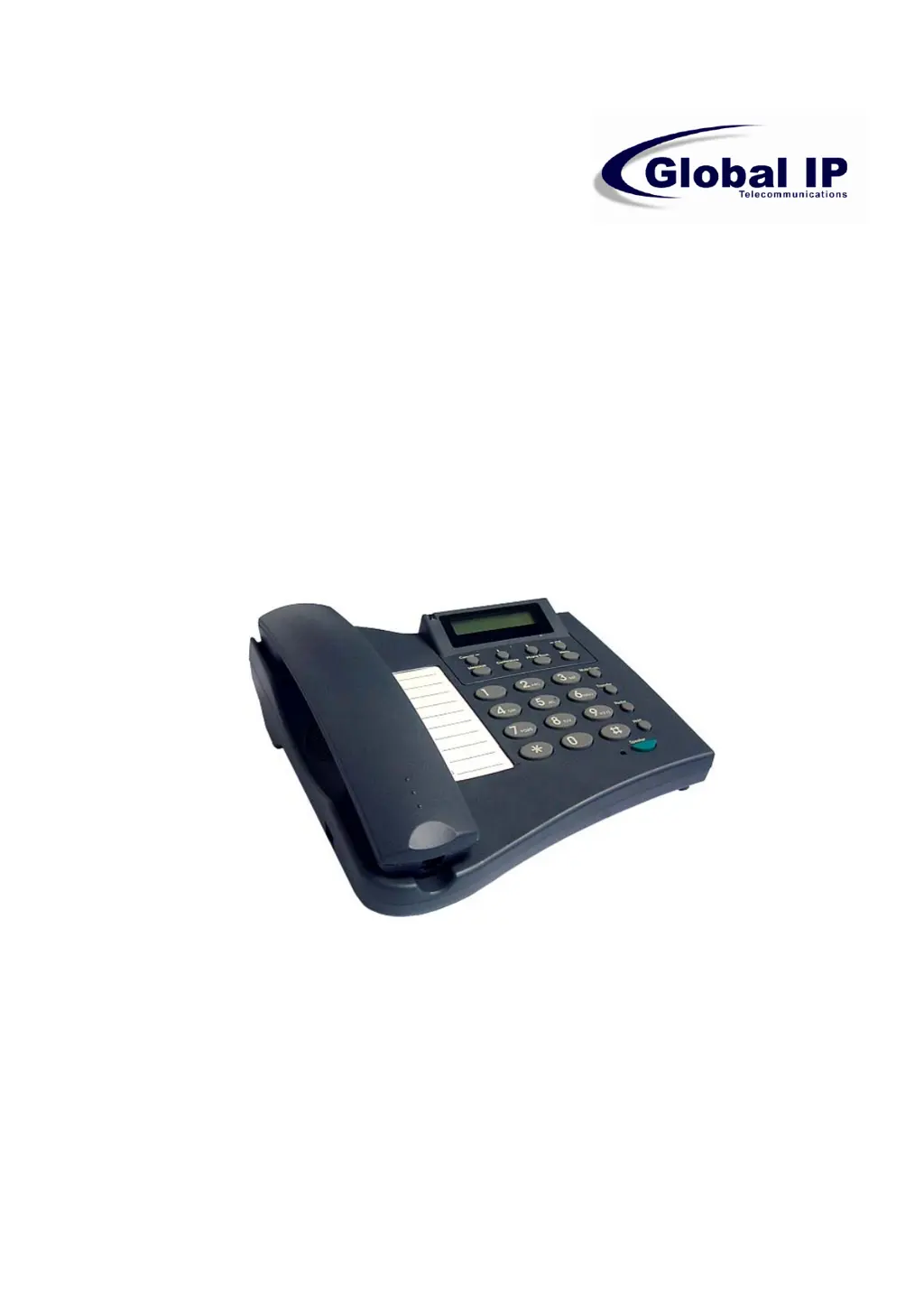
G200 (P200) SIP Phone
User Guide
Errors, misprint, modifications and omissions excepted.
No responsibility is taken for the correctness of this information.
© 2005 Global IP Telecommunications, Inc. • 92 Derrick Road • Bradford, PA 16701 • U.S.A

Table of Contents

Questions and Answers

  • J
    Jenny StanleyJul 27, 2025
    Why do I get “Can’t Upgrade Now” screen when I click [Submit] in the configuration menu of my Global IP Phone?
    • J
      Jessica AyersJul 27, 2025
      To resolve this, ensure you exit any setting mode (like phonebook, menu, or speed dial) before clicking [Submit] in the configuration menu.
  • J
    jeffrey47Aug 1, 2025
    Why isn’t my Global IP Phone firmware updating?
    • G
      George RobinsonAug 1, 2025
      To update the firmware on your Global IP Phone: * The phone automatically detects new firmware when you unplug the power. If a new version is available, the phone will automatically update. * Verify that the FTP address is correct. * Confirm with your supplier that the firmware filename is correct.
  • T
    Tina WilliamsAug 6, 2025
    Why can’t I dial my friend’s SIP number on my Global IP Phone?
    • H
      hclarkAug 6, 2025
      If you can't dial your friend's SIP number on your Global IP Phone, check the Registrar Server Domain Name/IP address and Outbound Proxy Domain Name/IP Address (under SIP Settings in Configuration Menu) to ensure you have the correct Name or IP Address. Also, check the LCD display to see if a name or number is displayed. If not, use a web browser to access the configuration menu and ensure the Registrar Server Domain Name/IP Address is correct. Finally, check the register status under SIP Account Settings in the configuration menu (from a web browser); if your status is unregistered, contact your SIP service provider to get an account.
  • A
    Andrea ParkerAug 11, 2025
    What to do if I accidentally set DSL to enable and now the Global IP Phone does not boot up?
    • P
      perkinsmariaAug 11, 2025
      If you accidentally set DSL to enable and now the Global IP Phone does not boot up, unplug the power cord, wait 2 seconds, and plug it back in while pressing and holding the MENU key. This should bypass the boot-up and take you straight to the phone setup menu, where you can modify and save the phone settings.
  • S
    Sheena FlynnAug 16, 2025
    What to do if nothing is displayed on the LCD screen of my Global IP Phone?
    • S
      Sydney ShepherdAug 16, 2025
      If nothing is displayed on the LCD screen of your Global IP Phone, check if the power cord is connected properly and if there is 120V AC coming from the power outlet.
  • P
    Patricia WrightAug 21, 2025
    How to fix Global IP Phone with no DIAL tone?
    • C
      clayseanAug 21, 2025
      If there is no dial tone on your Global IP Phone, check if there are any loose connections.

Summary

INTRODUCTION

LIST OF FIGURES

SUMMARY OF KEY FUNCTIONS

CONNECTING THE IP PHONE

IP PHONE SETUP

6.1 Menu Summary

Overview of the phone's menu structure and navigation flow.

6.2 Display Name

How to set or change the display name on the IP phone.

6.3 ADSL Dialup

Instructions for configuring ADSL dial-up settings, including ID and password.

6.4 DHCP (Dynamic Host Configuration Protocol)

Guide to enabling or disabling DHCP for automatic IP address configuration.

6.5 SNTP Server IP

Setting up the Simple Network Time Protocol server for accurate time.

6.6 Do Not Disturb

How to enable or disable the Do Not Disturb feature to reject calls.

6.7 CF (call forward) Unconditional

Configuring unconditional call forwarding to another number.

6.8 CF (call forward) User Busy

Setting up call forwarding when the user is busy.

6.9 CF (call forward) No Answer

Configuring call forwarding when there is no answer.

6.10 Anonymous Call

How to enable or disable hiding caller ID information.

6.11 Anony Call Rej (Anonymous Call Rejection)

Setting up the feature to reject anonymous incoming calls.

6.12 Ringing Type

Selecting one of the four available ring tones.

6.13 MAC Address

Displaying the phone's MAC address, which cannot be modified.

6.14 Version

Displaying the firmware version of the IP phone.

6.15 Language Selection

Choosing between supported languages, Japanese and English.

6.16 Time Format

Selecting the preferred time format, 12-hour or 24-hour.

6.17 Volume Adjustment

Adjusting the ringer volume of the IP phone.

6.17.1 Ringer Volume

Instructions for adjusting the ringer volume.

6.17.2 Speaker Volume

How to adjust the speaker volume while the handset is in place.

6.17.3 Handset Volume

Steps to adjust the handset volume.

USING THE CONFIGURATION MENU

7.1 Accessing Configuration Menu

Steps to access the phone's configuration menu via a web browser.

7.2 Web Login Setting

Configuring web login settings like User Name and Password.

7.3 Management Setting - Restore Factory Setting

Restoring the phone's settings to factory defaults.

7.4 Management Setting - Firmware update

Instructions for updating the phone's firmware via FTP.

7.5 Network Setting - DHCP

Configuring network settings using DHCP for IP address assignment.

7.6 Network Setting - PPPoE

Setting up network connection using PPPoE for DSL users.

7.7 Network Setting - Static IP

Configuring network settings with a static IP address.

7.8 SIP Setting - SIP Phone Setting, Registrar and Outbound Proxy Server and Others

Configuring SIP phone settings, registrar, and proxy servers.

7.9 SIP Account Settings

Managing SIP account settings for multiple phone lines.

7.10 STUN Setting - STUN Server Setting, UPnP Setting

Configuring STUN and UPnP settings for network traversal.

7.11 Voice Setting and QoS

Adjusting voice settings and Quality of Service parameters.

7.12 Phone Settings - Phone Setting and Timer

Configuring general phone settings and various timers.

7.13 Call Tracing Log

Accessing the call tracing log for troubleshooting.

7.14 Phone Book

Managing the phone book by adding, editing, or deleting numbers.

7.15 Speed Dial

Configuring speed dial numbers for quick dialing.

7.16 Restart System

Restarting the IP phone system to apply changes.

OPERATING THE PHONE

8.1 Dialing

Instructions for dialing using IP address or SIP number.

8.2 Speed Dialing

How to dial using pre-configured speed dial numbers.

8.3 Answering a Phone Call

Steps for answering an incoming phone call.

8.4 Switching to Another Line

How to switch between active phone lines.

8.5 Mute

Using the mute function to silence the microphone during a call.

8.6 Call Transfer

Procedures for transferring an ongoing call to another number.

8.7 Redial

Redialing the last called number or accessing call history.

8.8 On Hold

Placing a call on hold and resuming it later.

8.9 Call Forward

Information regarding call forwarding settings (referencing other sections).

8.10 Three Way Conference

How to initiate and manage a three-way conference call.

USING THE PHONEBOOK

9.1 Dialing from the Phonebook

Steps to dial numbers stored in the phonebook.

9.2 Storing a Number

Procedures for adding new contacts to the phonebook.

9.3 Editing a Number

How to modify existing contacts in the phonebook.

9.4 Deleting a Number

Procedures for removing contacts from the phonebook.

TROUBLESHOOTING

There are no DIAL tone

Recommended actions for when no dial tone is available.

Nothing is displayed on the LCD screen

Troubleshooting steps for a blank LCD screen.

How to update Firmware?

Information on how the IP phone firmware is updated.

Why cant I dial my friends SIP number?

Common reasons and solutions for being unable to dial SIP numbers.

Why isnt my firmware updating?

Troubleshooting steps if firmware updates are not working.

I accidentally set DSL to enable and now the phone does not boot up

Solution for boot-up issues after incorrect DSL configuration.

SAFETY INSTRUCTIONS, DETAILS AND CERTIFICATION

Model: G200

Identifies the specific model of the IP phone discussed.

Global IP Telecommunications, Inc.

Manufacturer information for the IP phone.

Rating: DC +5 v, 1.4 A

Electrical rating and power requirements for the device.

FOR HOME OR OFFICE USE.

Specifies the intended usage environment for the phone.

Tested to comply with FCC standards.

Compliance with Federal Communications Commission standards.

FCC Part 15 Class B

Specific FCC classification for electromagnetic interference.

CE Class B

Compliance with European conformity standards.

VCCI Class B

Compliance with Voluntary Control Council for Interference standards.

EN 60950

Compliance with European safety standards for information technology equipment.

Global G200 Specifications

General IconGeneral
ProtocolsSIP
Opus CodecYes
HD AudioYes
Wall MountableYes
PoEYes
Headset Port3.5mm