Sign in and connect your Glowforge to Wi-Fi
Your Wi-Fi network must be 2.4 GHz b/g/n and WPA2, WPA, WEP, or open. Note that every user
must have their own account. If another user needs an account email us at support@glowforge.com to
request one. It is a violation of your agreement to allow anyone other than you to use your Glowforge
online account.
Get Ready
Find a device that uses Wi-Fi to access
The internet, like a laptop computer. Go to
community.glowforge.com and make sure
the page loads correctly.
Begin Setup
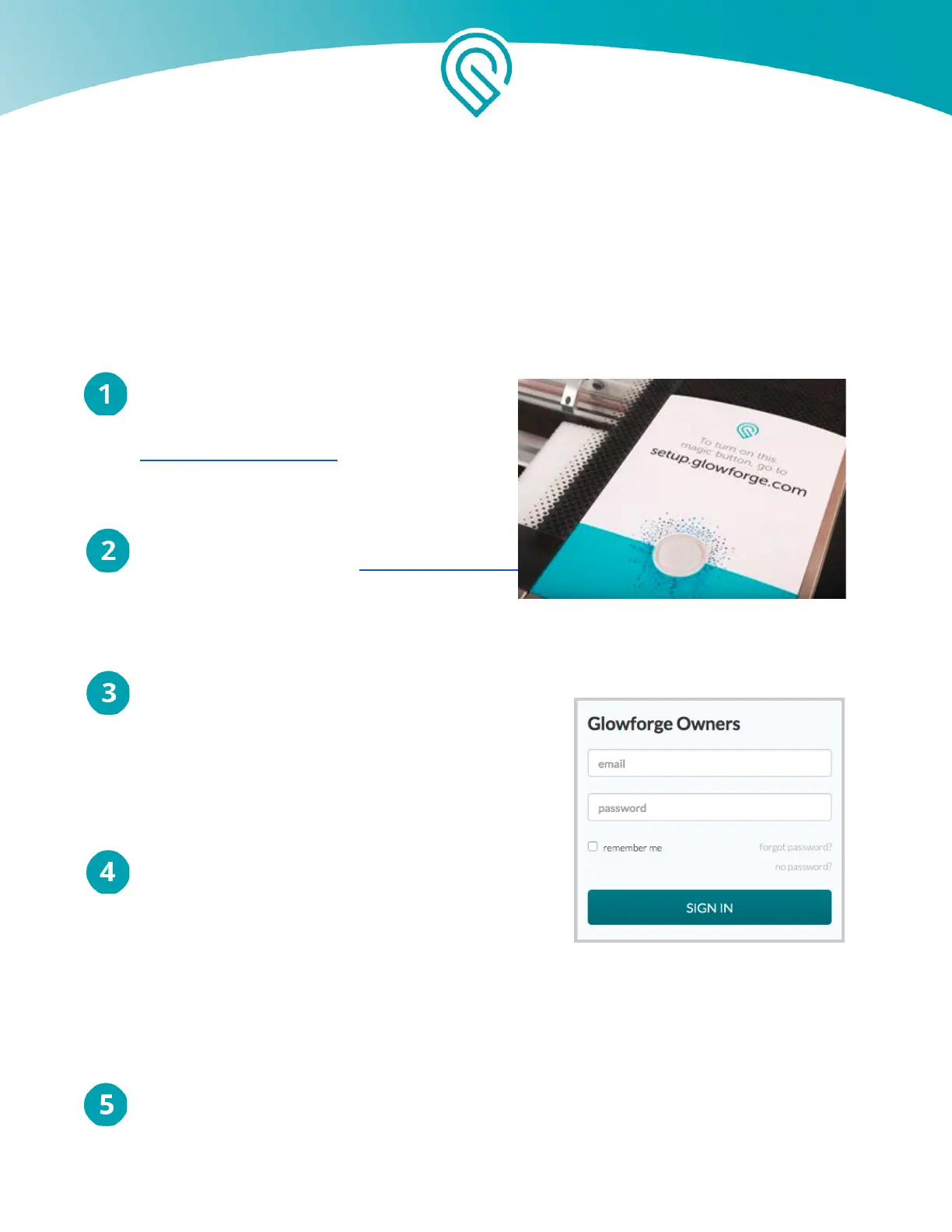
To begin setup, go to setup.glowforge.com
Sign In
Your username is the email you used when placing
your order. If you have not used your Glowforge
account at all yet, you can set up your password by
clicking “Forgot password?” You’ll receive an email
to help you create or reset your password.
Enable Airplane Mode
If you are using a phone or other device that can
access the internet through the cellular network, put
it in airplane mode. Otherwise, it will use the cellular
network, and won’t communicate with your Glowforge
in the next step.
Connect to Your Glowforge Unit’s Wi-Fi
Your Glowforge is now broadcasting a special Wi-Fi channel so you can connect to it and finish
setting it up. Follow the instructions on screen to connect to your Glowforge unit’s Wi-Fi. You
Copyright Glowforge, Inc. 2020 35


 To Next Page