Time to Print
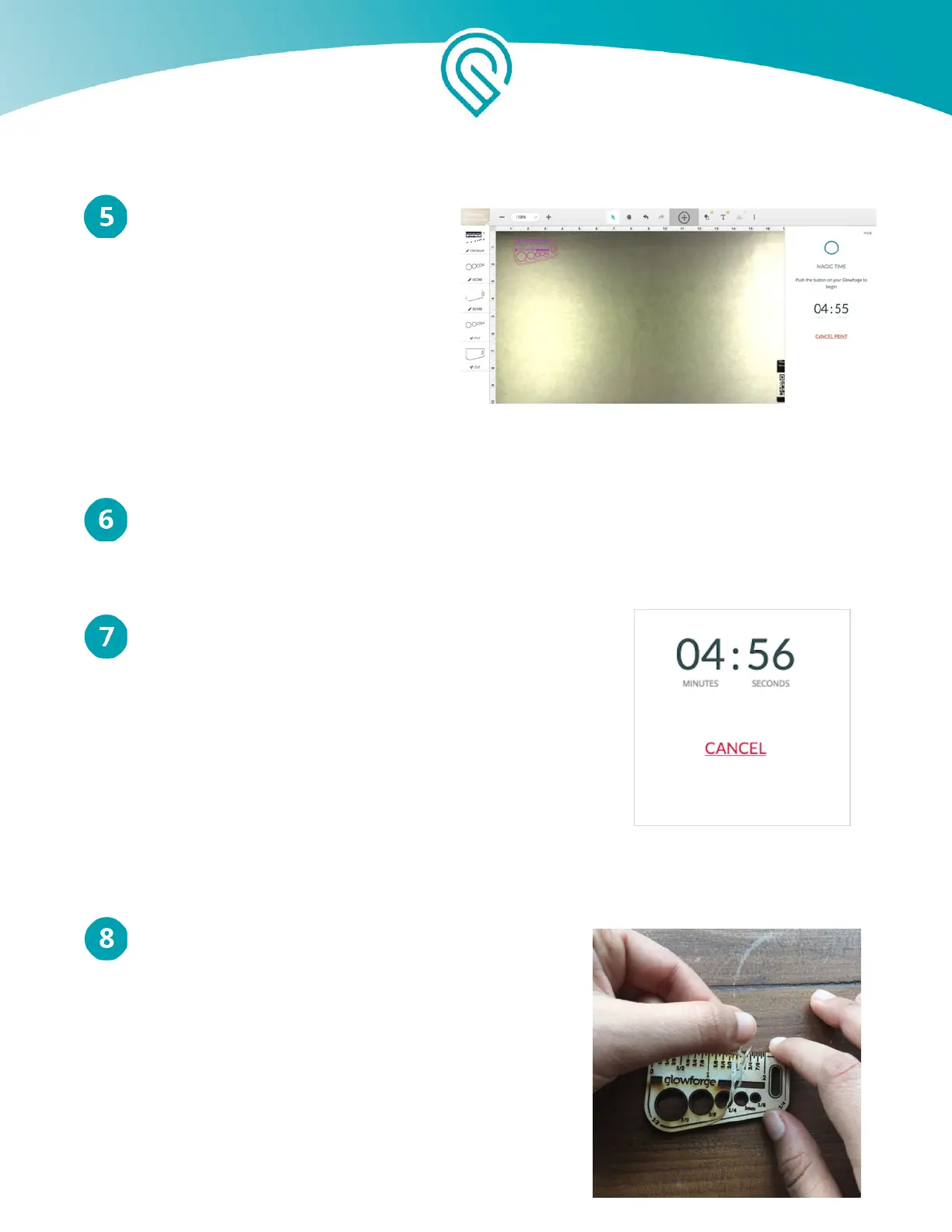
Looking good! When you’re happy with
the placement of your design on your
material, click “Print” in the upper
right-hand corner of the Workspace. The
printer head will scan the material for a
precise laser focus and the Print
Window will open. You’ll see the time
your design will take to print, and the
button on your Glowforge will begin
blinking.
Laser!
And now, the laser! Press the blinking button on your Glowforge. It’s important that you keep
watch on your Glowforge while it is printing – luckily, it’s really fun to watch a laser in action.
Need to Take a Break?
If you need to take a break, you can press the white button to
pause any time a print is happening. The button will blink white
to let you know it’s ready to resume. Don’t leave your
Glowforge unattended while it’s paused as something could
accidentally restart the print. To resume, just press the button
again and the print will continue. We take care of all the magic
so that there’s no visible interruption.
Opening the lid or clicking "Cancel" will cancel the print (so it
cannot be restarted). Remember not to leave your Glowforge
unattended while it is printing.
Reveal your Gift of Good Measure
When the laser finishes, the fans will continue to whisk
away the last wisps of exhaust for a few moments. Wait
for the fans to stop, then remove your print. Peel away
the protective layer (duct
tape can make this easier!) to reveal the engraved
material underneath.
Put your keychain through the hole and never lack for
measurement again!
Copyright Glowforge, Inc. 2020 61


 To Next Page