Cut out three circles
To cut, the laser moves slowly along a path at full power. When you want a cut, you’ll create a path that
has a stroke of some color and does not have a fill. Other stroke settings like thickness or opacity don’t
matter and are ignored.
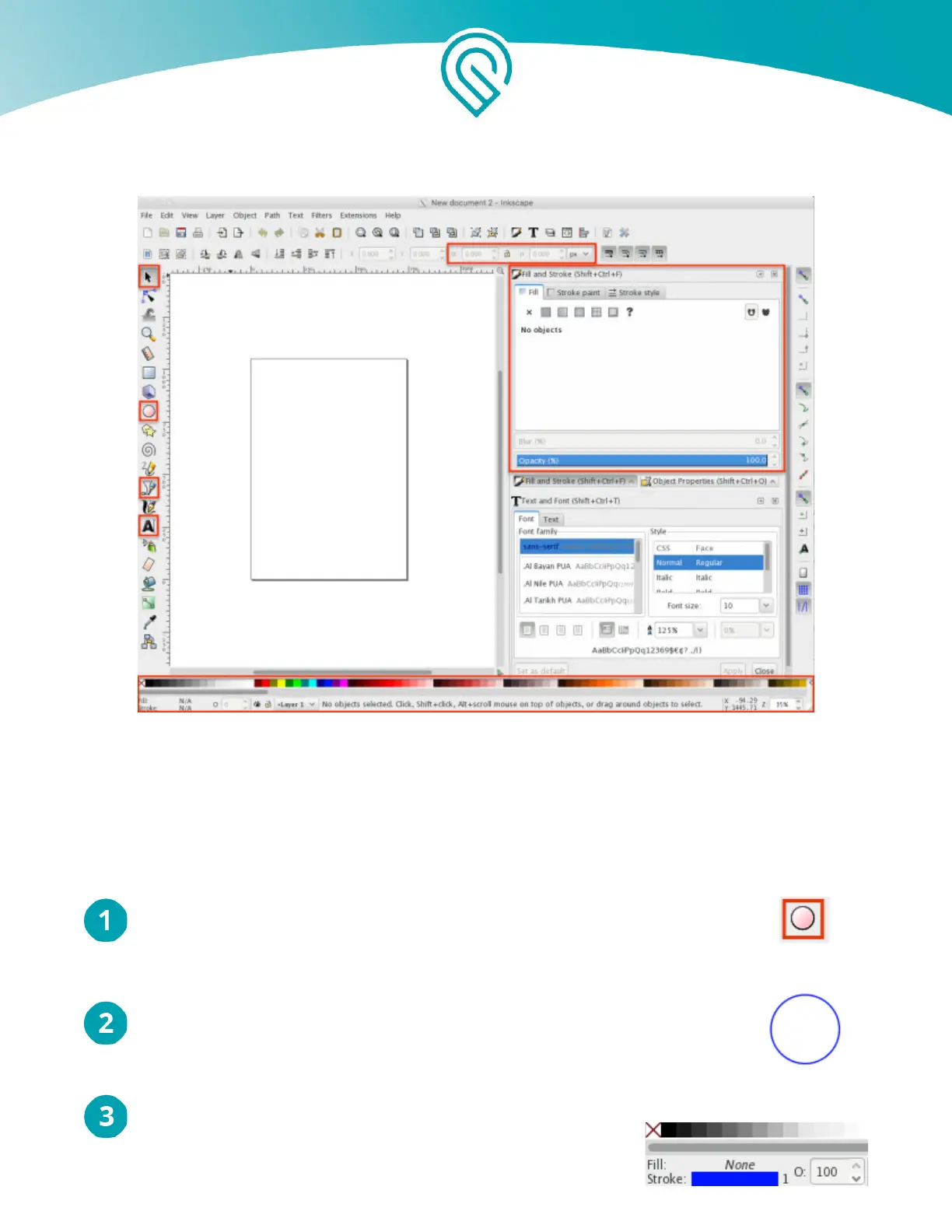
Click on the the Circle Tool on the left side of your screen
Click and drag on the blank document to draw a circle
Don’t worry about the size - we’ll adjust it later.
Choose a Color
Hold the Shift key and click a color in the palette. It doesn’t
matter which you choose; let’s say a nice dark blue. If you look
Copyright Glowforge, Inc. 2020 71


 To Next Page