at the bottom left corner of the screen, you’ll see the current settings for your new circle: Fill
(None) and Stroke (Blue).
If your circle doesn’t turn blue when you click the color, make sure that the box next to the O
(just to the right of the blue bar in the image) says “100.” O stands for “Opacity,” and if your
Opacity is 0, your stroke or fill will be invisible.
Adjust the Size of the Circle
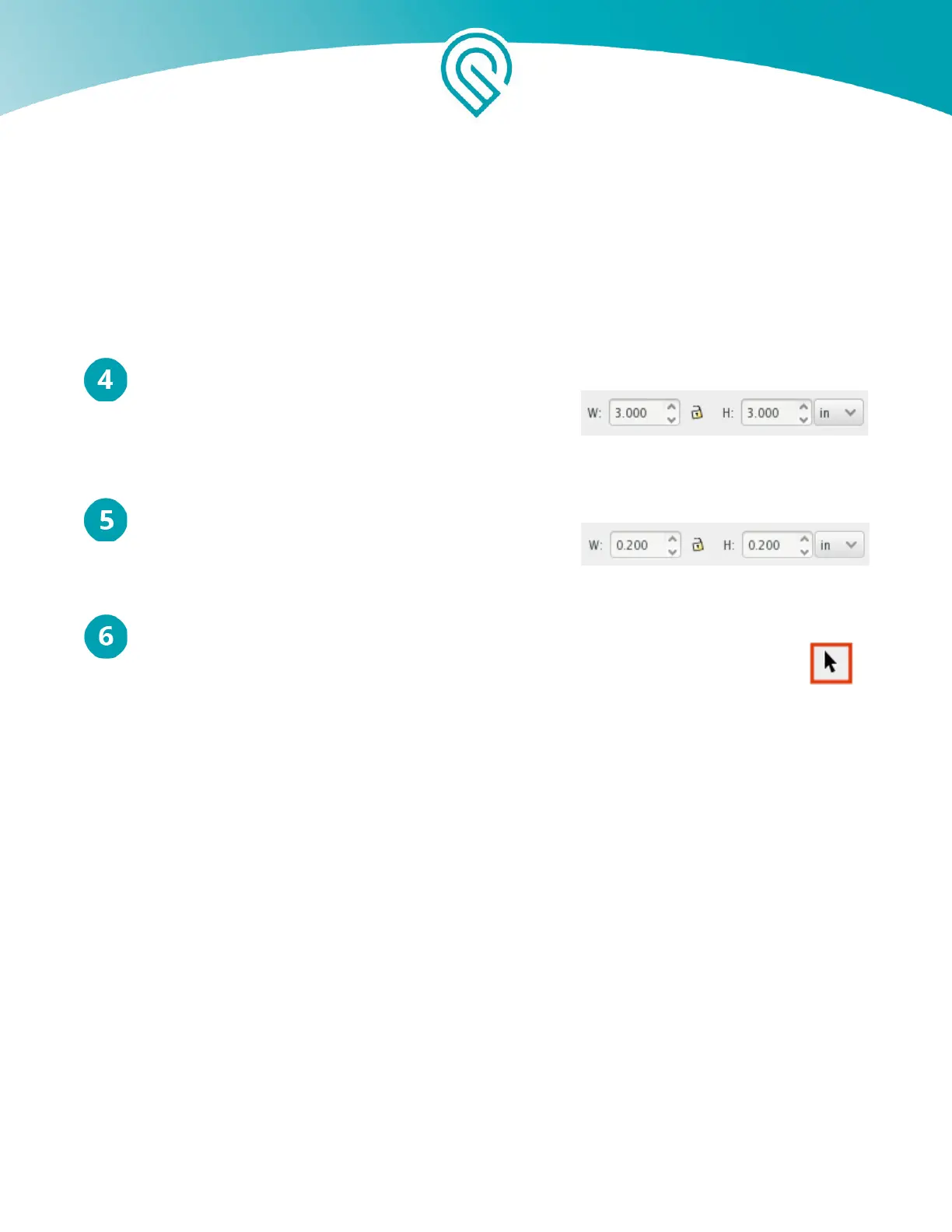
Adjust the size of the circle near the top of the screen.
First change the measurements from “px” (Pixels) to “in”
(Inches), then type 3 in the W (Width) and H (Height
box)
Click and drag to create a second circle
Choose the same color as before, so it will use the
same cut settings as the first one. Set the size to .2 in
wide and high.
Duplicate the Small Circle
Click the black arrow for the Selection tool in the upper left, then click on your smaller
circle, and choose Edit > Duplicate from the menu. (If you’re on a Mac, resist the
temptation to use copy and paste; duplicate works better!)
Copyright Glowforge, Inc. 2020 72


 To Next Page