7-42 Infotainment System
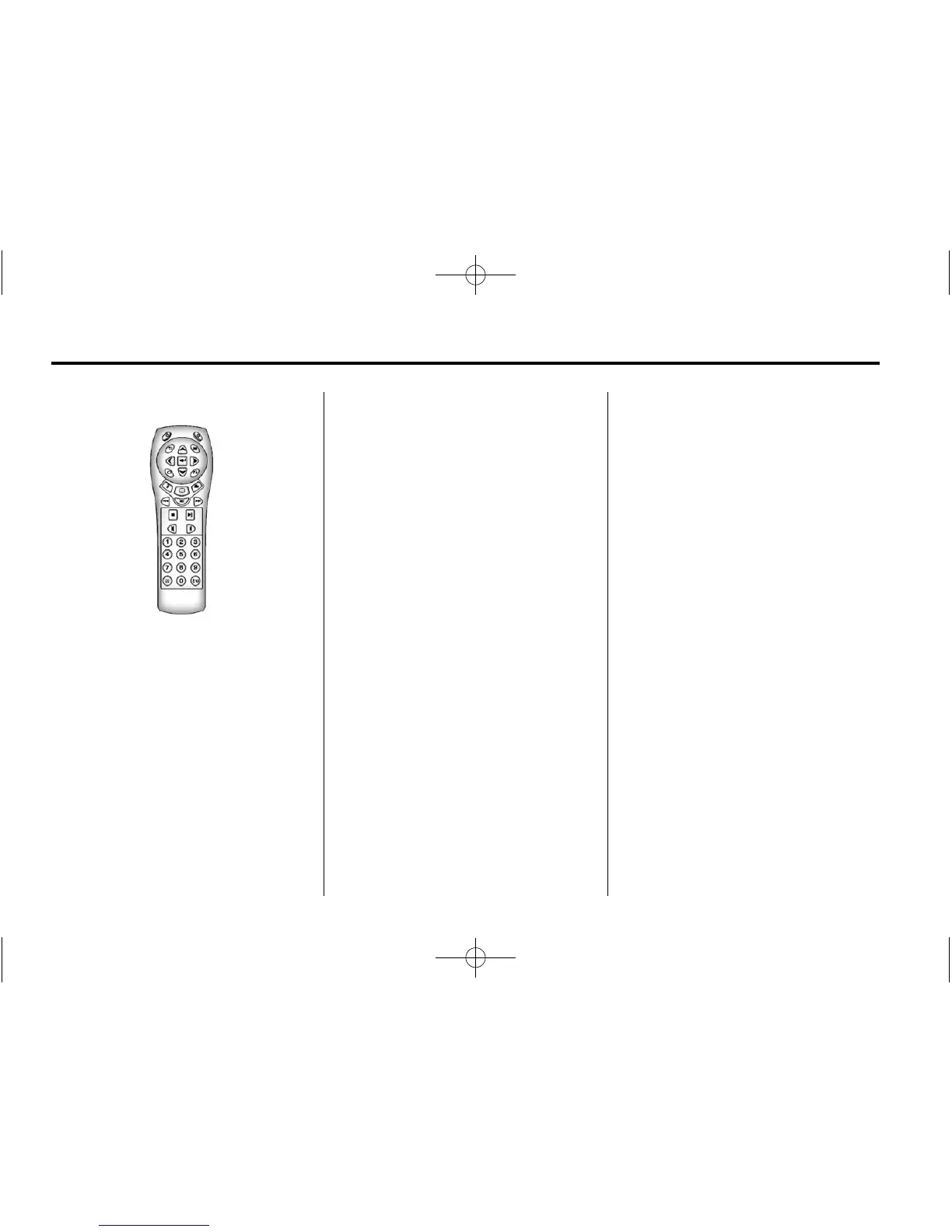
Remote Control
To use the remote control, aim it at
the transmitter window at the rear of
the overhead console and press the
desired button. Direct sunlight or
very bright light could affect the
ability of the RSE transmitter to
receive signals from the remote
control. If the remote control does
not seem to be working, the
batteries might need to be replaced.
See “Battery Replacement” later in
this section. Objects blocking the
line of sight could also affect the
function of the remote control.
If a CD or DVD is in the Radio DVD
slot, the remote control
O button
can be used to turn on the video
screen display and start the disc.
The radio can also turn on the video
screen display. See Operation on
page 7‑2 for more information.
Notice: Storing the remote
control in a hot area or in direct
sunlight can damage it, and the
repairs will not be covered by the
warranty. Storage in extreme
cold can weaken the batteries.
Keep the remote control stored in
a cool, dry place.
Remote Control Buttons
O (Power): Press to turn the video
screen on and off.
P (Illumination): Press to turn
the remote control backlight on.
The backlight automatically times
out after seven to 10 seconds if no
other button is pressed while the
backlight is on.
v (Title): Press to return the DVD
to the main menu of the DVD. This
function could vary for each disc.
y (Main Menu): Press to access
the DVD menu. The DVD menu is
different on every DVD. Use the
navigation arrows to move the
cursor around the DVD menu.
After making a selection press the
enter button. This button only
operates when using a DVD.





 To Next Page