Infotainment System 237
Playing a Movie File
1. Connect the USB device to the
USB port.
2. Touch the screen to open to full
screen. Touch the screen again
to return to the previous
screen.
If the USB device is already
connected:
1. Press
{.
2. Touch GALLERY.
3. Touch
z.
Movie is not available while driving.
Pause
.
Touch
j to pause.
.
Touch
r to resume.
Changing to Next/Previous Movie
.
Touch
u to change to the
next file.
.
Touch
t within five seconds of
the playback time to play the
previous file.
Returning to the Beginning of the
Current Movie
Touch
t after five seconds of the
playback time.
Scanning Forward or Backward
Touch and hold
t or u during
playback to rewind or fast forward.
Release the button to resume
playback at normal speed.
Viewing Full Screen
Touch
t from the movie screen.
Touch
t again to return to the
previous screen.
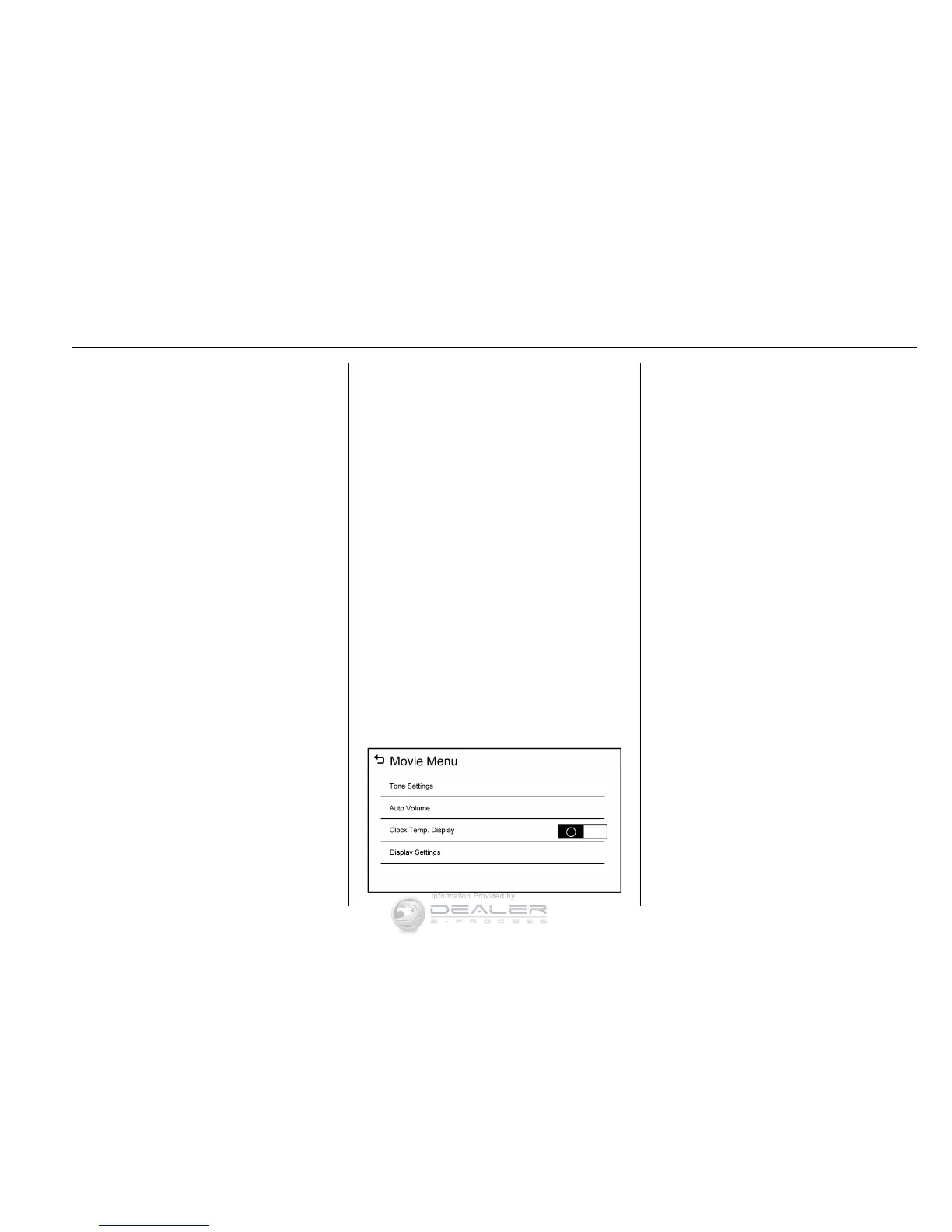
Using the USB Movie Menu
1. Touch MENU from the movie
screen.
2. Touch the appropriate menu:
.
Tone Settings: Shows the
sound setup. See “Tone
Settings” under “Base
Radio with Touchscreen” in
AM-FM Radio (Base Radio
with Touchscreen) 0 193 or
AM-FM Radio (Base Radio)
0 191.
.
Auto Volume: Automatically
adjusts the volume
according to the speed of
the vehicle. See “Auto
Volume” under “Base Radio
with Touchscreen” in
AM-FM Radio (Base Radio
with Touchscreen) 0 193 or
AM-FM Radio (Base Radio)
0 191.
.
Clock/Temp. Display:
Allows selection of On or
Off to show the clock and
temperature on the full
screen.
.
Display Settings: Adjusts
for brightness and contrast.
3. Touch
4 to exit.


 To Next Page