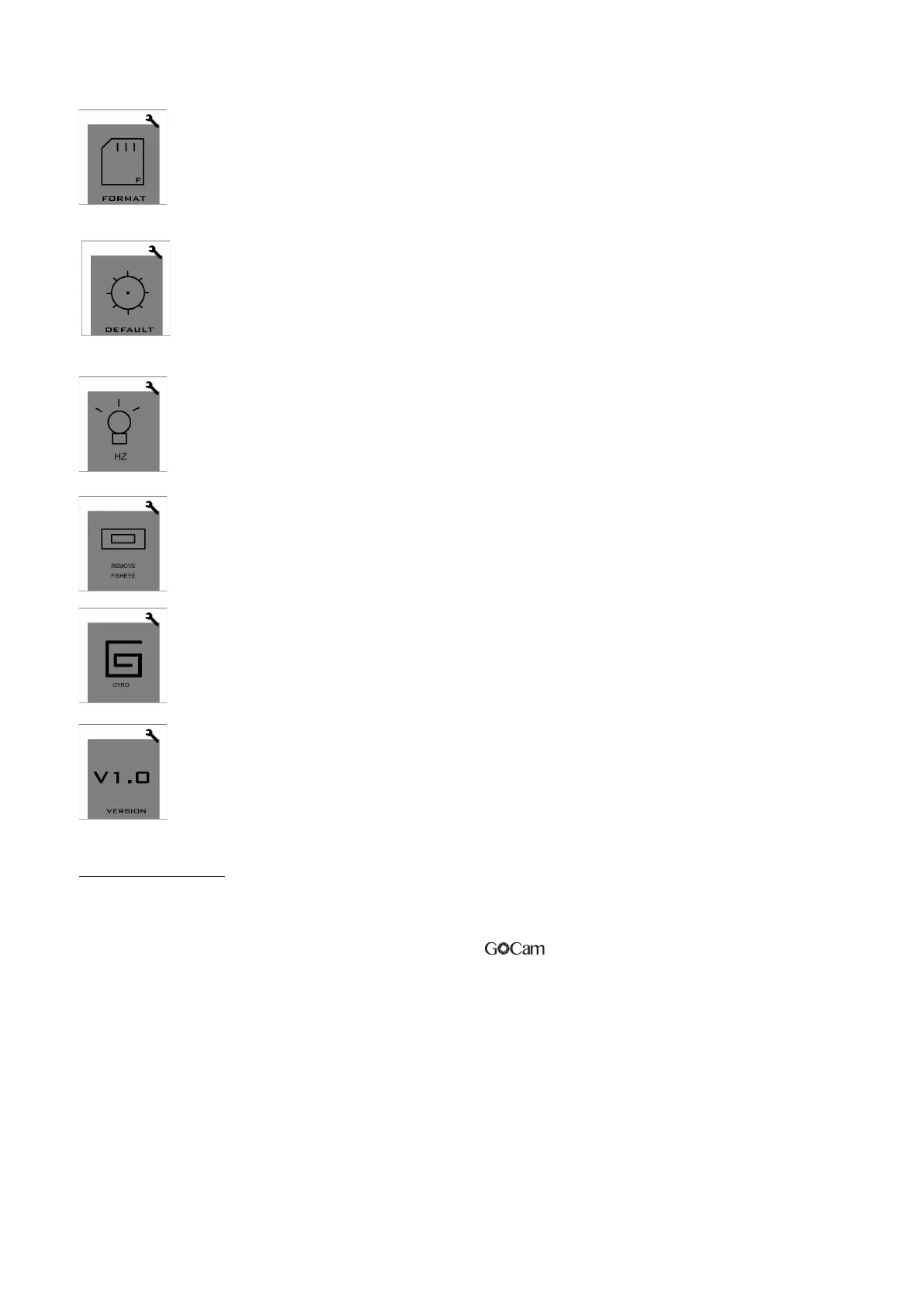
SD Card formatting: After power ON, if the format card does not match the
system, you will see a warning message “please format card”; then re-try format
function again.
Factory default settings: you can use this function to reset all factory default
settings.
(Note: if the camera does not work normally, please reset all factory default
settings and then restart it again.)
50HZ/60HZ Light frequency setting.
ON/OFF. Turn ON to reduce Fish eye effect。
ON/OFF. Image stabilization. Turn ON to enable this stabilize function。
System version: Select to see the system version of the camera.
Wi-Fi Remote:
You can use a Smart phone/tablet to view or take photos and videos via Wi-Fi connection.
1. from the app store on your smart
Download and install “GoCam”app phone/
tablet, or scan the QR code for iOS:
Android:
2. Turn camera’s Wi-Fi on.
3. In your smart phone’s or tablet’s Wi-Fi network settings, connect to the camera’s Wi-Fi network
named “GoCam 4K”, enter the password. Default password is “GoCam”.
4. Open the GoCam app on your smart phone/tablet. You will now be able to control the camera
with your smart phone/tablet plus view, playback and share selected content.


 To Next Page