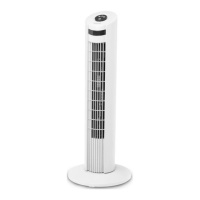
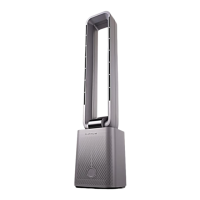
This document provides operating instructions for the Goldair 101cm Electronic Tower Fan with WiFi, model GCTF370. It covers the setup and use of the device through the Goldair mobile application, including pairing with Wi-Fi and Bluetooth, as well as integration with Amazon Alexa and Google Home.
Function Description
The Goldair 101cm Electronic Tower Fan with WiFi is a smart home appliance designed to provide cooling and air circulation within a room. Its primary function is to generate airflow, with additional features for enhanced air quality and user convenience. The fan can be controlled manually via its physical buttons or remotely through a dedicated mobile application, offering flexibility in operation. The integration with WiFi allows for advanced control and automation features, making it a versatile addition to a smart home ecosystem.
Usage Features
The Goldair Tower Fan offers a range of usage features, primarily accessible through the Goldair mobile application, which enhances its functionality beyond basic fan operation.
Mobile Application Control:
The core of the fan's smart features lies in its mobile application. After downloading the Goldair app from the APP Store or Google Play, users need to register an account. The app supports 2.4GHz Wi-Fi channels for connectivity, and users are advised to ensure their 2.4GHz and 5GHz connections are separated if they have dual-band routers.
Device Pairing:
The fan can be paired with the mobile app using several methods:
- Wi-Fi Network (EZ Mode): This is the default pairing mode. Users select "Add Device" in the app, navigate to the fan category, and confirm that the fan's Wi-Fi LED is flashing rapidly. If not, holding the "OSCILLATION" button for 5 seconds will initiate rapid flashing. The app then connects to the fan via the 2.4GHz Wi-Fi network.
- Wi-Fi Network (AP Mode): If EZ Mode fails, AP Mode can be used. In this mode, the fan's Wi-Fi LED should be flashing slowly. Users connect their mobile phone to the fan's hotspot (e.g., "SmartLife-XXXX") and then return to the Goldair app to complete the pairing.
- Bluetooth: As an alternative, the fan can be paired via Bluetooth. Users enable Bluetooth on their mobile phone, select "Auto Scan" in the app, and click on the fan when it appears. After connecting via Bluetooth, users will still need to select their 2.4GHz Wi-Fi network and enter the password to complete the setup.
Fan Operation via APP:
Once paired, the mobile app provides comprehensive control over the fan's functions:
- Power ON/OFF: A dedicated button in the app allows users to turn the fan on or off.
- Wind Speed Control: The fan offers three wind speed levels (0.1, 0.2, 0.3). Users can adjust the speed using a slider in the app.
- Mode Selection: The fan has three operating modes:
- Normal: Provides a consistent wind at the chosen speed.
- Natural: Simulates natural wind by cycling through low, medium, and high speeds every 5 seconds.
- Sleep: Designed for quiet operation during sleep. It starts at high speed for 30 minutes, then switches to medium speed for another 30 minutes, and finally operates at low speed until the fan is switched off.
- Countdown Timer: Users can set a timer for the fan to automatically turn off, with options ranging from 1 to 12 hours in 1-hour increments.
- Oscillation/Swing: A toggle button enables or disables the fan's left-and-right swing function, allowing it to distribute air across a wider area.
- Anion Function: A toggle button activates the anion function, which releases negative ions into the air, potentially improving air quality.
Smart Scenes and Automation:
The Goldair app allows users to create "Smart Scenes" and "Tap-To-Run" automations, enhancing the fan's smart capabilities:
- Tap-To-Run: Users can save preferred settings (e.g., Power ON/OFF, temperature, mode, timer) as a "Tap-To-Run" scene, which can then be activated with a single tap in the app.
- Automated Functions (Conditions): Users can set conditions to trigger fan operations:
- When weather changes: Automate fan operation based on local weather conditions like temperature, humidity, weather type, sunset/sunrise, or wind speed.
- Schedule: Set specific times for the fan to turn on or off, with options for daily or one-off operations.
- When device status changes: Create conditions based on changes in any device function, for example, turning the fan off if a child lock is activated.
Device Settings and Management:
The app provides a "Device settings" menu for further customization and management:
- Rename Device: Change the name, location, and image of the fan.
- Device Information: View details about the device.
- Offline Notification: Turn on notifications if the device goes offline.
- Share Device: Share control of the fan with family members who also have the Goldair app. Only one user can operate the device at a time, and the app needs to be closed on other devices for sharing to work.
- Create Group: Group multiple Goldair devices together to control them simultaneously.
- FAQ & Feedback: Access frequently asked questions and submit feedback.
- Add to Home Screen: Create a shortcut to the device on the mobile phone's home screen.
- Check Device Network: Review the device's network status.
- Device Update: View device updates and enable automatic updates.
- Remove Device: Remove the fan from the app.
Voice Control Integration:
The Goldair fan can be integrated with popular voice assistants for hands-free control:
- Amazon Alexa: Users can connect their Goldair app to Alexa by searching for "Goldair" in the Alexa app's "Skills & Games" section, enabling the skill, and linking their Goldair account. Once linked, users can use voice commands like "Alexa, turn on [Device Name]" or "Alexa, turn [Device Name] to High" to control the fan.
- Google Home: Similar to Alexa, users can connect their Goldair app to Google Home by selecting "Set up device" and then "Works with Google" in the Google Home app. After searching for "Goldair" and linking their account, they can use commands such as "Ok Google, turn [Device Name] ON" or "Ok Google, turn [Device Name] to High."
Important Notes for Voice Control:
- Users are advised to change the device name to an easily identifiable name (e.g., "Bedroom Fan") for better voice command recognition.
- Amazon and Google control the voice control functionality and terminology, so not all app functions may be controllable via voice.
Maintenance Features
The manual does not explicitly detail maintenance features for the Goldair 101cm Electronic Tower Fan. However, general maintenance for such devices typically involves:
- Cleaning: Regularly cleaning the fan's exterior and air intake/output vents to prevent dust buildup, which can affect performance and air quality.
- Software Updates: The "Device Update" feature in the Goldair app suggests that the fan's firmware can be updated, which is crucial for maintaining optimal performance, security, and compatibility with the latest app features. Users can view updates and enable automatic updates through the app.
While specific cleaning instructions are not provided in this document, it is generally recommended to keep electronic devices clean and free of obstructions to ensure their longevity and efficient operation.

 Need help?
 General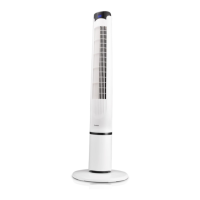

 To Next Page