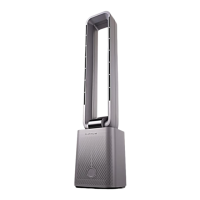
Need help?
Do you have a question about the Goldair GCTF180 and is the answer not in the manual?
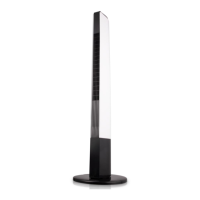
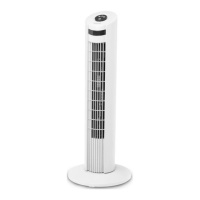
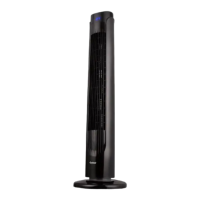
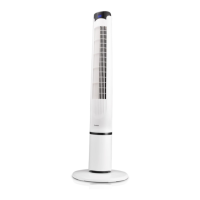
Identifies the product as an 82cm Electronic Tower Fan with WiFi, Model GCTF180.
Guide on downloading the Goldair app from app stores like Google Play or Apple App Store.
Steps to register, add email, and verify the account with a code received via email.
Instructions for handling cases where the verification code is not received.
Detailed steps for connecting the fan to a 2.4GHz Wi-Fi network for app pairing.
Navigating through categories and tapping the device image to initiate pairing.
Verifying the mobile device is connected to a 2.4GHz network for successful pairing.
Steps to pair the device using the EZ Mode within the Goldair app.
Resetting the device and checking the Wi-Fi LED status for rapid blinking.
Completing pairing, renaming, and assigning a room for the device.
Steps to pair the device using the AP Mode within the Goldair app.
Connecting the mobile phone to the device's Wi-Fi hotspot for pairing.
Completing pairing, renaming, and assigning a room for the device.
Instructions for pairing the device via Bluetooth using the Goldair app.
Steps to start scanning for Bluetooth devices within the app's interface.
Finalizing pairing, renaming, and assigning a room for the device via Bluetooth.
Overview of the fan control interface within the mobile app, highlighting key areas.
Identification of main control elements like power, mode, speed, and timers.
Location of settings for timer, oscillation, and anion functions within the app.
How to turn the fan ON and OFF using the power icon in the app.
Using the slider to select fan speed levels 1, 2, or 3 through the app.
Switching between Normal, Natural, and Sleep modes via app icons.
Using the countdown slider to set the fan's auto-off timer in 1-hour increments.
Turning the left and right swing function on or off using the oscillation icon.
Turning the Anion air purification function on or off via the app.
Storing favourite settings and setting up automated functions via the app's 'Smart' section.
Saving preferred settings for one-tap execution by launching a scene.
Cautionary note about turning off smart functions when leaving the house or going away.
Setting tasks based on local weather conditions like temperature, humidity, or wind speed.
Creating tasks for specific times or days of the week, with repeat options.
Triggering tasks based on changes in device status, for example, child lock functionality.
Using Amazon Alexa or Google Home Routines to operate smart scenes via voice commands.
Customizing device name, viewing info, and checking network status.
Viewing tap-to-run scenes, offline alerts, and device update status.
Options for sharing device control with family and creating device groups.
Accessing FAQs, feedback, adding shortcuts, and removing the device.
Adding and removing family members for shared device operation, with usage notes.
Grouping multiple devices for simultaneous control and naming the group.
Removing devices from an existing group by accessing group details.
Downloading Goldair app, pairing device, and configuring the Amazon Alexa app.
Steps to access 'Skills and Games' and the search function within the Alexa app.
Locating the Goldair skill by searching for 'Goldair' in the Alexa app.
Searching, enabling, and linking the Goldair account using phone number or email.
Granting authorization for Alexa to receive public profile and control devices.
Suggested voice commands for turning the fan ON/OFF and adjusting settings.
Overview of what can be controlled via voice commands, noting potential limitations.
Downloading Goldair app, pairing device, and configuring the Google Home app.
Steps to start setting up a new device by clicking the '+' icon and 'Set up device'.
Finding and linking the Goldair service within Google Home via 'Works with Google'.
Entering phone number or email and password to link the Goldair account.
Granting Google Home permission to receive public profile and control devices.
Organizing devices by assigning them to specific rooms in the home for better management.
Suggested voice commands for turning the fan ON/OFF and adjusting settings via Google Assistant.
The Goldair 82cm Electronic Tower Fan with WiFi (Model: GCTF180) is a modern cooling appliance designed for convenient operation and enhanced user experience through smart technology. This tower fan offers a range of features for personalized comfort, including multiple wind speeds, various operating modes, and the ability to be controlled remotely via a dedicated mobile application. Its sleek, upright design makes it suitable for various indoor environments, providing effective air circulation while integrating seamlessly into a smart home ecosystem.
The primary function of the Goldair 82cm Electronic Tower Fan is to provide cooling and air circulation within a room. It achieves this by drawing in ambient air and expelling it through its vertical grille, creating a refreshing breeze. The fan is equipped with an electronic control system that allows users to adjust its performance to suit their preferences and the prevailing environmental conditions.
A key feature of this fan is its WiFi connectivity, which enables remote control and smart automation through the Goldair mobile application. This means users can operate the fan from anywhere with an internet connection, offering unparalleled convenience. The app allows for comprehensive control over all fan functions, mirroring the capabilities of a physical remote control but with added smart features.
The fan offers different operational modes to cater to various needs. These modes typically include:
In addition to these modes, the fan features an oscillation function, which allows the unit to rotate from left to right. This movement helps distribute the airflow more widely across a room, ensuring that a larger area benefits from the cooling effect. The oscillation can be toggled on or off as desired.
Another notable feature is the Anion function. When activated, the fan releases negative ions into the air. While the specific benefits can vary, anion functions are often associated with air purification, helping to reduce airborne particles and create a fresher indoor environment.
The fan also includes a countdown timer, allowing users to set a specific duration after which the fan will automatically turn off. This is particularly useful for energy saving or for ensuring the fan operates only for a desired period, such as during sleep. The timer can typically be set in increments, often ranging from 1 to 12 hours.
The Goldair 82cm Electronic Tower Fan is designed for user-friendly operation, primarily through its WiFi-enabled mobile application.
To begin using the smart features, users must download the Goldair mobile application from either the APP Store (for iOS devices) or Google Play (for Android devices). The app requires registration, which involves providing an email address and creating a password, followed by a verification process via email. It's crucial to note that the app and device pairing process are supported only on 2.4GHz Wi-Fi channels. If a user's router operates on both 2.4GHz and 5GHz, they may need to separate these connections, and instructions for this can often be found by contacting their internet provider.
The fan can be paired with the app using a few different methods:
After successful pairing, users can rename the device within the app and assign it to a specific room (e.g., Living Room, Bedroom, Kitchen) for better organization.
The Goldair app provides a comprehensive interface for controlling the fan:
The app allows users to create 'Smart Scenes' to automate fan operation based on various conditions:
The Goldair fan is compatible with popular voice assistants like Amazon Alexa and Google Home.
The app also offers various device management features:
While the manual primarily focuses on operational and smart features, general maintenance for a tower fan typically involves:
The Goldair app's 'Device Update' feature also contributes to maintenance by ensuring the fan's software is current, which can include performance enhancements or bug fixes. The 'Check Device Network' feature helps diagnose connectivity issues that might affect smart functionality.
 General
| Type | Tower Fan |
|---|---|
| Model | GCTF180 |
| Category | Fan |
| Power | 45W |
| Voltage | 220-240 V |
| Frequency | 50 Hz |
| Speed Settings | 3 |
| Oscillation | Yes |
| Remote Control | Yes |
| Tilt Adjustment | No |
| Weight | 3.5 kg |

 To Next Page