GoodMeasure Integrator Installation Guide v3.1 www.goodmeasure.net Page 5
Step 7: Configure permanent WiFi access
It is critical that the following steps are achieved.
Each Integrator that is installed needs a permanent, stable internet connection via
the local WiFi once the hotspot/tether has been removed. A green flashing or blank
STATUS LED on the Integrator (See Step 3) will confirm this.
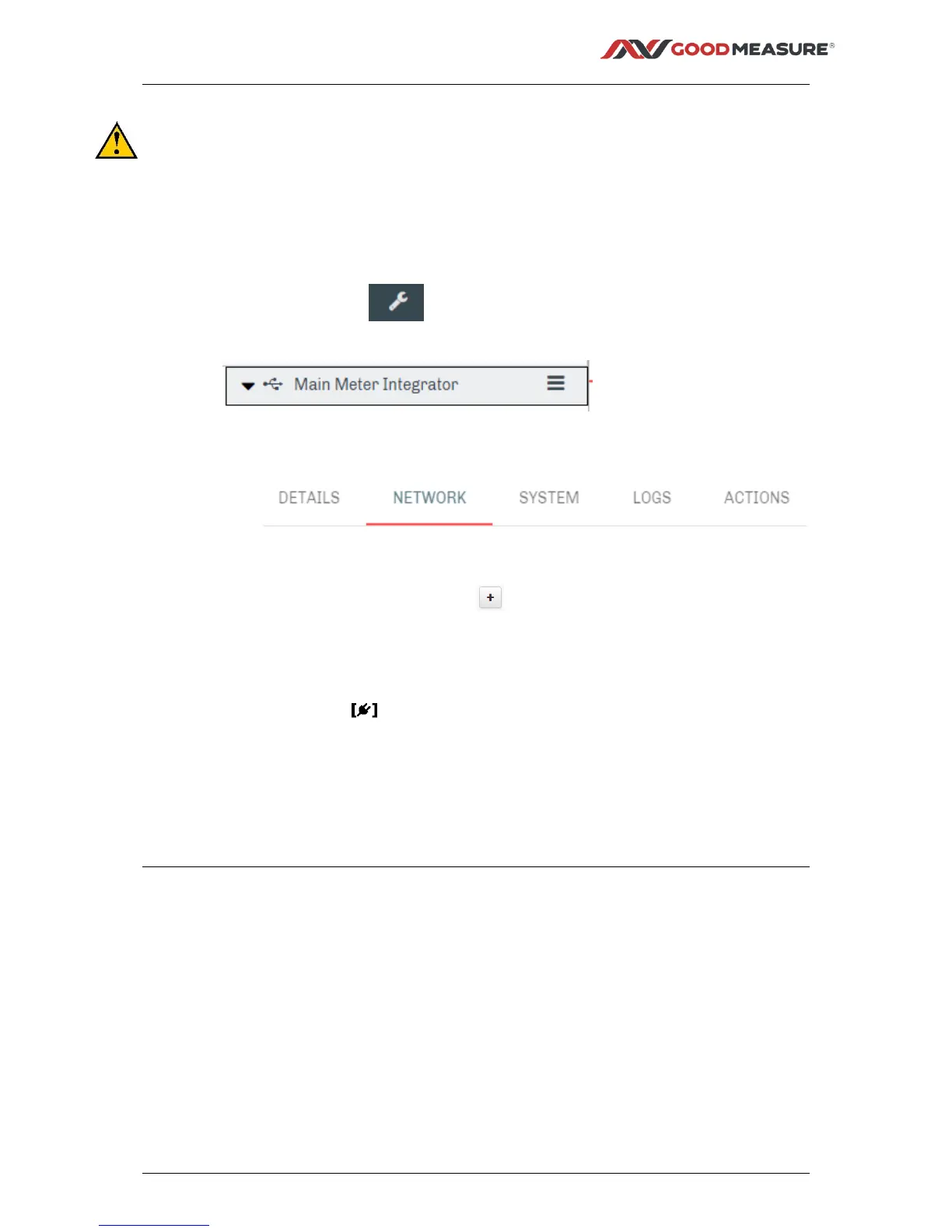
1. Select the Install tab
2. Select the Integrator device from the middle menu
3. Select NETWORK on the right side of the screen
4. GoodMeasure will display a list of WiFi access points that the Integrator can see.
5. In the Visible SSIDs list Click the button next to the preferred access point
6. Enter the WiFi access point password in the password field
7. Click the Save button
8. Click the connect button under the Configured list to switch connection to
the newly selected access point.
9. Repeat steps 3 to 5 to add any additional alternative WiFi access points if
required.
10. Deactivate the temporary WiFi hotspot/tether that was setup in Step 3.



 To Next Page