In this documentation, the term "track" will denote:
- The scenes when you are in Session mode in Ableton.
- The cuepoints when you are in arrangement mode in Ableton.
1 – PRESENTATION
1 – 1. Ableton connection
Before connecting your LIO BOX to the computer, make sure you have previously loaded the script
corresponding to your software version. The script is a small file allowing the exchange of data
between Ableton and the LIO BOX.
"Lio box Ablt10" for the Ableton 9-10 versions and the "Lio box Ablt11" script for the Ableton 11
version.
When using two computers in parallel, you must load the script with “spare” extension on the
second computer. This allows the LIO BOX to identify the two computers.
To add a script to the Ableton software, please follow the procedure bellow:
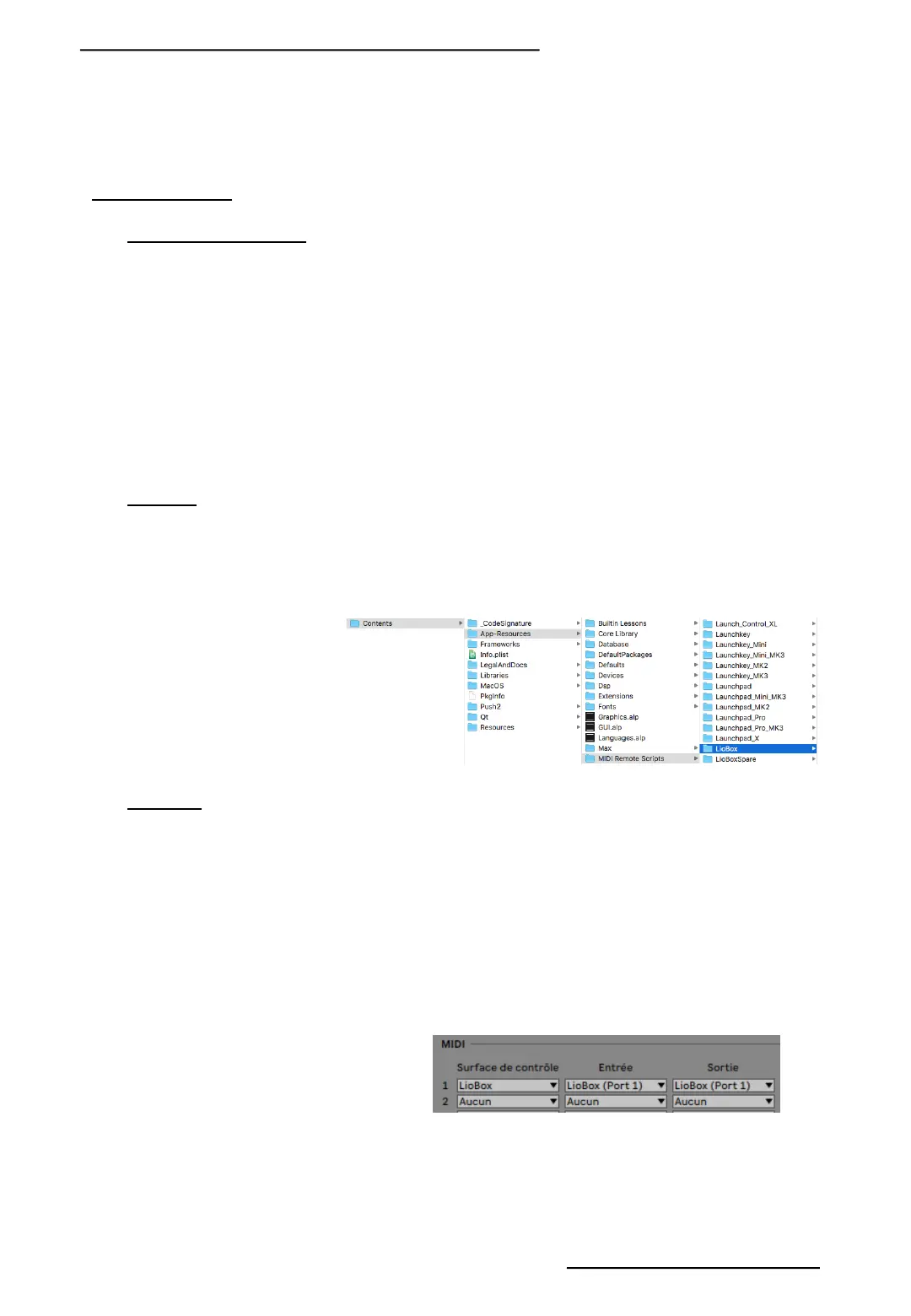
MAC OSX: In the Applications folder, right click on the Ableton icon and select "open package
contents".
Then drag and drop the scripts corresponding to your software version into the "MIDI REMOTE
SCRIPTE" folder
WINDOWS: Drag and drop the scripte folder to the User Library folder
C:\User\[user name]\Documents\Ableton\User Library
Once the script is loaded, just connect the LIO BOX to the computer and start the software.
Then simply load the script in the MIDI preferences.
5
Copyright © 2021 GOOROO CONTROLLERS. Tous droits réservés


 To Next Page