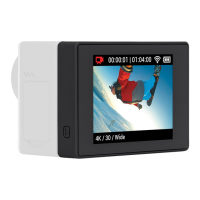
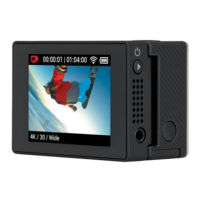
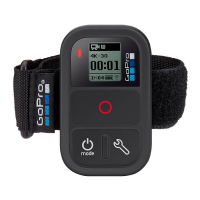
With the Wi-Fi BacPac attached to an HD HERO2 camera,
you can wirelessly connect, one-at-a-time, to a Wi-Fi
Remote, Smartphone, Tablet or Wi-Fi Network. The GoPro
App running on a Smartphone or Tablet enables full camera
control, preview, playback, live stream and video + photo
sharing* from one or more HD HERO2 cameras. Visit
gopro.com for more information on the GoPro App.
Follow the steps below to connect your HD HERO2 camera
to a Smartphone or Tablet.
1. Set up Wi-Fi BacPac Name and Password:
a. Download and install the latest version at gopro.com/
cineformstudio
b. Plug in your Wi-Fi BacPac into your computer and launch GoPro
CineForm Studio soware.
c. CineForm Studio soware will prompt you with information on
how to set the name and password on your Wi-Fi BacPac.
2. Put your HD HERO2 and Wi-Fi BacPac into
Connection Mode:
a. Make sure your Wi-Fi BacPac is attached to your HD
HERO2 camera and both are powered ON.
b.
Short press the POWER/MENU button on the Wi-Fi
BacPac to enter into the HD HERO2 Wi-Fi Menu Screen.
HD HERO2 +
Smartphone / Tablet
24


 To Next Page