EasyManua.ls Logo

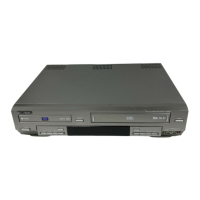
GoVideo DVR 4200 - User Manual

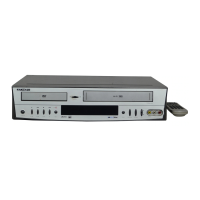
GoVideo DVR 4200
40 pages
Print Icon
To Next Page IconTo Next Page
Loading...
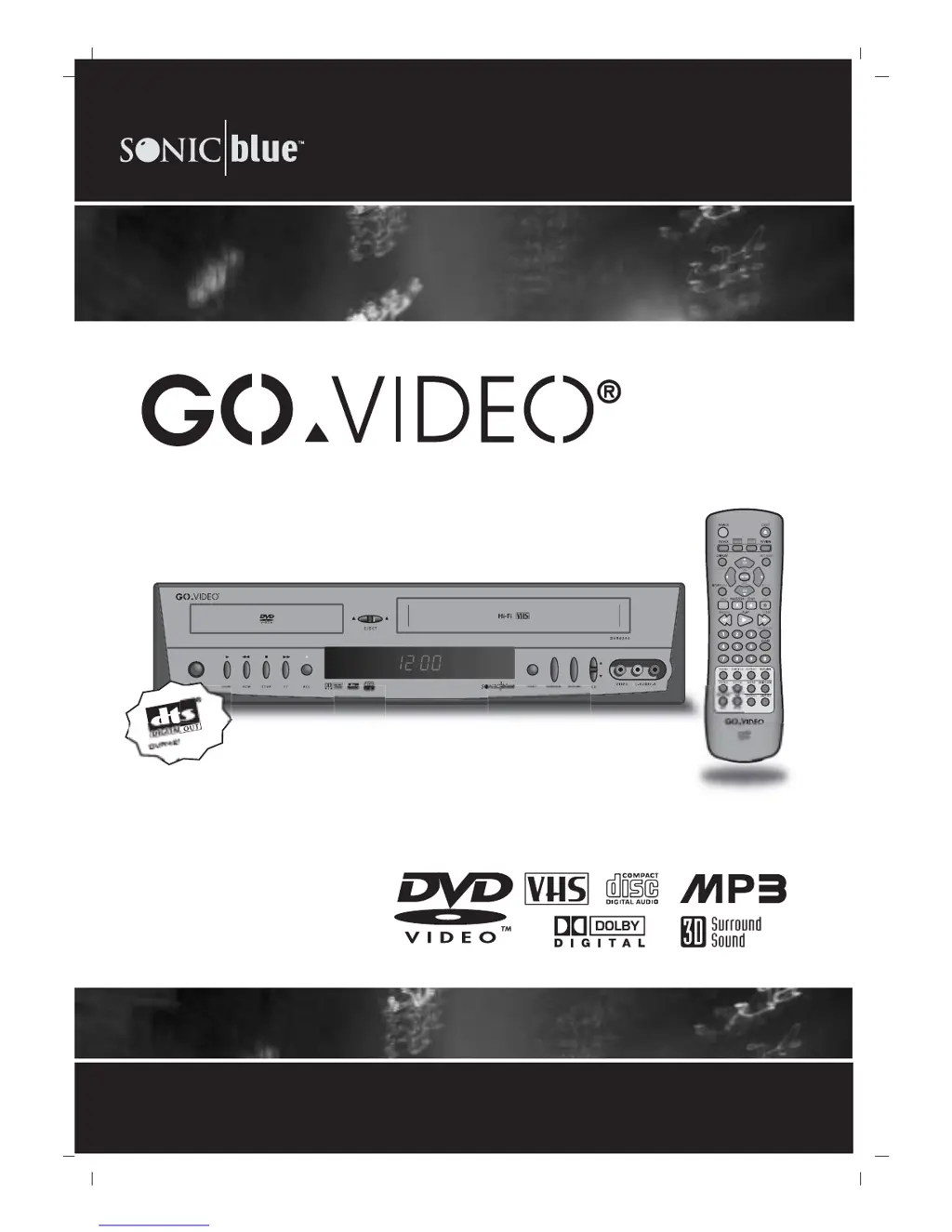
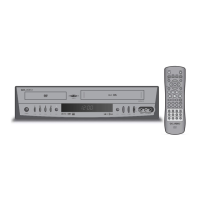
DVR4200/4250
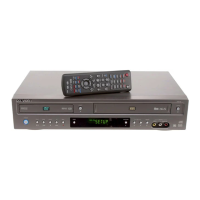
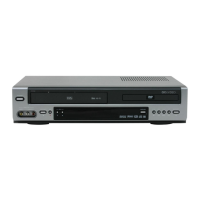
DVD PLAYER + VCR
User's guide
50 only
with

Table of Contents

Questions and Answers

  • D
    Daniel HutchinsonAug 18, 2025
    Why is there no picture on my GoVideo DVR 4200?
    • B
      Beth FlemingAug 18, 2025
      If you're not getting a picture on your GoVideo DVD VCR Combo, there could be several reasons: * Ensure your TV is set to the correct video input mode to receive the signal from the DVD+VCR. * Check that the TV/VCR mode on the DVD+VCR is set to VCR. Press the TV/VCR button on the remote until the VCR indicator light appears on the front panel. * Verify that the antenna or video cable is securely connected. * Make sure your TV is turned on.
  • M
    Michelle CooperAug 20, 2025
    What to do if there is no sound from my GoVideo DVR 4200 DVD VCR Combo?
    • J
      Jerry AshleyAug 20, 2025
      If you're experiencing a lack of sound from your GoVideo DVD VCR Combo, consider the following: * Ensure that the equipment connected to the audio cable is set to receive audio signal output. Select the correct input mode on your audio receiver. * Check that the audio cables are securely connected. * Confirm that the equipment connected to the audio cable is powered on. * Verify that the Digital Audio Output is set to the correct position, then turn the DVD+VCR off and on again using the POWER button.
  • E
    Edward NguyenAug 23, 2025
    How to fix a GoVideo DVD VCR Combo remote that is not working?
    • J
      Jesse FrederickAug 23, 2025
      If the remote control for your GoVideo DVD VCR Combo isn't working correctly, try these steps: * Make sure you're pointing the remote directly at the remote sensor on the DVD+VCR. * Ensure you're operating the remote within a range of 23 ft (7 m). * Remove any obstacles that might be blocking the signal between the remote and the DVD+VCR. * Replace the batteries in the remote with new ones.
  • S
    Samuel CarrollAug 26, 2025
    Why won't my GoVideo DVR 4200 start playback?
    • M
      Maureen GomezAug 26, 2025
      If your GoVideo DVD VCR Combo is not starting playback, check these possible causes: * Make sure a disc or tape is inserted, and that the disc or tape indicator in the display window is lit. * Ensure that you are using a playable disc, verifying the disc type, color system, and regional code. * Confirm the disc is placed correctly, with the playback side facing down. * Verify the disc is placed within the guide on the disc tray. * Clean the disc if it is dirty. * If the Rating level is set, cancel the Rating function or change the rating level.
  • C
    Chelsea OdonnellAug 27, 2025
    How to improve poor playback picture on GoVideo DVR 4200?
    • B
      Barbara JohnsonAug 27, 2025
      If the playback picture on your GoVideo DVD VCR Combo is poor, consider these solutions: * Clean the disc. * Clean the video heads. * If using a rental tape or a tape recorded on another VCR, use CH/TRK (v/V) for manual tracking adjustment while the tape is playing.
  • E
    emily84Aug 30, 2025
    How to turn on GoVideo DVD VCR Combo if there is no power?
    • E
      Elizabeth MorganAug 30, 2025
      If your GoVideo DVD VCR Combo has no power, the most likely cause is that the power cord is disconnected. Plug the power cord securely into the wall outlet.
  • L
    Leslie HunterSep 1, 2025
    Why is timer recording not working on my GoVideo DVR 4200 DVD VCR Combo?
    • R
      ray73Sep 1, 2025
      If timer recording isn't working on your GoVideo DVD VCR Combo, check the following: * Ensure the clock in the VCR is set to the correct time. * Make sure the DVD+VCR is turned off to enable the timer. * Verify that the timer has been programmed correctly. Reprogram the timer if necessary. * If the TIMER indicator light does not appear after programming, reprogram the timer and turn the DVD+VCR off. * Note that if the VCR is in Timer Recording mode, this is normal indication.
  • L
    Lisa BryantSep 3, 2025
    What causes weak picture and sound on GoVideo DVD VCR Combo?
    • P
      Patricia LarsenSep 4, 2025
      If the picture and sound of a broadcasting channel are weak or missing on your GoVideo DVD VCR Combo: * Tighten any loose antenna or cable connections, or replace the cable. * Try all CHANNEL SOURCE options to see if that resolves the issue.
  • J
    jnolanSep 6, 2025
    What to do if power is on but no disc is inserted in GoVideo DVR 4200?
    • J
      Jill YoderSep 6, 2025
      If the power is on but no disc is inserted in your GoVideo DVD VCR Combo, insert a disc or tape. Check that the disc or tape indicator in the display window is lit.
  • J
    James KingSep 8, 2025
    Why is the camcorder image not showing on my GoVideo DVR 4200?
    • R
      robertsgloriaSep 8, 2025
      If the camcorder image is not displaying on your GoVideo DVD VCR Combo: * Ensure the camcorder is turned on and operating properly. * Press the INPUT button to select the LINE input channel, ensuring the DVD+VCR SOURCE is set to LINE.

Summary

Safety Precautions

Electrical Safety Warnings

Covers warnings related to electric shock, voltage, and fire hazards.

Operational and Environmental Cautions

Includes precautions for rain, moisture, laser exposure, and installation environment.

Regulatory and Copyright Information

Details FCC warnings, regulatory compliance, and copyright notices.

Important Safety Instructions

Basic Handling and Setup Precautions

Covers reading instructions, grounding, ventilation, heat, and water precautions.

Usage, Environmental, and Operation Precautions

Includes power cord protection, overloading, outdoor antenna, lightning, and object entry safety.

Before Use

Playable Discs and Disc Care

Details playable disc types, handling, cleaning, and storage guidelines.

Remote Control Operation

Explains battery installation, operation range, and basic remote functions.

Unit Handling, Cleaning, and Precautions

Covers handling, cleaning the unit, video heads, and general unit precautions.

Disc Handling, Storage, and Symbols

Includes notes on disc handling, storage, cleaning, and understanding symbols.

Front Panel Overview

Control Buttons and Functions

Describes the purpose and function of front panel buttons like PLAY, STOP, REC.

Indicators and Display Features

Details the display window, remote sensor, and child lock feature.

Display Window

Display Indicators Explained

Provides explanations for various symbols and codes shown in the display window.

Remote Control Functions

Basic Operation and Navigation

Covers remote functions for playback, menu navigation, and search.

Advanced Features and Settings

Details remote functions for title, subtitle, angle, zoom, mark, and settings.

Rear Panel Connections

Antenna and External Input Ports

Details connections for antenna, cable TV, and external audio/video sources.

Video and Audio Output Ports

Explains connections for various video and audio outputs to TVs and receivers.

Power Connection

Specifies the AC power cord connection for the unit.

Connections

Antenna and Cable TV Setup

Covers connecting antenna, cable TV, adapters, and cable box scenarios.

Connecting to a TV

Details basic (RF, A/V) and optional (S-Video, Component) TV connection methods.

Connecting External Equipment

Explains connections to amplifiers, receivers, and other accessories.

VCR Setup

On-Screen Display and Menu Navigation

Explains OSD features and how to access and navigate VCR setup menus.

Setting Display, Language, and Audio Options

Covers VCR setup for screen display, language, audio mode, broadcast type, and output.

Channel Selection and Clock Setting

Details channel setup, auto-programming, and clock setting procedures.

DVD Setup

On-Screen Display and Basic Playback Settings

Explains OSD operation and basic DVD/CD playback settings.

DVD Playback, Menu, and Audio Options

Covers DVD specific playback, menu navigation, language, picture, output, and audio settings.

Password Management and Parental Controls

Details setting, changing, and managing the password for parental controls.

VCR Operation

Playback and Tracking Control

Covers normal playback, auto tracking, and manual tracking adjustments.

Recording Procedures

Explains normal, timer, and one-touch recording processes.

Special Playback and Recording Features

Details special effects playback, dubbing, and DVD to VCR copying.

Timer Program Management

Covers setting, checking, erasing, and managing timer recordings.

VCR Operation Features

Hi-Fi Stereo and MTS Broadcasts

Explains Hi-Fi stereo playback and MTS/SAP broadcast recording.

Tape Counter and Remaining Time Display

Covers tape counter functions and displaying remaining tape time.

DVD and Audio CD Operation

Playing Discs and Basic Navigation

Covers disc playback, navigating titles, chapters, and slow motion.

Playback Modes, Effects, and Advanced Features

Details still picture, search, repeat, random, A-B, 3D surround, time search, zoom, marking, and audio selection.

Special DVD Features and Programmed Playback

Covers DVD menus, camera angle, subtitles, and audio CD programmed playback.

MP3 Operation

MP3 Disc Compatibility and Requirements

Details MP3 file requirements and limitations for disc compatibility.

Playing and Navigating MP3 Discs

Covers inserting, playing, and navigating MP3 discs and their directories.

Programmed Playback and Repeat Functions

Explains programming tracks and repeat modes for MP3 discs.

Troubleshooting

Power, Picture, and Sound Issues

Addresses problems related to no power, no picture, poor picture quality, and no sound.

Playback and Remote Control Issues

Covers issues with disc playback errors and remote control malfunctions.

Reception, Timer, and Input Problems

Details problems with broadcast reception, timer recording, and external input connections.

Moisture Condensation and Precautions

Explains moisture condensation issues and necessary precautions.

Language Code List

Disc Setup Language Codes

Provides codes for setting disc audio, subtitle, and menu languages in setup.

Technical Specifications

General Unit Specifications

Details power requirements, dimensions, mass, and operating conditions.

Input;Output and Signal Specifications

Details connection types, signal levels, and frequency ranges.

VCR and DVD System Specifications

Details VCR tape system specifications and DVD laser system specifications.

Warranty

Limited Warranty Coverage and Period

Explains what is covered by the warranty and its duration.

Owner Responsibilities and Exclusions

Details owner duties and lists exceptions to the warranty coverage.

Warranty Administrator Contact Information

Provides contact details for the warranty administrator and service.

GoVideo DVR 4200 Specifications

General IconGeneral
BrandGoVideo
ModelDVR 4200
CategoryDVD VCR Combo
LanguageEnglish

Related product manuals