EasyManua.ls Logo

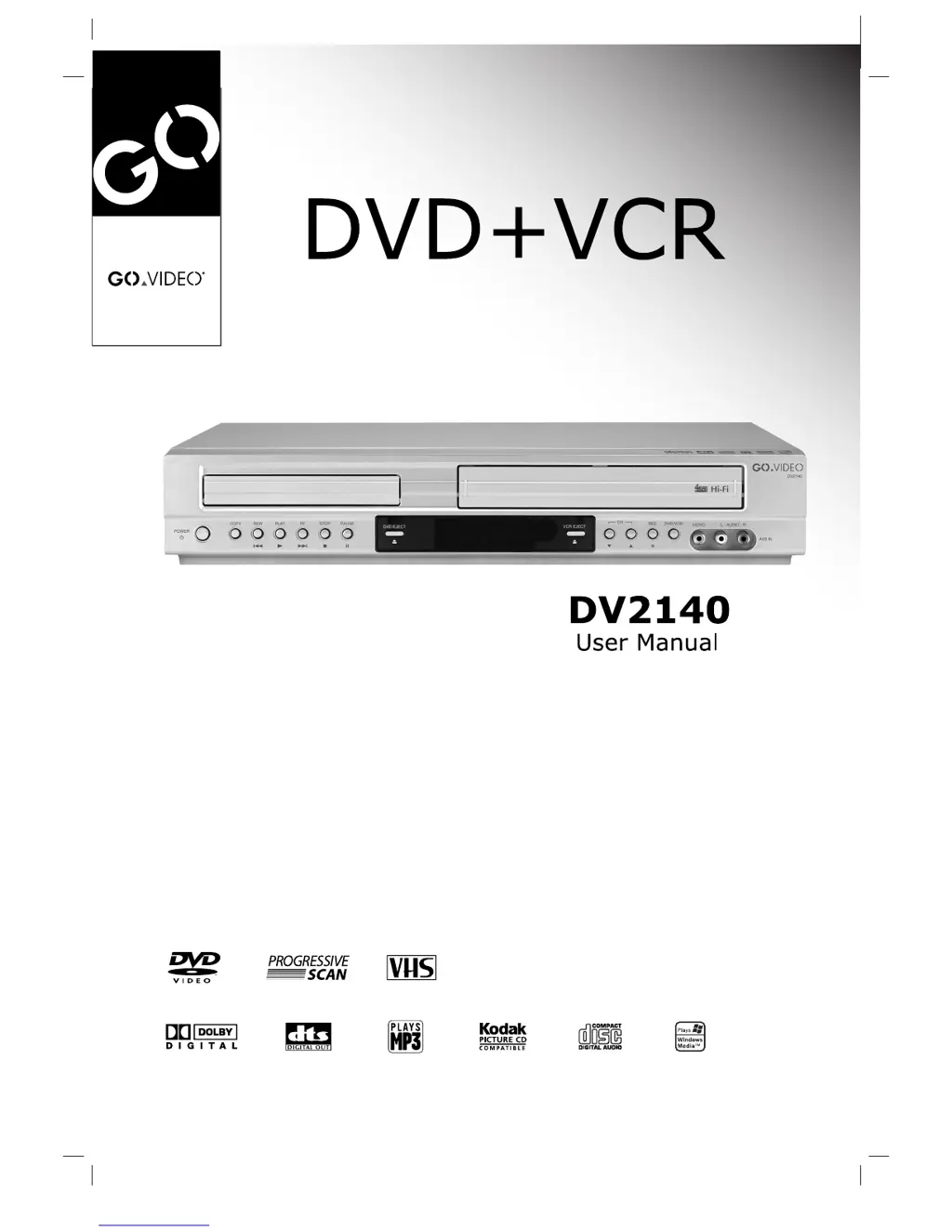
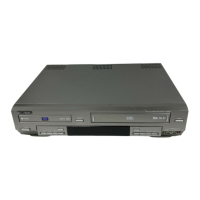
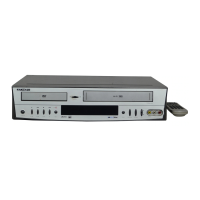
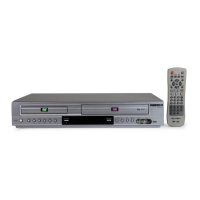
GoVideo DV2140 - User Manual

GoVideo DV2140
40 pages
Print Icon
To Next Page IconTo Next Page
Loading...

Table of Contents

Other manuals for GoVideo DV2140

Questions and Answers

  • H
    hodgejohnAug 12, 2025
    How to fix no stereo sound on GoVideo DVD VCR Combo?
    • D
      Debra WatsonAug 12, 2025
      If stereo audio record and/or playback is not present on your GoVideo DVD VCR Combo, make sure the DVD+VCR A/V Out jacks are connected to the TV A/V In jacks. Also, select AUX or A/V source as the TV input. Ensure the BROADCAST TYPE mode is set to STEREO. Note that if your TV is not stereo-compatible or the broadcast program is not in stereo format, no action is possible.
  • B
    bmorganAug 16, 2025
    Why is timer recording not working on my GoVideo DV2140 DVD VCR Combo?
    • A
      Angela WongAug 16, 2025
      If timer recording is not working on your GoVideo DVD VCR Combo, ensure the clock is set to the correct time. Also, verify that the timer has been programmed correctly and reprogram it if necessary. Note that if the indicator does not appear after programming the timer, reprogram the timer. If the DVD+VCR is in Timer Recording mode, this is the normal indication that the DVD+VCR is in TIMER mode.
  • B
    Brian KaneAug 20, 2025
    How to fix snowy picture on GoVideo DV2140 DVD VCR Combo?
    • O
      ocurtisAug 20, 2025
      To resolve a snowy picture on your GoVideo DVD VCR Combo, use a high quality head cleaning system or have the heads cleaned professionally.
  • A
    apruittAug 25, 2025
    Why is the picture and sound weak on my GoVideo DV2140 DVD VCR Combo?
    • V
      vvargasAug 25, 2025
      If the picture and sound of a broadcasting channel are weak or missing on your GoVideo DVD VCR Combo, check if the antenna or cables are loose. If so, tighten the connections or replace the cable. Also, try all the TUNING BAND options, as the wrong one might be selected.
  • D
    Diane BrownAug 27, 2025
    How to restore skipped channels on GoVideo DV2140?
    • J
      James RojasAug 27, 2025
      If some channels are skipped over when using CH. ADD/DEL on your GoVideo DVD VCR Combo, it means those channels were deleted with the CH. ADD/DEL option. To restore them, use CH. ADD/DEL to restore the channels.
  • J
    Jose MartinAug 31, 2025
    What to do if camcorder image is not showing on GoVideo DV2140?
    • K
      Keith FoxAug 31, 2025
      If the camcorder image is not showing on your GoVideo DVD VCR Combo, first, ensure that the camcorder is turned on and operating properly. Then, press the INPUT button to select the LINE input channel (LINE1 or LINE2).
  • C
    charlesrobinsonSep 4, 2025
    How to remove 'progressive scan mode' message on GoVideo DV2140 DVD VCR Combo?
    • R
      Rebecca WellsSep 4, 2025
      If you see the "PROGRESSIVE SCAN MODE" message remains on the screen of your GoVideo DVD VCR Combo, it means that the DVD+VCR was turned off while setting the Progressive scan mode. To resolve this, press and hold the STOP button for more than 5 seconds.
  • L
    Lisa JohnsonSep 7, 2025
    What to do if video head cleaning is needed on GoVideo DVD VCR Combo?
    • M
      Matthew SmithSep 7, 2025
      To address an unclear playback picture on your GoVideo DVD VCR Combo, which indicates that video head cleaning is needed, use an equivalent high quality chemical non-abrasive (wet) head cleaning tape or have the heads cleaned professionally.

Summary

Safety Precautions

Electrical and Operational Hazards

Warnings related to electric shock, laser exposure, water hazards, and proper installation.

Regulatory and Copyright Notices

FCC regulations and copyright protection information relevant to the device.

Essential Safety Guidelines

User Instructions for Safe Operation

Numbered instructions covering reading, keeping, heeding warnings, and proper use and servicing.

Before Use: Disc Compatibility and Setup

Playable Media and Disc-Specific Notes

Information on playable disc types, DVD software limitations, DTS audio, and region codes.

Remote Control and Basic Setup

Instructions for remote control battery installation and operation range.

Pre-Operation Precautions and Settings

Unit Handling, Cleaning, and Storage

Guidelines for handling the unit, cleaning its surfaces, and storing discs properly.

Disc Cleaning and Output Source Selection

Methods for cleaning discs and setting the DVD+VCR output source on the TV.

Front Panel Controls and Indicators

Key Operational Buttons and Indicators

Explanation of buttons like POWER, PLAY, REC, EJECT, and indicators like DVD/VCR status.

Panel Ports and Special Functions

Description of input/output ports, display window, remote sensor, and Child Lock feature.

DVD+VCR Display Window Guide

Understanding Display Indicators

Explains the various symbols and indicators shown on the display window during operation.

Remote Control Functions and Usage

Basic Playback and Navigation Controls

Details on buttons for playback, stopping, pausing, searching, and menu navigation.

System, Feature, and Number Controls

Explains controls for power, input selection, audio/subtitle, special features, and number input.

Rear Panel Connections and Ports

Audio;Video and Digital Output Ports

Identifies various audio and video output connectors for connecting to TVs and audio systems.

Antenna Input and Power Connection

Locates the antenna input terminal and the AC power cord connection.

Connecting Antenna and Cable TV

Antenna;Cable TV Setup Procedures

Guides on connecting antenna or cable TV, including methods with and without a cable box.

Connecting to Your Television

Standard TV Connections (RF, A;V)

Instructions for basic RF coaxial and Audio/Video connections to a TV.

Advanced Video Connections (S-Video, Component)

Details on S-Video and Component/Progressive Scan connections for enhanced video quality.

Connecting Audio Systems and Accessories

Amplifier and Receiver Audio Connections

How to connect the DVD+VCR to amplifiers for analog stereo, Dolby Surround, and digital audio.

Connecting External Components via A;V Input

Guides on connecting external devices like VCRs or camcorders to the DVD+VCR's input jacks.

VCR Setup and On-Screen Display

Understanding VCR On-Screen Display (OSD)

Explains the various indicators and information presented on the VCR's on-screen display.

Navigating VCR Setup Menus

Instructions on how to access and navigate the VCR's setup menus for configuration.

Configuring VCR Settings

Adjusting VCR Setup Options

How to configure settings like Function OSD, Audio Mode, Broadcast Type, and Audio Output.

Channel Selection and Management

Procedures for automatic channel programming and manually adding or deleting channels.

Setting VCR Clock and Date

Auto and Manual Clock Configuration

Detailed steps for setting the clock automatically or manually, including time zone and daylight saving.

Introduction to DVD Operation Setup

General DVD Playback and OSD Information

Overview of DVD playback, on-screen display elements, and temporary feedback icons.

DVD Initial Settings and Display Options

Language and Display Configuration

Setting menu language, disc audio/subtitle languages, TV aspect ratio, and progressive scan.

Progressive Scan Mode Settings

Specific guidance on enabling or disabling progressive scan for optimal picture quality.

DVD Audio and Special Feature Settings

Audio Output and Format Configuration

Options for Dolby Digital, DTS, MPEG, Sample Frequency, DRC, and Vocal settings for audio output.

EZ Play and Other DVD Options

Configuration of the EZ Play feature for automatic movie playback and other miscellaneous settings.

DVD Parental Control and Region Settings

Password and Rating Management

Setting parental control passwords, ratings, changing passwords, and handling forgotten passwords.

Country Code Selection for DVD Playback

Procedure for selecting the correct country code to ensure DVD playback compatibility.

VCR Tape Playback Operations

Standard Playback and Navigation

Instructions for normal tape playback, searching, and using special effects like slow motion and still picture.

Tracking Control and Commercial Skip

How to adjust tracking manually and use the commercial skip feature for VCR tapes.

VCR Recording Procedures

Normal and Timer Recording Setup

Steps for performing direct recording, pausing, recording while watching, and programming timer recordings.

Timer Recording Program Entry

Detailed guide on entering program numbers, dates, times, channels, and recording speeds for timer recordings.

VCR Timer Recording Management

Setting Recording Speed and Repeat Options

Configuring tape speed, repeat modes (once, weekly, daily) for timer recordings.

Checking, Erasing, and Priority of Timer Programs

How to view, delete, and understand the priority of programmed timer recordings.

VCR Recording and Copying Functions

Instant Timer Recording and Dubbing

Performing instant timer recordings and dubbing from camcorders or other VCRs.

Copying DVD Content to VHS Tape

Step-by-step guide on copying content from a DVD to a VHS tape.

VCR Audio and Broadcast Features

VHS Hi-Fi Stereo and MTS Broadcast Handling

Using Hi-Fi stereo playback and understanding MTS broadcast reception and indicators.

SAP Recording and Setup Procedures

Instructions for setting up and recording Second Audio Program (SAP) broadcasts.

VCR Tape Counter and System Information

Tape Counter and Remaining Time Functions

Utilizing the tape counter for location and displaying remaining tape length.

Additional VCR Information and Auto Play

Notes on VCR operation and the automatic play system.

DVD Playback Operations and Navigation

Basic DVD Playback and Menu Interaction

How to play DVDs, load discs, navigate menus, and stop playback.

DVD Navigation Features (Slow Motion, Search)

Using features like slow motion, still picture, and search to navigate DVD content.

DVD Playback Enhancement Features

Repeat, Time Search, and Zoom Functions

Using repeat modes, time search, and zoom for enhanced DVD viewing.

3 D Surround Audio and Marker Search

Configuring 3D surround sound and using marker search to bookmark scenes.

DVD Special Features and Player Information

Accessing DVD Menus and Language Options

Navigating title menus, disc menus, camera angles, and changing audio/subtitle languages.

DVD Player Memory and Screen Saver

Information on last condition memory and the screen saver function.

Audio CD and MP3;WMA Disc Playback

Playing Music Discs and File Compatibility Notes

How to play Audio CDs and MP3/WMA discs, including compatibility and recording guidelines.

Audio CD and MP3;WMA Playback Controls

Track Navigation and Playback Modes

Functions for pausing, moving tracks, repeat, search, random playback, and repeat A-B sequences.

Photo Disc (JPEG) Viewing Operations

Viewing JPEG Files and Navigation

How to view JPEG files, select folders, rotate images, and move between files.

JPEG Recording Guidelines and Tips

Important notes and recommendations for creating compatible JPEG discs.

Programmed Playback for Music Discs

Creating and Managing Playlists

Steps to create playlists for Audio CDs and MP3/WMA discs, including adding and selecting tracks.

Programmed Track Repeat and List Management

How to repeat programmed tracks and erase tracks or the entire playlist.

Troubleshooting Common Issues

Problem Diagnosis and Solutions

Guide to resolving common problems like no power, no picture/sound, playback errors, and remote control malfunctions.

Advanced Troubleshooting and Environmental Issues

Broadcast Signal and Recording Issues

Solutions for channel skips, poor signal, recording timer problems, and progressive scan display issues.

Moisture Condensation Handling

Guidance on preventing and handling moisture condensation problems with the unit.

Video Head Maintenance

Video Head Clogging and Cleaning Procedures

Explanation of video head clogging causes and instructions for cleaning or professional servicing.

Language Code Reference

List of Language Codes for Settings

A table of language codes for setting disc audio, subtitle, and menu languages.

Country Code Reference

List of Country Codes for DVD Region Settings

A table of country codes used for setting the DVD region to ensure playback compatibility.

Technical Specifications

General, Input, and Output Specifications

Details on power, dimensions, operating conditions, and port specifications for the unit.

VCR, DVD, and Accessory Details

Specific technical parameters for VCR and DVD functions, and included accessories.

GoVideo DV2140 Specifications

General IconGeneral
TypeDVD VCR Combo
DVD TypeDVD Player
VCR FormatsVHS
Audio OutputStereo
Remote ControlYes
Playable File TypesDVD, CD
ConnectorsComposite Video, Stereo Audio, RF
DVD FormatsDVD-R, DVD-RW, CD, CD-R, CD-RW
Video OutputComposite, S-Video, Component

Related product manuals