EasyManua.ls Logo

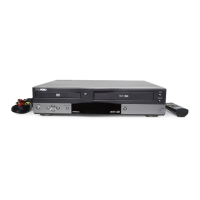
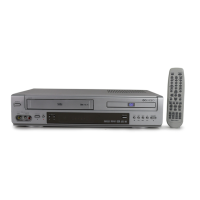
GoVideo DV2150 - User Manual

GoVideo DV2150
48 pages
Print Icon
To Next Page IconTo Next Page
Loading...
1




Other manuals for GoVideo DV2150

Questions and Answers

  • C
    Cassandra SantosAug 17, 2025
    How to fix a GoVideo DV2150 remote control that is not working?
    • W
      William ZamoraAug 17, 2025
      If your GoVideo DVD VCR Combo remote control isn't working properly, first, ensure you're pointing it directly at the remote sensor on the DVD+VCR. Make sure you are within 23 feet (7 meters) of the unit and that there are no obstacles blocking the signal. Try replacing the batteries with new ones. Finally, ensure the remote is in the correct mode by pressing DVD for DVD control or VCR for VCR control.
  • K
    kristen39Aug 22, 2025
    Why is there no sound coming from my GoVideo DV2150?
    • A
      Anne GreenAug 22, 2025
      If your GoVideo DVD VCR Combo has no sound, ensure the equipment connected with the audio cable is set to the correct input mode. Verify that the audio cables are securely connected and that the connected equipment is powered on. If the issue persists, replace the audio cables, as they may be damaged. Also, check the Digital Out setting in the DVD+VCR menu system.
  • S
    Stanley HillAug 25, 2025
    What to do if my GoVideo DV2150 DVD VCR Combo does not start playback?
    • A
      Antonio SanchezAug 26, 2025
      If your GoVideo DVD VCR Combo isn't starting playback, first, check that a disc or tape is inserted and that the disc/tape indicator on the front panel is lit. Ensure that the inserted disc is playable, checking its type, color system, and regional code. Make sure the disc is placed correctly, with the playback side down inside the guide, and that it is clean. Finally, verify that the Parental Control function is not active or adjust the rating level.
  • E
    Emma WebbAug 27, 2025
    Why can't I record with my GoVideo DVD VCR Combo?
    • M
      Mrs. Megan FosterAug 27, 2025
      If you're unable to record or your GoVideo DVD VCR Combo didn't record successfully, it may be because the source you are trying to record is copy-protected, and therefore, cannot be recorded. If you're setting the recording channel, make sure the channel is tuned to the DVD+VCR’s built-in TV tuner, not the TV’s own tuner.
  • D
    Danielle HowardAug 30, 2025
    Why does timer recording not work on my GoVideo DV2150?
    • D
      davisjenniferAug 30, 2025
      If your GoVideo DVD VCR Combo timer recording isn't working, ensure the DVD+VCR is set to the correct date and time. If the TIMER indicator light does not appear after programming the timer, reprogram the Timer.
  • D
    David EdwardsSep 2, 2025
    Why is stereo audio recording or playback not working on my GoVideo DV2150 DVD VCR Combo?
    • N
      Nicole YoungSep 2, 2025
      If the stereo audio recording and/or playback is not present on your GoVideo DVD VCR Combo, ensure the DVD+VCR AV Out jacks are connected to the TV AV In jacks, as stereo is only available via AV output from the DVD+VCR. Also, make sure the TV input is set to AUX or AV source to view the DVD+VCR Audio/Video output.
  • L
    Lisa JonesSep 5, 2025
    Why is the picture from an external input distorted on my GoVideo DVD VCR Combo?
    • B
      Benjamin SchmidtSep 5, 2025
      If the picture from an external input is distorted on your GoVideo DVD VCR Combo, it may be because the video signal from the external device is copy-protected. Connect the device directly to your TV.
  • W
    Willie ChaseSep 7, 2025
    Why is the camcorder image not showing on my GoVideo DV2150?
    • C
      Christina OconnellSep 7, 2025
      If the camcorder image via AV input to your GoVideo DVD VCR Combo is not shown on the TV screen, ensure the camcorder is turned on and operating properly. Also, check that the DVD+VCR’s input is set to Video 1 or Video 2 by pressing the TV VIEW button to select the correct input.
  • L
    lacey00Sep 10, 2025
    Why is there no picture on my GoVideo DV2150?
    • C
      Christopher PinedaSep 12, 2025
      If your GoVideo DVD VCR Combo isn't displaying a picture, make sure your TV is set to the correct video input. Also, check that the video cable is securely connected and that the TV is powered on. If you are using Progressive Scan mode, switch to Interlace Scan mode by pressing and holding the P.SCAN button for 5 seconds while in Stop mode.
  • D
    Darren AustinSep 12, 2025
    Why is the picture or sound of a broadcasting channel weak or missing on my GoVideo DVD VCR Combo?
    • M
      Monica DoyleSep 12, 2025
      If the picture or sound of a broadcasting channel is weak or missing on your GoVideo DVD VCR Combo, check that the antenna or cables are not loose; tighten the connections or replace the cable if necessary. Also, ensure the correct TV Signal is selected in the DVD+VCR Setup menu.

Summary

Important Safety Instructions

General Usage & Handling Safety

Covers instructions, cleaning, environment, accessories, and handling precautions.

Electrical and Installation Safety

Focuses on ventilation, power sources, grounding, and plug safety.

Specific Hazard Precautions

Addresses risks from lightning, power lines, overloading, objects, servicing, and mounting.

Welcome and Getting Started

Unpacking and Compatible Media

Lists items included and media formats playable/recordable by the DVD+VCR.

Front Panel Overview

Explains the controls, buttons, and indicators on the front panel.

Rear Panel Overview

Details the various input and output jacks located on the rear of the DVD+VCR.

Remote Control Guide

Provides an overview of the remote control, identifying each button and its function.

Connecting Your DVD+VCR

Basic TV Connections

Guides for connecting to antenna, cable, or directly to a TV using RF or AV cables.

Enhanced Video Options

Using S-Video or Component Video for superior DVD picture quality.

Enhanced Audio Options

Connecting to stereo or digital audio receivers for improved sound quality.

Rear and Front AV Input Connections

How to connect external devices like camcorders or VCRs to the DVD+VCR's AV inputs.

Setting Up Your DVD+VCR

VCR Setup and Navigation

Overview of VCR setup options and menu navigation.

Clock and Channel Settings

Configuring time, date, and channels for the VCR.

DVD Setup and Navigation

Overview of DVD setup options and how to navigate the DVD setup menu.

DVD Video and Audio Settings

Customizing DVD playback settings for language, video, and audio.

Operating Your DVD+VCR

Basic Playback Procedures

How to play DVDs and VHS tapes on the DVD+VCR.

Advanced Playback Features

Utilizing features like chapter skip, angle selection, zoom, and tracking.

Recording Operations

Recording from TV, external devices, and setting up timer recordings.

Help and Support Resources

Troubleshooting Common Issues

Guides to diagnosing and resolving problems encountered with the DVD+VCR.

Product Care, Specifications, and Warranty

Information on maintenance, technical details, and warranty coverage for the product.

GoVideo DV2150 Specifications

General IconGeneral
Remote ControlYes
VCR Playback FormatsVHS
TypeDVD VCR Combo
ConnectorsComposite video output
Video OutputComposite video
Audio OutputStereo

Related product manuals