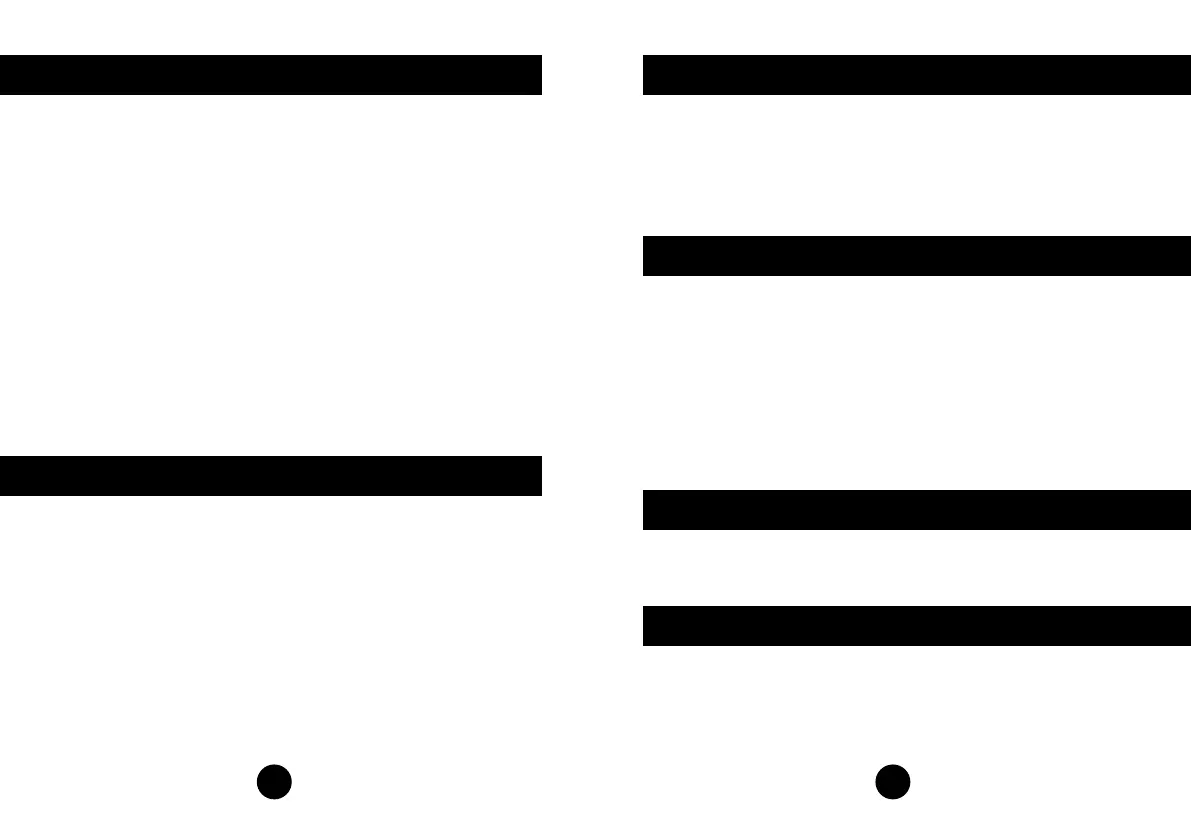
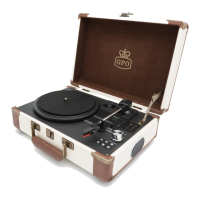
Turntable Mode
1. Connect the small DC jack into the DC-IN port.
2. Connect the plug to a mains outlet.
3. Place the vinyl record on to your turntable.
4. Set the correct speed (rpm) of your vinyl record (33/45/78rpm)
5. Turn on the power of the turntable, you can see the red
indicator of turntable mode is on.
6. Move the tone arm to the desired starting point on the record.
The turntable starts to play. If auto-stop is on, the table will
not spin until the arm is hovered over the record. If auto-stop
is off, the turntable will spin continuously.
7. Adjust speaker volume to the preferred level.
8. At the end of the record, if auto-stop is selected on, the table
will stop turning automatically. If auto-stop is off, the table will
continue to spin.
AUX-IN Play Mode
1. Press the mode button until the red light next to AUX IN is
illuminated.
2. Connect any external audio source (phone, iPad, MP3 player)
to AUX-IN socket at back of the turntable
3. To connect the device to the turntable, you need 3.5mm jack
audio cable.
4. Control the music from your external audio source
5
USB Play Mode
1. Switch the mode button to USB play mode, the red LED
indicator is ON.
2. Plug the USB disk to the USB slot.
3. Press play button to start playing USB disk’s music.
4. You can play own mp3 music or recorded vinyl music.
The turntable’s stylus needs to be replaced every 3-4 months
after continue playing. To buy a replacement stylus, go to
www.gporetro.com or visit one of our stockists.
1. Press the mode button until the red LED light next to
Turntbale is illuminated.
2. Insert a blank USB stick into the slot
3. Place the desired vinyl onto the turntabled and begin playing.
4. Press the record button on the control panel, the red light
next to record will begin to flash. Press the record button
once to record the vinyl in one track, press the record button
twice to split the tracks.
Vinyl Record Mode
Replace Stylus
An RCA cable is included with you GPO Attache, you will require
this cable to connect to extra speakers
RCA Audio Out
6


 To Next Page