+
GrillEye Pro
®
SETTINGS / PREFERENCES
CUSTOMIZE YOUR GRILLEYE
®
PRO PLUS
7
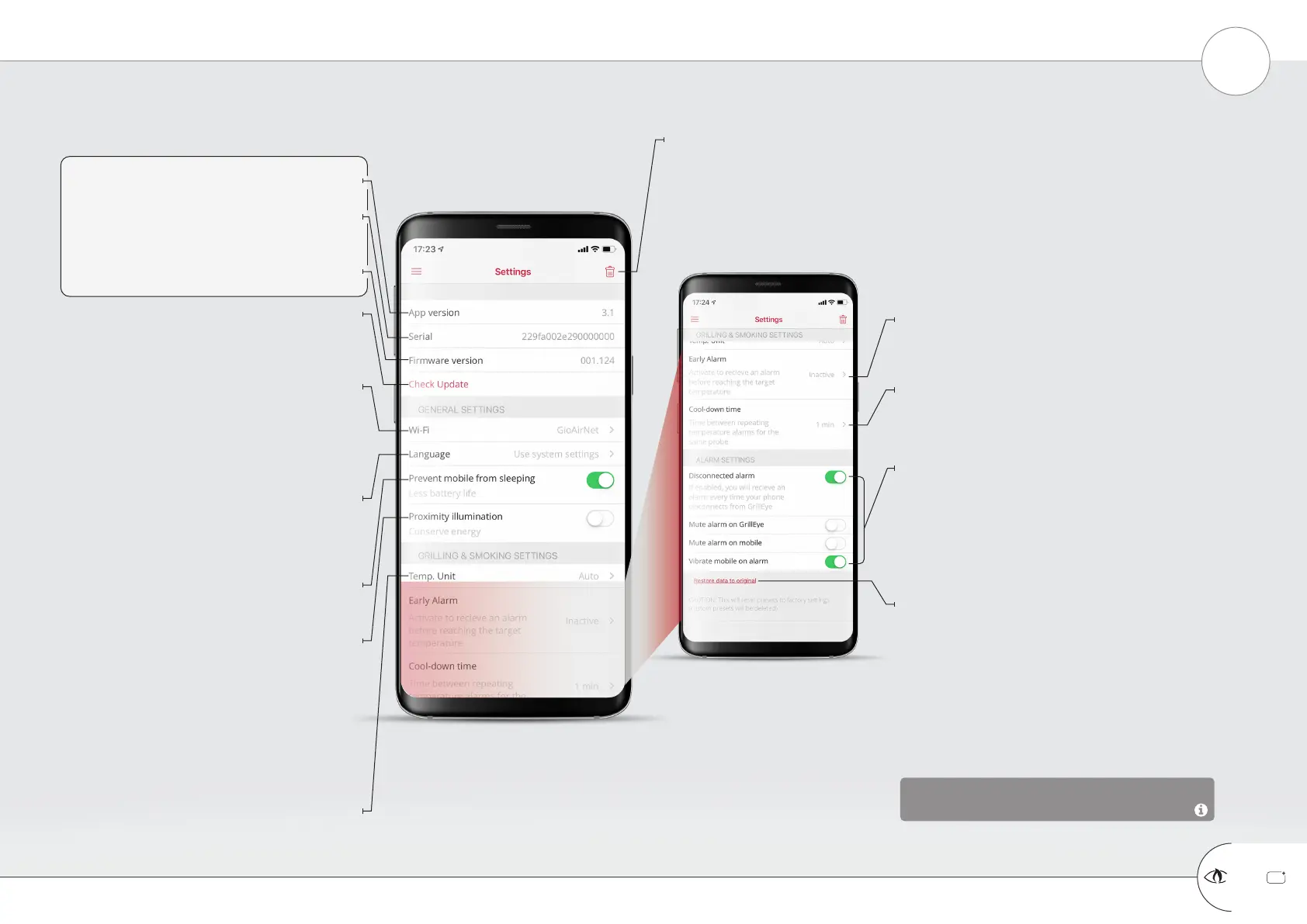
App version indicator | Information only field
GrillEye device serial number | Information only field
If the S/N is not displayed, un-pair your GrillEye, reboot
it and re-install the app.
Un-pair button | Active button
Press to un-pair GrillEye from your mobile. Note that this
doesn’t delete network configuration or other data stored on
the GrillEye device. To delete such data, use the “Restore data
to original” option found at the bottom of the Settings page.
GrillEye device installed firmware version | Information only field
Make sure you update to at least 001.124
Press to update GrillEye device firmware | Active button
Firmware versions later than 001.120 will inform you if
there is a newer version available. Earlier versions will
require that you perform the process manually.
Connected WiFi network | Active button
Press to see the list of available WiFi networks. Once you
connect the name of the network (SSID) will be displayed
here. Being connected to the WiFi doesn’t mean you are
connected to the Cloud. If you are not connected to the
Cloud, check your router is connected to the Internet, allows
for 2.4GHz networks and doesn’t block GrillEye
connection.
User interface language selector | Active button
Press to select the language you wish the App to
display. If your mobile supports it, “System settings” will
select automatically the language you use.*
* this setting doesn’t affect the GrillEye device display.
Unit of measurement of temperature selector | Active button
Press to select if you wish the App AND GrillEye to display
temperatures in Celsius or Fahrenheit. If your mobile supports
it, “System settings” will select automatically the units in use.
Prevent mobile screen from powering-off/diming | Active button
This option will keep your mobile always on. Note that
this option will cause your mobile battery to drain faster.
Allow GrillEye screen to dim when you move away
(requires Bluetooth to be active) | Active button
Having the Bluetooth enabled, move your phone to the
distance (less than 3m) where you want PRO Plus screen to
dim and activate the proximity illumination option. From this
point onwards when your phone moves further from this point
you will see the PRO Plus screen dimming / when moving
closer you will see it illuminating.
To disable this function, move your mobile close to the
GrillEye so that its screen illuminates and disable the option.
Get notified a bit before your food is ready | Active button
Select the number of degrees you wish the GrillEye to
offset from your Peak Preset in order to sound an alarm
and warn you that your food is about ready.
Time that you need your food to rest | Active button
Once you get an alarm you can specify the time you wish
this alarm to remain mute until going-off again (e.g. in
order for you to put gravy on your food before continuing).
Alarms that will notify you when you need to take action | Active buttons
Note that not all alarms can be switched-off in order to save
you from loosing any notification and risking of burning your
food.
Alarm notifications are dependent on your phone settings (e.g.
how loud your mobile is set to ring, if you have allowed GrillEye
notications etc.)
Delete data stored on GrillEye and the App | Active button
- Reset presets option:
This will delete any custom preset you have created from the App
- Reset network option:
This will delete any network related setting stored on your
App and GrillEye device
- Reset graphs option:
This will remove historical data being displayed on the App graphs
- Reset alarm preferences option:
This will restore alarm preferences to the default values on the App
This option is very useful when performing system
resets, to ensure no residual data affect functionality.


 To Next Page
 Loading...