BLUETOOTH
FAQS / COMMON CONNECTIVITY TROUBLESHOOTING
GrillEye PRO Plus is a highly sophisticated device that combines technologies as never before in any
device in its category. Common issues identified along the way are addressed as follows.
WIFI / INTERNET
POWER
WHEN I PRESS THE POWER BUTTON THE DEVICE POWERS-OFF AND POWERS-BACK-ON. I CANNOT GET THE DEVICE TO POWER-OFF. WHAT AM I DOING
WRONG?
When charging, the device will not power off in order to display charging progress. If the device isn’t charging and doesn’t power-off when you press the power-but-
ton for 2 seconds, quit the app (if you are on Android, go to menu and press the Exit button) and then press the power button for 2 seconds (an active connection
between the app and the device may force the latter to wake even if requested to power-off).
WHAT IS THE PIN/CODE TO CONNECT MY GRILLEYE VIA BLUETOOTH®
You are trying to connect from your mobile Settings. Make sure you download the correct app from iTunes or Google Play (see page 4 of this guide), open it and
connect through the app.
I OPEN THE APP BUT IT DOESN’T FIND THE GRILLEYE®
1) Make sure the GrillEye is powered-on and close to your mobile.
2) Make sure you download the correct app from iTunes or Google Play (see page 4 of this guide) and try again.
3) If you are using an Android device, make sure you have location services activated (Google prerequisite for Bluetooth to work).
4) Reboot your GrillEye by holding the power-button for more than 10 seconds and repeat steps 1 - 3.
APP SHOWS “INCORRECT WIFI PASSWORD”, BUT I KNOW MY PASSWORD IS CORRECT
For security reasons, early firmware versions of the GrillEye rejected some password formats, accepted in later firmware versions. So, all you need to do is update
your GrillEye firmware by setting your mobile to work as a hotspot with a short password (8-digits without special characters). Once connected, make sure you
update GrillEye to the latest firmware version and then connect to your router.
I CANNOT FOUND MY WIFI ON THE LIST OF NETWORKS BUT I’M STANDING NEXT TO THE ROUTER
Make sure your router has the 2.4GHz network compatibility option enabled. Also check that your router broadcasts its SSID and it’s not hidden.
GRILLEYE DISPLAYS POOR WIFI SIGNAL ALTHOUGH IT’S PLACED NEAR MY ROUTER
Check if you have a mesh network and your GrillEye is connected to an access point far from its position. Find the nearest access point to your BBQ and connect to
it.
GRILLEYE SIGNAL BREAKS ALTHOUGH I AM CONNECTED TO THE WIFI. AS SOON AS I GET OUT OF BLUETOOTH RANGE I GET A DISCONNECTION ALARM
Although you are connected to the WiFi you are not connected to the Cloud/Internet. Make sure your router has an active Internet connection and doesn’t block the
GrillEye. Reset your GrillEye by holding the power button for 10 seconds. Remove and re-install the app. Set your mobile to work as a hotspot, connect
to it and make sure you update GrillEye to the latest firmware version. Then connect back to your router and confirm the Cloud icon appears as active.
Installing the latest firmware version may require you to perform the update process more than once,
since some versions are installed in an incremental manner. If after each installation you experience any
issue, make sure to reboot your GrillEye and restart your App.
THE APP WILL AUTOMATICALLY PROMPT YOU TO UPDATE YOUR
FIRMWARE
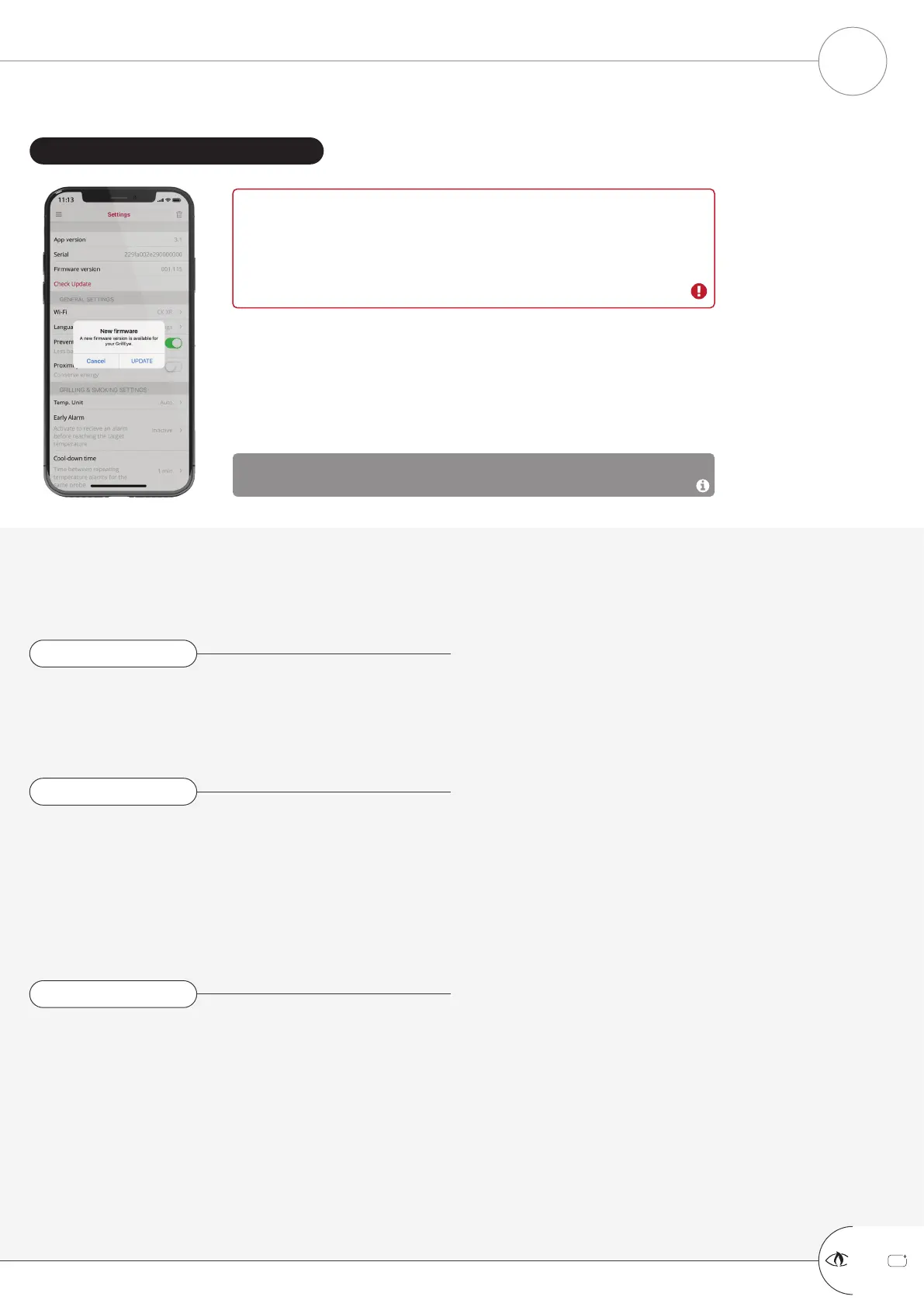
Once you connect to the WiFi, the App will prompt you to update
your firmware (side illustration). If you miss this prompt by any
chance, you can manually request to update the firmware on
Settings / “Check Update” option.
CONNECTING TO THE CLOUD REQUIRES THE LATEST FIRMWARE
Cloud connectivity came as a firmware update. Your device may not have
installed the latest firmware. So, although connecting to your WiFi (Step 3) will
allow you to use your GrillEye PRO Plus, it will not allow you to take advantage
of GrillEye’s full potential.
SO, MAKE SURE YOU UPDATE YOUR GRILLEYE TO THE LATEST FIRMWARE.
STEP 4: UPDATE GRILLEYE FIRMWARE
+
GrillEye Pro
®
CONNECTING & UPDATING PART 2 of 2
SETTING UP YOUR GRILLEYE
®
PRO PLUS
6


 To Next Page
 Loading...