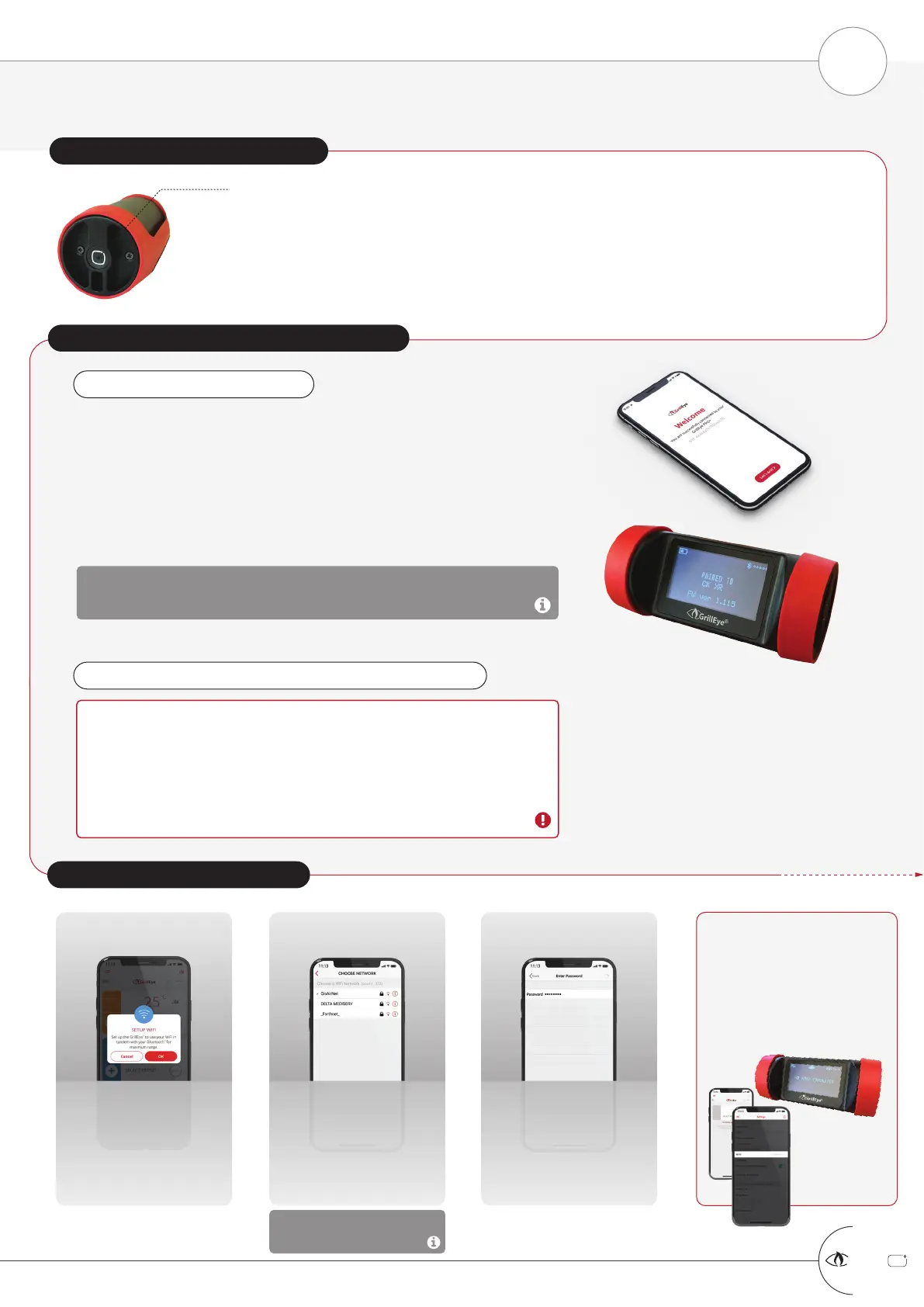
STEP 3: CONNECT TO THE CLOUD
The App will prompt you
to connect to a WiFi
WiFi networks are detected
and listed as illustrated
Due to broadcast variability,
drag the list to refresh it.
Select network and enter
the password to connect
SUCCESSFUL CONNECTION
POINTERS
App Settings: WiFi displayed
App Home: Cloud icon
Device: Cloud & WiFi icon (or
WiFi icon only for firmware
up to 001.115)
If you miss this prompt
for any reason, just go
to Settings / “Wi-Fi”
option.
If you face trouble finding
your WiFi on the list, check
your router’s compatibility
with 2.4GHz networks and
also the router’s firewall
settings that might block
the GrillEye from
connecting.
In case of “incorrect password”
prompt, without reason, set
your mobile as a hotspot with
8-digits, no special chars
password, repeat the Cloud
connection, update GrillEye to
the latest firmware and then
connect to your router.
Using the Cloud means that you are able to monitor your GrillEye from anywhere
as long as you have an active Internet connection
RANGE
At this stage you can use your GrillEye PRO Plus but, without connection to
the Cloud (step 3) your range will be limited to ~10m (30ft) max (depending on
obstacles).
GRAPHS
Using the PRO Plus in Bluetooth mode only disables the graphs functionality
since the device is designed to store data to the Cloud (step 3).
PRESS “LET’S GRILL”, AND... YOU ARE ALMOST THERE!
A non-blinking Bluetooth
®
icon along with signal strength on
the top right corner of the GrillEye indicates successful pairing
THE APP
Will detect the GrillEye® PRO Plus and a couple of seconds later it
will display its serial number to verify the connection.
THE GRILLEYE PRO PLUS
Will display your mobile device name (non-latin alphabet not
supported) and the installed firmware version.
OPEN THE GRILLEYE PRO APP
STEP 2: PAIR WITH MOBILE OVER BLUETOOTH
®
PRESS THE POWER-BUTTON ONCE
The device will sound a short “beep” and will light-up to display the GrillEye® logo,
before moving to the Home Screen.
In Home Screen, the Bluetooth® icon, on the top right corner, will start blinking to
indicate that the GrillEye is in pairing-mode.
STEP 1: POWER-ON YOUR GRILLEYE
+
GrillEye Pro
®
CONNECTING & UPDATING PART 1 of 2
SETTING UP YOUR GRILLEYE
®
PRO PLUS
5


 To Next Page
 Loading...