7 8
6 Android
.1 .2
6 Apple iOS
.3
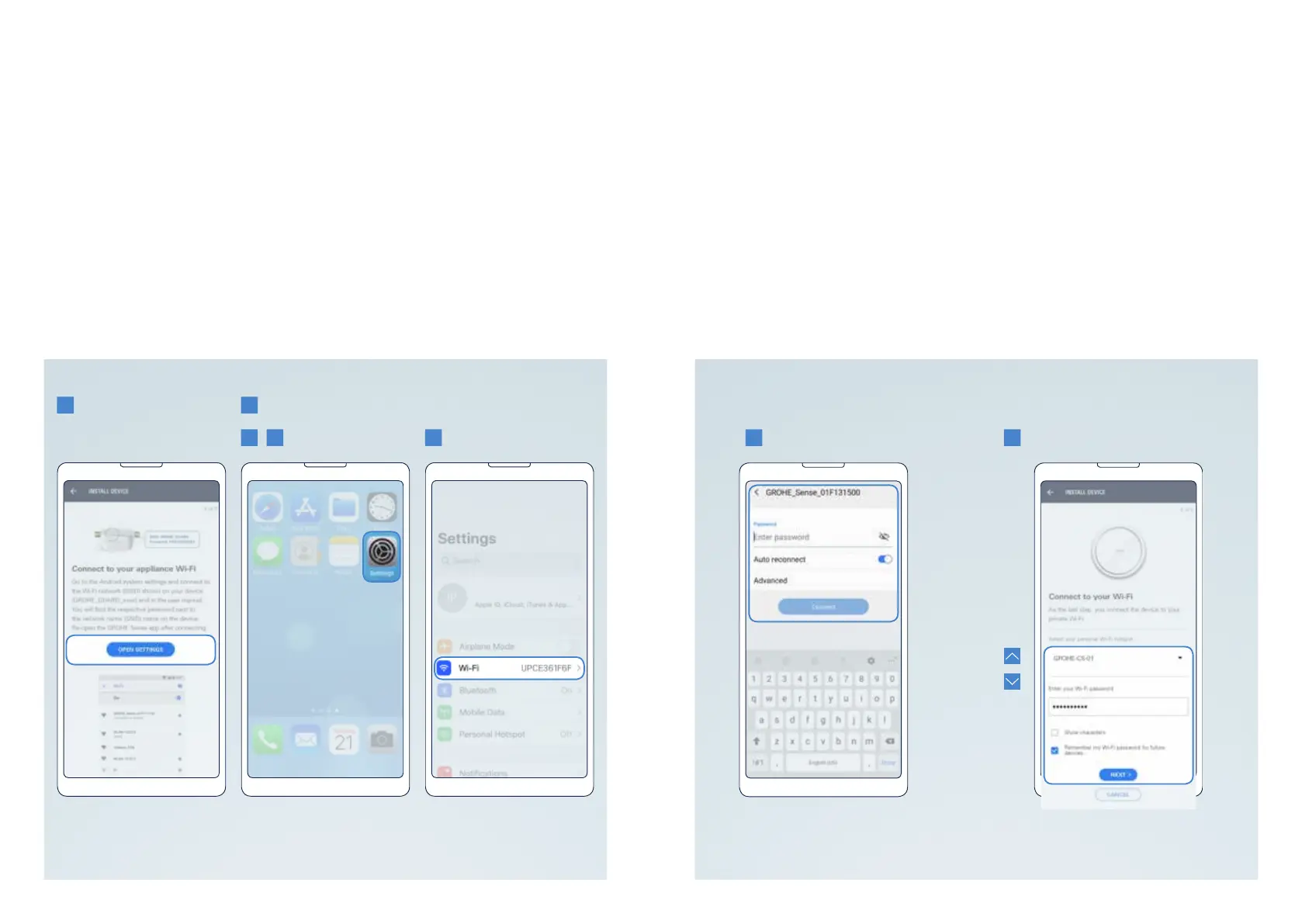
6. Gotoyourphone’sWi-Fisettings.
• Androidusers:tapthebutton“Opensettings”inthecentralareaofthescreen.If
this doesn´t work, follow the instructions for Apple iOS.
• AppleiOSusers:gotoyourphonesettingsandopentheWi-Fisettingsinthe
followingsteps:
• 6.1. Open the home screen.
• 6.2. Open the settings.
• 6.3. Click on Wi-Fi.
7. ConnectyourphonetothedeviceviaWi-Fi.Thenetworknameandpasswordcan
befoundonastickeronthedevice(ontheunderside).
• Ifyourdevicedoesnotappearhere,trytoresetthedevice.
8. ReturntotheGROHESenseappandenterthecredentialsofyourhome’sWi-Fi
networktoconnectyour.
• If no Wi-Fi networks are shown, this might indicate a device malfunction. In this
case contact the GROHE customer support.
Youwillreceiveanoticationwhenyourdeviceissuccessfullyconnected.Itmighttake
a short time for the device to appear on the overview screen.
Ifyouneedtoresetthedevice,seesection5.1.onhowtoreset.
16 17
GROHE SENSE USER GUIDE
16 17
2. GETTING STARTED


 To Next Page