51
ENGLISH
WI-FI NETWORK – FIRST INSTALLATION
-------------------
Setup wizard
(installation assistant)
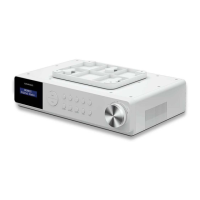
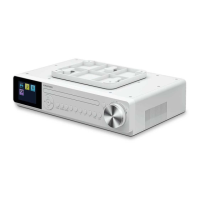
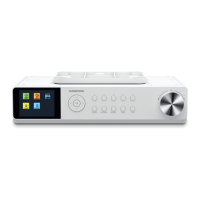
1 Place your Kitchen Radio on a convenient
place within the range of Wi-Fi router to allow
for a good connection.
2 And then plug the DC plug of the provided AC
adapter into the DC IN socket on the rear of
the device and ensure that the plug is pushed
fully into the socket. Plug the mains adapter
into a properly installed 230V 50Hz earthed
power socket.
3 When you connect the device to the mains for
the first time or after a factory reset, the display
will show the “GRUNDIG” logo briefly.
4 And then, the »Setup Wizard« installation
assistant appears which guides you through
the installation step by step. Follow the steps
on the screen to complete the installation:
5 Use the navigation controls (»5 Keys« and
/or »OK« knob) to start and complete the
setup wizard.
- YES is highlighted by default on the screen. Just
short press the »OK« knob if your Wi-Fi net-
work is available for connection.
6 Once “YES” is confirmed, the Setup wizard
starts; (see “Continue for the Setup wiz-
ard” in the following page)
- Selecting »NO« will skip the Setup wizard. Se-
lect this option if Wi-Fi network is not available
for connection. Furthermore, A pop-up menu
will ask “Run wizard again at next start
up?”. Choose the desired option (YES or NO)
and the device will return to the Main Menu.
- You can recall this Setup Wizard from the <
System menu > any time you want by long
pressing the »INFO/MENU« button on device
or short pressing the »MENU« on remote con-
trol to edit or create a new WI-FI connection.
(e.g. Current mode menu > System Settings >
option “Setup wizard”)
Continue for the Setup wizard
Date/Time set
7 Select the desired clock format (either 12 or 24
hour).
Auto update
8 Select the desired auto-update option for the
clock. This can be:
- Updated from DAB;
- Update from FM;
- Update from the Network;
- No update.
Note: If “No update” is selected, the clock will
not sync from any source and needs to be set
manually.
Set timezone
9 Select the timezone applicable to your location
from the list.
Daylight savings
10 Choose the desired Daylight Savings option
(YES or NO) according to your location.
- Display: < Daylight savings >.
- Daylight Savings is also known as Summer/
Winter time.
- Choose ON to turn on daylight savings (if re-
quired).
- Chose OFF if you do not wish to use daylight
savings.
Network settings
Note:
- By default, the Kitchen Radio will shut down
its Wi-Fi connection when it is in standby. This
minimizes power consumption but it does mean


 To Next Page
 Loading...