71
ENGLISH
SPECIAL FUNCTIONS
--------------------------------------------------------------------------------------------
Factory Reset
(Deleting all settings)
1 In “now playing” screen, long press the
»INFO/MENU« on device or short press
»MENU« button on remote control to open the
menu.
- Display: < Internet Radio/Podcasts/
DAB/FM/BT > menu appear.
2 Select < System Settings > by short pressing
the » « / » « button or rotating the »OK«
knob, and then short press the »OK«/ » «
knob to confirm.
- Display: < Options >.
3 Select < Factory Reset > by short pressing
the » « / » « button or rotating the »OK«
knob, and then short press the »OK« / » «
knob to confirm.
- Display: Factory reset < Proceed? > and
< YES NO > appear.
4 Select < YES > by short pressing the » » «
/ » « button or rotating the »OK« knob, and
then short press the »OK« / » « knob to con-
firm.
- Display: < Restarting > appears briefly.
5 Then the device will start the Setup wizard pro-
cess automatically.
Software Update
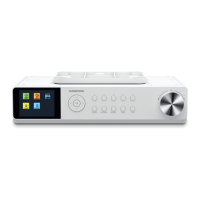
From time to time, Grundig may make software
upgrades available with bug fixes and/or addi-
tional features. You can either check manually or
set Kitchen Radio to check regularly (this is the
default). If Kitchen Radio detects that newer soft-
ware is available, it asks if you want to go ahead
with an update. If you agree, the new software is
downloaded and installed. After a software up-
grade, all user settings are maintained.
CAUTION: Before starting a software upgrade,
ensure that Kitchen Radio is plugged into a
stable mains power connection. Disconnecting
power during a software update may perma-
nently damage the unit.
Auto-check settings
(automatic checking on or off)
1 In “now playing” screen, long press the
»INFO/MENU« button on device or short
press »MENU« button on remote control to
open the menu.
- Display: < Internet Radio/Podcasts/
DAB/FM/BT > menu appear.
2 Select < System Settings > by short pressing the
» « / » « button or rotating the »OK« knob,
and then short press the »OK« / » « knob to
confirm.
- Display: < Options >.
3 Select < Software Update > by short press-
ing the » « / » « button or rotating the
»OK« knob, and then short press the »OK« / »
« knob to confirm.
Display: options < Auto-check setting > and
< Check now > appear.
4 Then select the option (Auto-check setting) by
short pressing the » « / » « button or rotat-
ing the »OK« knob, and then short press the
»OK« / » « knob to confirm.
Display: < Check periodically for new ver-
sion > and < YES NO > appears briefly.
5 Select the desired option and then short press
the »OK« / » « knob to confirm.
or
Check now
6 Select < Check Now > by short pressing the »
« / » « button or rotating the »OK« knob,
and then short press the »OK« / » « knob to
confirm.
- Display: < Checking for new version / >
in process briefly.
- The “Software up to date” will be shown if no
newer software is available.
- If newer software is detected, it asks if you want
to go ahead with an update. If you agree, the
new software is downloaded and installed.


 To Next Page
 Loading...