20
VIDEO OPERATION
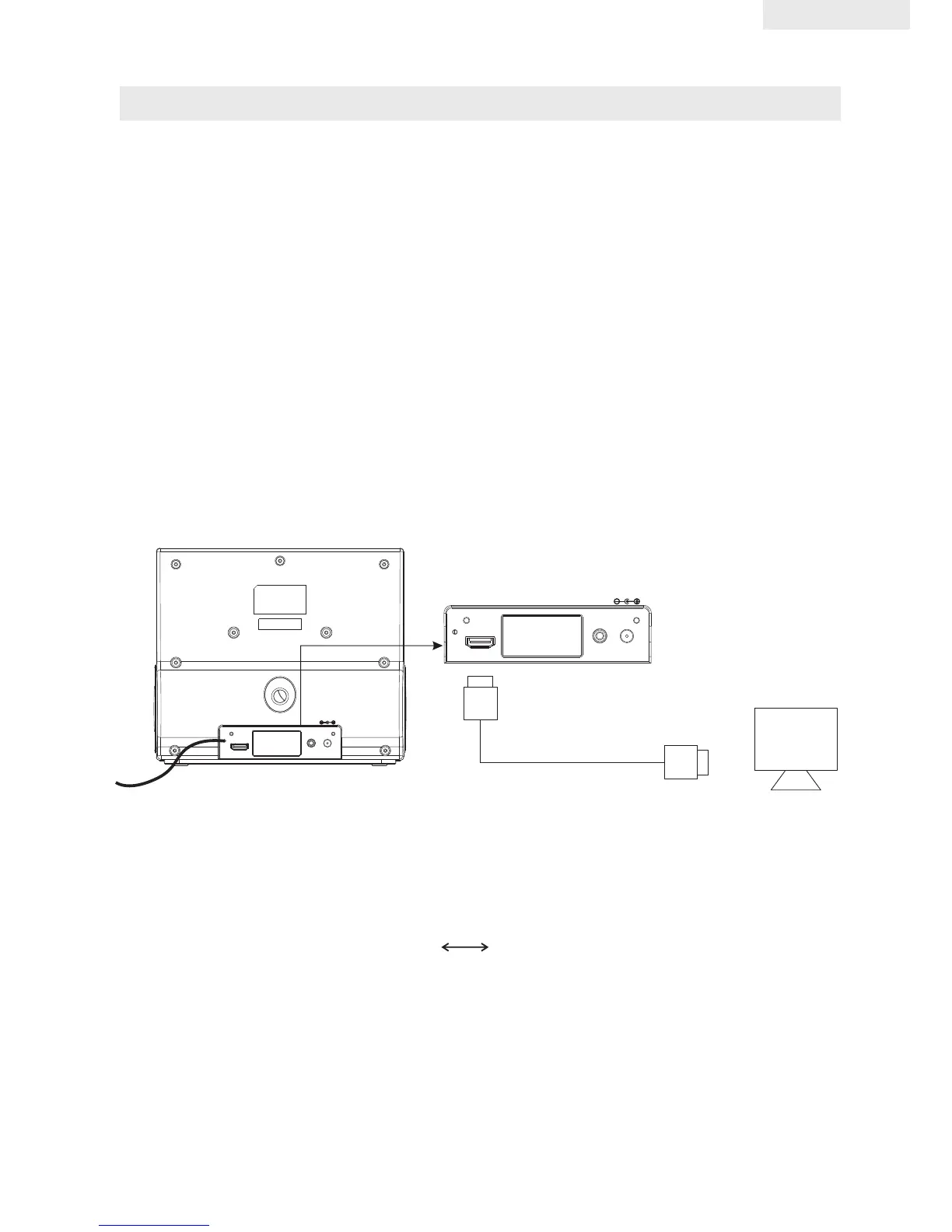
Connecting the Video Cord to View a Video/Picture from iPod , iPhone , iPad
(not supplied)
The below diagram show the connection options available.
NOTE: Consult your iPod documentation for details on how to enable video output on you
model of iPod , iPhone , iPad.
Use the HDMI cable to connect this jack to the HDMI jack on your television for the best
picture. If an HDMI cable is connected to an HDMI-compatible TV, HDMI will be output automatically
a maximum of 10 seconds later.
Refer to the TV's instruction manual for detailed information regarding the HDMI terminal.
Connecting to a TV with HDMI Jack
1, Using the HDMI cable connect the HDMI OUT terminal
to the rear of the unit and to the HDMI IN terminal of your TV.
2, Press the input selector on your TV remote control to switch to the
HDMI signal from the unit appears on your TV screen.
** If there is noise or lines on the screen, please check the HDMI cable.
Remarks:
need to change the output setting to TV output.
• Press the VIDEO OUT button on the remote control to escape the current video playback,
then press ENTER or Play(iPad) to resume on TV screen.
NOTES:
• Due to the software used in iPod Classic and iPod Nano 3G, to change the video to video
output mode you will need to press the MENU button to escape the
current video playback, then press ENTER to resume.
• HDMI video output to television is supported by iPod nano (3rd, 4th and 5th
generation), iPod touch (2nd generation), and iPod classic at 480p or 576p resolution;
and by iPod touch (1st generation), iPhone, iPhone 3G, iPhone 3GS, iPhone 4, and iPad
at 480p or 576p resolution.
• When you have your iPod outputting video and the unit connected to your TV, you may
Video play on iP d , iPhone , iP d o a TV out with outHDMI
TV
To input of TVHDMI
Cable (not supplied)
FM ANT.
AUX IN
DC IN 8.5V
HDMI
FM ANT.
AUX I N
DC IN 8 .5V
HDM I
ENGLISH



 To Next Page