This document is an owner's manual for a Haier LED LCD TV, model LE32U5000A, providing comprehensive instructions for its operation, installation, and troubleshooting. It emphasizes safety precautions and offers detailed guidance on various functionalities, ensuring users can effectively set up and utilize their television.
Function Description
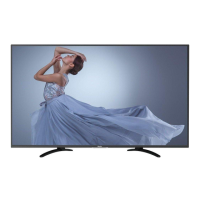
The Haier LE32U5000A functions primarily as a television, offering a display terminal for various content. It can also serve as a PC display, expanding its utility beyond traditional broadcasting. A key feature is its ability to store up to 100 ATV (Analog Television) programs, allowing users to access a wide range of channels. The TV is equipped with HDMI interfaces, facilitating high-definition connectivity with external devices such as Blu-ray players, gaming consoles, and set-top boxes. Additionally, it includes a multi-media player accessible via USB, enabling users to play various media files directly from a USB storage device. For Android models, the TV supports internet connectivity via RJ45, with a recommended minimum internet speed of 100M/s, indicating smart TV capabilities for accessing online content and applications.
The television provides multiple signal input/output options to accommodate a diverse range of external equipment. These include three High-Definition Multimedia Interface (HDMI) inputs, one Composite Video Input, one Audio Input, one YCb(Pb)Cr(Pr) input, three USB ports, one RF input for antenna connection, one TF card slot, one LAN port for network connectivity, one Headphone Output, and one Optical Output. This extensive array of ports ensures compatibility with a wide variety of audio and video devices, from legacy VCRs to modern digital systems. The YCb(Pb)Cr(Pr) input supports various video formats, including 480i, 576i, 480p, 576p, 720p, 1080i, and 1080p, offering flexibility for high-quality video playback.
The TV also features an Android Mode, which can be accessed from the TV Mode by pressing the "BACK" button or a dedicated "HOME" button. In Android Mode, users can access a variety of pre-installed applications such as Play Store, YouTube, Twitter, Facebook, Skype, and Google. The "SMART Share" feature allows users to mirror their phone's screen onto the TV, enhancing content sharing. System settings within Android Mode enable customization of Wi-Fi and Ethernet connections, sound volumes, display settings (wallpaper, font size, video settings), and storage management. The "Apps" section allows users to view and manage installed applications. Location services, including Google Location reporting, and security settings for password visibility and device administrators are also available. The TV supports system updates via local or net update options and allows for adding accounts.
Usage Features
The manual details the operation of the TV through both the front panel keyboard and the infrared remote controller. The front panel includes buttons for SOURCE, MENU, Volume Up/Down, Channel Up/Down, and Standby. The remote controller offers a more comprehensive set of controls, including power on/off, sound mode selection, picture mode selection, channel number input (0-9), quick view for switching to the last viewed channel, sleep timer setting, volume adjustment, mute function, audio language selection (Mono, Nicam stereo for ATV; Audio language for DTV), subtitle control, and a favorite channel list.
The remote controller for Android models is more advanced, featuring buttons for Power ON/OFF, Volume Up/Down, navigation (Up, Down, Left, Right), Mouse Left/Right Click, Menu, Home, Cursor On/Off, Source, Mic, and Mute. It also includes indicators for working status, pairing failure, and force pairing mode. The pairing process for the remote controller involves plugging in a USB dongle receiver, ensuring the remote is close to the receiver, and pressing specific keys for 3 seconds. The remote also has a hibernation mode to conserve battery life and an infrared key for power ON/OFF that requires direct aiming at the TV.
Initial setup involves selecting the OSD (On-Screen Display) language, followed by choosing between "shop mode" and "home mode." The "home mode" is recommended for general use. The TV then guides the user through DVB (Digital Video Broadcasting) tuning, allowing selection of DTV/ATV and antenna type (DVB-T/DVB-C). Depending on the selection, users can choose their country for channel scanning.
Menu navigation is intuitive, with dedicated buttons for Picture, Audio, Wide Mode, Channel, Time, and Setup.
- Picture Menu: Allows adjustment of picture effects such as contrast, brightness, color, sharpness, tint, backlight, image noise reduction, and color temperature. Users can select preset modes like ECO, Standard, User, Mild, and Vivid.
- Audio Menu: Provides controls for sound effects, including bass, treble, equalizer, AVC (Automatic Volume Control), surround sound, SPDIF output, and balance. Preset modes include Standard, Music, Theatre, and User.
- Wide Mode Menu: Offers options for screen aspect ratio, such as Auto, 16:9, 4:3, Zoom1, Zoom2, and Just Scan.
- Channel Menu: Includes options for Antenna Type, Auto Tune, Manual Tune, Program Edit, and Signal Information. Program Edit allows users to delete, rename, move, skip, and mark favorite channels.
- Time Menu: Enables setting of On Time, Off Time, Sleep Time, Auto Sleep, and Auto Standby.
- Setup Menu: Contains System Lock, HDMI_CEC, and Advance settings.
- System Lock: Provides features like input password, set password, lock system, channel lock, and parental lock. The default password is 0000, with a super password of 9443 for recovery.
- HDMI_CEC: When enabled, allows the TV remote to control connected Blu-ray players. ARC (Audio Return Channel) can be selected for sound equipment.
- Advance Settings: Includes options for Menu Time, Audio Language, Subtitle Language, AD (Audio Description), AD Volume, Hearing Impaired, Shop Mode, Switch Mode, Blue Screen, PVR File System, and Restore to Default.
Maintenance Features
The manual emphasizes several safety instructions crucial for the longevity and safe operation of the TV. These include reading and keeping instructions, heeding all warnings, following all instructions, avoiding use near water, cleaning with a dry cloth, ensuring proper ventilation, avoiding installation near heat sources, protecting the power cord, using only manufacturer-specified attachments, unplugging during lightning storms or extended periods of disuse, and referring all servicing to qualified personnel.
Specific warnings highlight the risk of electric shock and fire, advising against removing the cover and exposing the apparatus to rain or moisture. Battery warnings advise against exposing batteries to excessive heat and recommend removing them when exhausted or not in use for long periods. The manual also provides guidelines for proper disposal of the product and batteries to promote environmental safety.
For troubleshooting, the manual includes a table of common phenomena related to picture and audio issues, along with suggested inspections. For example, if there is "Snow" or "Ghost" on the picture, the inspection points to antenna position, direction, or connection. If there is "Noise" in the audio, it suggests checking for electronic equipment, car/motorcycle, or fluorescent light interference. If there is "No picture," it advises checking if the power cord is inserted, power switch is opened, and contrast/brightness/volume settings. It also suggests pressing the standby key on the remote control for inspection. The manual clarifies that accessories like the remote control are not covered under the guarantee.
The remote controller also has maintenance features, such as a factory reset function. This involves removing batteries, pressing and holding the left and right navigation keys, reinstalling batteries, placing the remote on a stable surface, and pressing the OK key. This process can help resolve issues with mouse function. Additionally, the mouse sensitivity can be adjusted by pressing and holding the Left and Right keys on the navigation panel for 3 seconds.


 To Next Page
 General