4. Multi-monitor Configuration
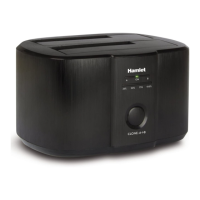
The Docking Station can support up to three external monitors (one
HDMI and two DisplayPort) in addition to the notebook’s display.
Once an external monitor is connected, it can be configured to use
either “Extend mode”, “Mirror mode” or be the “Primary” display.
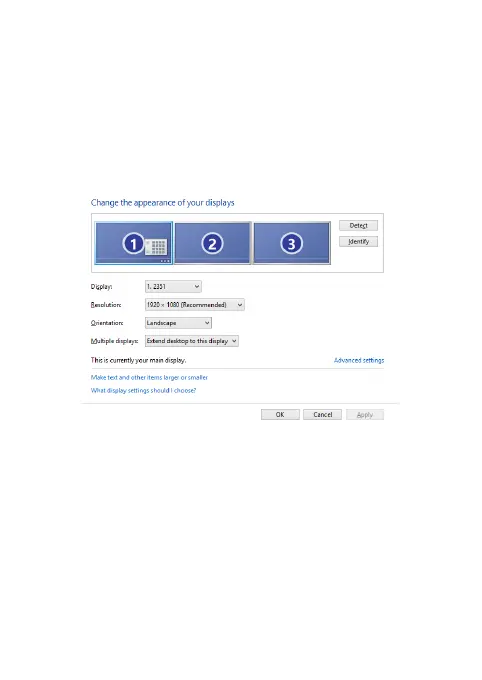
To open the Windows display settings, right-click with the mouse
anywhere on the Windows Desktop, and select Screen
Resolution from the menu.
Extended mode
1. Open the Screen Resolution configuration window.
2. In the Display drop-down menu, select the preferred monitor.
3. In the Multiple displays menu, select Extend these displays.
4. Click OK to confirm and exit.
5. Once the setting is completed, simply drag and drop the
application icons or the opened windows to the add-on monitor.
However, please note that some applications may not support
to be displayed on the extended desktop.



 To Next Page