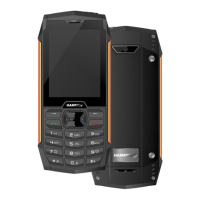
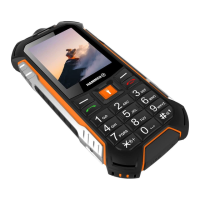
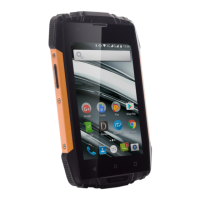
EN © mPTech. All rights reserved. HAMMER BLADE 4
27
Home (virtual)
One quick press takes you to phone desktop. A longer press launches
Google Assistant.
Back (virtual)
Press to exit the application / return to the previous screen.
Blockade on/off button
• One quick press locks/unlocks the screen.
• Pressing the button for about 2 sec. will cause:
o If the smartphone is off - the device would switch on.
o if the smartphone is switched on, call up a menu to shut down
the device, reboot the system.
Volume increase and decrease buttons
Pressing during a voice call will cause an increase or decrease of the
audio connection volume.
Programmable button
Pressing on an unlocked smartphone launches a user-defined action
or application You can change its function using the settings menu.
10. Using the touch screen
The smartphone's touchscreen makes it easy to select items, perform
operations and gestures. The
touchscreen can be controlled by the
following actions:
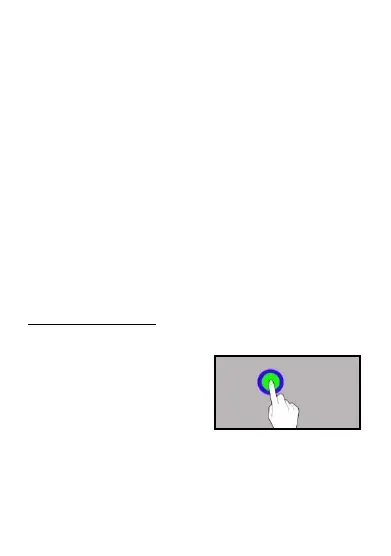
10.1 Touch
Touch one to start options, app,
menu.


 To Next Page
 Loading...