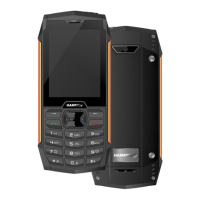
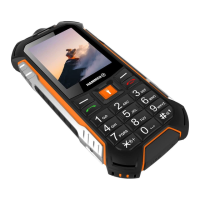
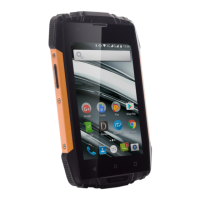
EN © mPTech. All rights reserved. HAMMER BLADE 4
28
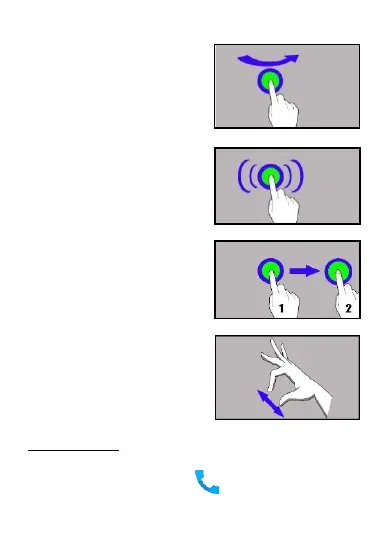
10.2 Swipe
Quickly swipe up, down, to the left or
to the right, to scroll the list or the
screen.
10.3 Triple click
Quickly tap the screen three times to
start zooming - if this option is
enabled in your smartphone settings.
10.4 Hold and swipe
Touch an element (an icon perhaps)
and hold it for about 1 seconds. Then
you can delete/uninstall that
element.
10.5 Slide in and out
Touch the screen with two fingers
and slide them together or apart to
zoom in or out a photo or a map.
11. Communication
11.1 Making calls
To make a call touch [Phone] icon placed on the main screen or
in Android applications menu. Insert the phone number you wish to


 To Next Page
 Loading...