Chapter 3 Page 45
Changing or deleting a password
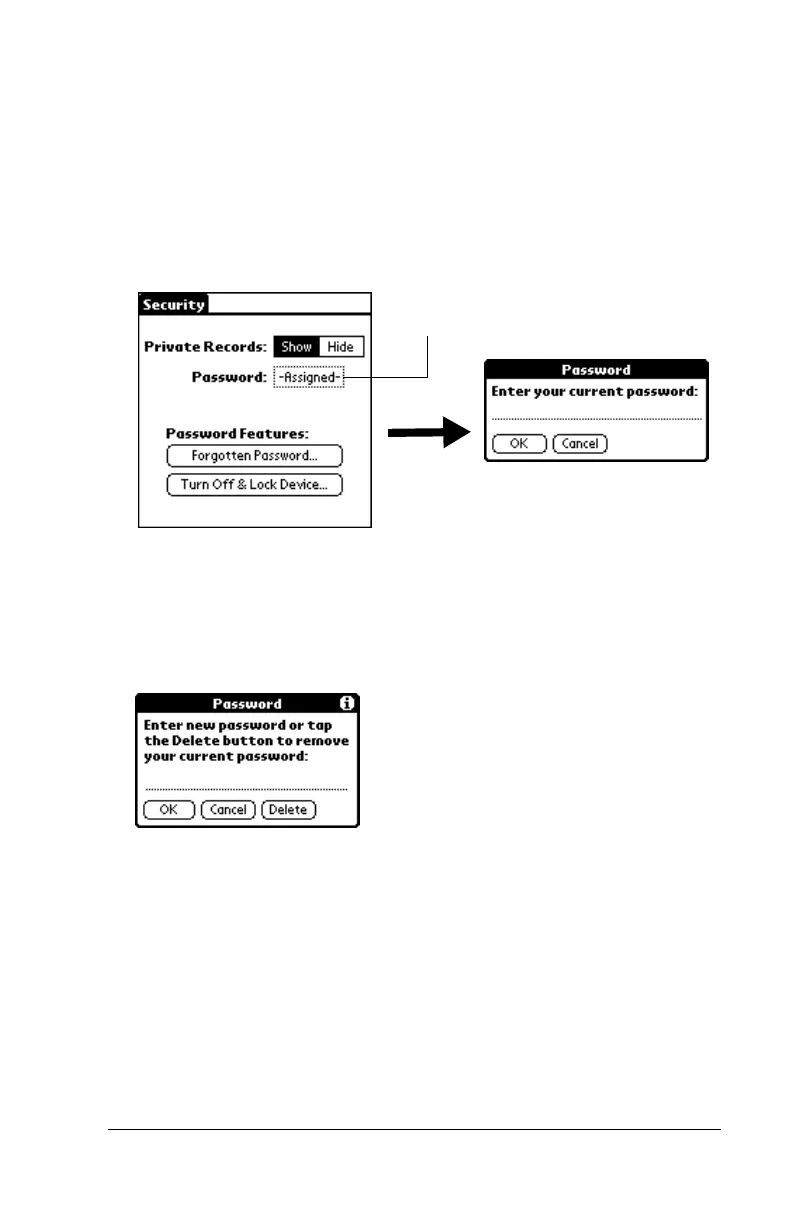
Once you define a password for your handheld, you can change or
delete it at any time. You must enter the current password before you
can change or delete it.
To change or delete your password:
1. Tap the Password box.
2. Enter the current password.
3. Tap OK.
4. Do one of the following:
To change the password, enter the new password, and tap OK.
To delete the password, tap Delete.
Locking your handheld
You can also lock your handheld so that you need to enter your
password to operate it.
Important: If you lock your handheld, you must enter the exact
password to re-activate your handheld. If you forget the
password, you need to perform a hard reset to resume
using your handheld. Performing a hard reset deletes all
the records in your handheld; however, you can restore
all synchronized data at the next HotSync operation. See
“Performing a hard reset” in Appendix A for details.
Tap here



 To Next Page