This document serves as the User's Manual for the HANNspree HL161CGB (HSG1400) LCD Monitor, providing comprehensive instructions for its operation, features, and maintenance. It emphasizes the importance of reading the manual thoroughly before use and retaining it for future reference.
Function Description
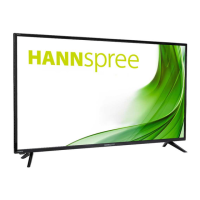
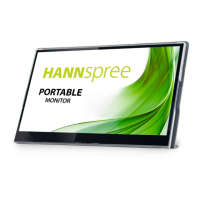
The HANNspree HL161CGB (HSG1400) is a 39.5cm / 15.6" Wide Screen TFT Color LCD Monitor designed to provide a crisp and clear display, particularly for Windows environments. It functions as a visual output device for computers, displaying images and video signals received via its input ports. The monitor incorporates High-Definition Multimedia Interface (HDMI™) technology, allowing for high-quality digital audio and video transmission. It is equipped with an internal universal power supply, enabling operation in various AC voltage areas (100/120V AC or 220/240V AC) without requiring user adjustment. The monitor also includes built-in audio output capabilities, allowing for sound playback directly from the device when connected to a PC's audio output.
Usage Features
The monitor offers a range of features designed for user convenience and an optimized viewing experience. It is characterized by its ergonomic and space-saving, compact case design, making it suitable for various setups.
Connectivity:
The HL161CGB supports multiple input options for connecting to a PC:
- Type-C Input: Connects via a Type-C cable to the computer's Type-C port. An additional Type-C cable connection to a Power Adaptor is also supported.
- HDMI Input: An optional HDMI cable can be used to connect to the computer's HDMI port.
- LINE OUT: An audio output port is available for connecting to external audio devices.
Control and Adjustments:
The monitor features front panel control buttons for easy navigation and adjustment of settings. These include:
- Power Button: To switch the monitor ON/OFF.
- Power Indicator: Displays the monitor's status (Blue for Power On, Amber for Power Saving).
- OSD Menu: Provides access to a comprehensive On-Screen Display menu for various settings.
- OSD Quick-Menu Symbols: Icons for quick access to specific functions like activation, exit, toggling options, going back, horizontal choice toggling, and main menu access.
- Brightness/Contrast Adjustment: A dedicated control for adjusting display brightness and contrast.
The OSD menu offers extensive customization options:
- INPUT SELECT: Allows switching between HDMI and Type-C input signals.
- AUDIO ADJUST:
- VOLUME: Adjusts the volume level (applicable to models with incorporated audio). A warning about the risk of hearing damage at high volumes is provided.
- MUTE: Toggles the audio mute function.
- VIEW MODE:
- LOW INPUT LAG: Toggles the low input lag function ON or OFF.
- BLACK STABILIZATION: Adjusts the black stabilization of the display (value from 0 to 100).
- ADVANCED CONTRAST: Adjusts the advanced contrast of the display (value from 0 to 100).
- BLUE LIGHT FILTER: Adjusts the display's RGB "B" value to reduce blue light emission (value from 0 to 100).
- RESPONSE TIME: Sets the display response time to Standard, Advanced, or Ultra Fast (limited to specific models).
- RECALL: Resets the monitor settings to standard.
- GAME: Integrates gaming-oriented OSD designs with pre-calibrated modes (GAMER1, GAMER2, GAMER3, FPS1, FPS2, RTS, MOBA) for optimized color and technology.
- MOVIE, WEB, TEXT: Selects display modes tailored for movie viewing, web browsing, or text reading.
- COLOR ADJUST:
- CONTRAST: Adjusts the contrast value.
- BRIGHTNESS: Adjusts the brightness value.
- COLOR TEMPERATURE: Adjusts the color temperature (sRGB/Bluish/Cool/Native/Warm/User Color).
- COLOR SPACE: Adjusts the color space (Auto/RGB Mode/YUV Mode).
- COLOR RANGE: Adjusts the color range (Auto/Full Range/Limited Range).
- MANUAL IMAGE ADJUST:
- SHARPNESS: Adjusts the sharpness of the display (value from 0 to 100).
- ASPECT RATIO: Corrects screen distortion, offering "FULL SCREEN" or scaled display options.
- OVERSCAN: Toggles the overscan function ON or OFF.
- SETUP MENU:
- LANGUAGE SELECT: Changes the OSD language.
- RESOLUTION NOTICE: Toggles the resolution notice function ON or OFF.
- INFORMATION: Displays horizontal frequency, vertical frequency, and resolution information.
- OSD TIMEOUT: Sets the OSD timeout duration (5 to 60 seconds).
- OSD BACKGROUND: Toggles the OSD background function ON or OFF.
- POWER INDICATOR: Toggles the power indicator function ON or OFF.
- AUTO POWER OFF: Toggles the auto power off function ON or OFF.
- SLEEP: Adjusts the sleep mode value.
- ECO MODE: Adjusts the ECO Mode value (Standard/Optimize/Conserve).
- DDC/CI: Toggles the DDC/CI function ON or OFF.
- MEMORY RECALL: Resets the monitor to its factory settings.
Plug & Play DDC2B Feature:
The monitor is equipped with VESA DDC2B capabilities, allowing it to communicate its identity and display capabilities to the host system. This bidirectional data channel ensures proper interaction between the monitor and the computer. It is important to note that the monitor requires a video input signal to operate properly.
Support Holster Stents:
The manual illustrates the use of support holster stents, indicating a design that allows for flexible positioning and stability of the monitor.
Troubleshooting and Error Messages:
The manual provides a comprehensive FAQ section for general problems, offering possible solutions for issues such as:
- Power LED not on.
- No Plug & Play functionality.
- Display being too dark or too bright.
- Picture bouncing or wave patterns.
- Power LED on (Amber) but no video/picture.
- Missing primary colors.
- Screen image not centered or sized properly.
- Color defects.
- Incorrect screen resolution.
- No sound from built-in speaker.
It also addresses "CABLE NOT CONNECTED" and "INPUT NOT SUPPORT" error messages, providing steps to resolve these issues, including checking cable connections and adjusting display modes according to a provided factory preset timing table.
Windows 7 / Windows 8 Addendum:
Specific guidance is given for display problems under Windows 7/8, advising users to ensure PC and video card compatibility, install the latest video drivers, and try recommended display resolutions.
Maintenance Features
The manual provides essential guidelines for maintaining the monitor to ensure its longevity and optimal performance:
- Placement: Avoid installing the monitor near heat sources, direct sunlight, excessive dust, or areas subject to mechanical vibration or shock.
- Packaging: Retain the original shipping box and packing materials for future transportation needs.
- Cleaning: Periodically clean the monitor with a soft cloth. For stubborn stains, use a cloth lightly dampened with a mild detergent solution. Avoid strong solvents like thinner, benzene, or abrasive cleaners, as these can damage the cabinet. Always unplug the monitor before cleaning.
- Ventilation: Ensure that the ventilation slots and openings on the back and bottom of the cabinet are not blocked or covered to prevent overheating. Do not place the monitor on soft surfaces (bed, sofa, rug) or near radiators/heat registers. If placed in a bookcase or cabinet, ensure proper ventilation.
- Power Safety: Operate the monitor only from the specified power source. Unplug the unit during lightning storms or prolonged periods of disuse to protect against power surges. Avoid overloading power strips and extension cords.
- Object Insertion: Never push objects into the monitor's slots to prevent short circuits, fire, or electric shock. Avoid spilling liquids on the monitor.
- Servicing: Do not attempt to service the monitor yourself due to the presence of dangerous voltages. Refer all servicing to qualified personnel.
- Accessibility: Ensure the wall socket is installed near the equipment and is easily accessible.
The manual also includes "Special Notes on LCD Monitors" to inform users about normal LCD behaviors that are not indicative of a problem, such as screen flickering during initial use, slight uneven brightness, the presence of a small percentage of blemishes (missing or lit pixels), and afterimages from prolonged display of the same image. It advises contacting a dealer or service center for erratic flashing or backlighting failure.
The document concludes with a "Recycling Information" section, highlighting HANNspree's commitment to environmental protection. It encourages users to recycle the product appropriately, noting that the device contains recyclable materials and that other materials may be hazardous. Users are directed to the hannspree.eu website for more information on recycling.

 Need help?
 General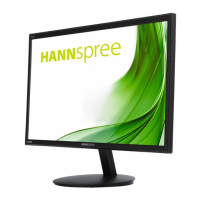



 To Next Page