16
Chapter 3
Using the Notebook PC
Touchpad
Using the Touchpad
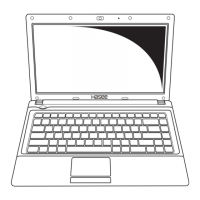
To move the pointer, slide your finger across the Touchpad surface
in the direction you want the pointer to go. Use the left and right Touchpad
buttons as you would the left and right buttons on an external mouse. To
scroll up and down using the Touchpad scroll zone, slide your finger up or
down over the grooved lines on the Touchpad.
Using an external mouse
An external USB mouse can be connected to the computer using
one of the USB ports on the computer. A USB mouse can also be connected
to the system using the connectors on an optional expansion product.
Setting Touchpad preferences
Mouse Properties in Microsoft® Windows® allows you to customize settings
for pointing devices, including
• Touchpad tapping, which enables you to tap the Touchpad once to
select an object or twice to double-click an object (enabled by
default).


 To Next Page