10
How to Retrieve/Change forgot pin
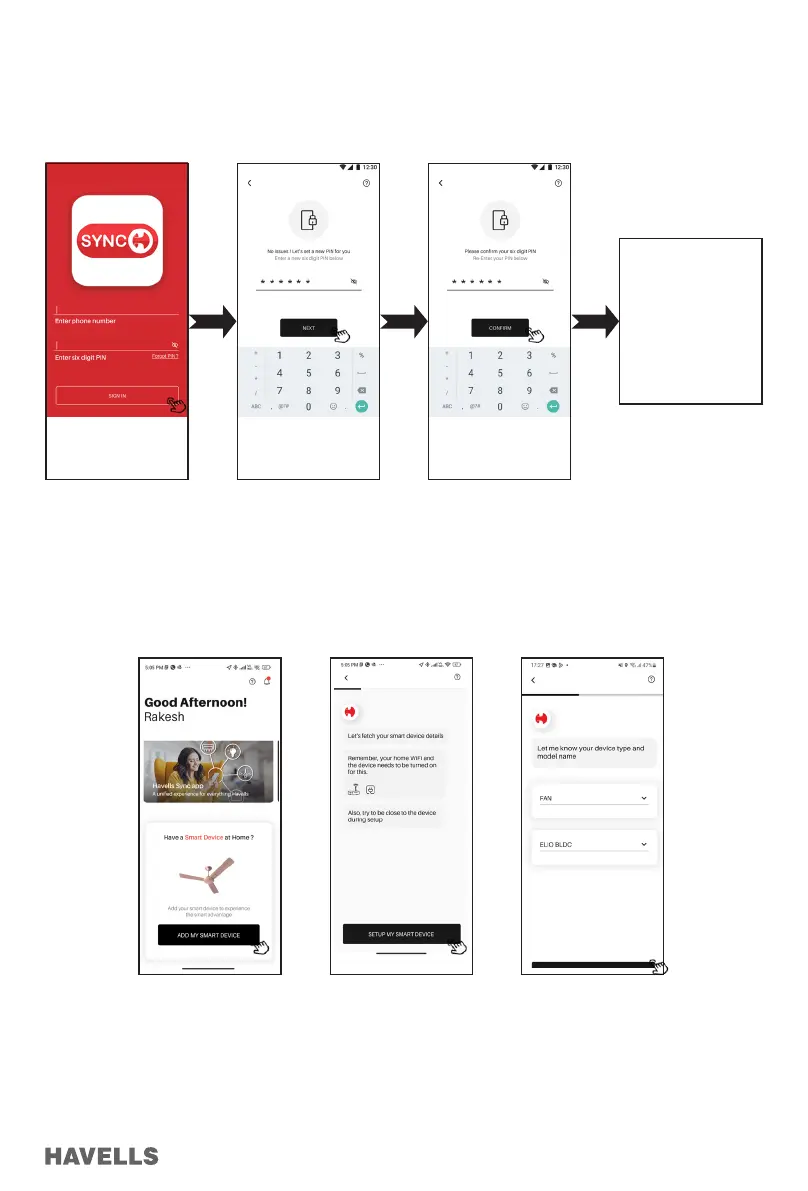
1. Enter your registered Phone Number and tap to “Forget PIN”. (Figure 34)
2. Enter your desired New PIN to set and tap on “NEXT” (Figure 35)
3. Re-enter your six digit PIN and tap on “CONFIRM” (Figure 36)
4. Enter your 6 digit OTP sent to your mobile number (Figure 37), if not received click on resend OTP
4. App will automatically check for device to connect with Wi-Fi Network and GPS/location ON. Tap on “SETUP
MY SMART DEVICE” (Figure 42)
5. Enter the Wi-Fi network password and tap on “Save & Continue” button to proceed further. (Figure 42)
6. Turn on the Fan using remote handset. In Remote Handset press & Hold “Wi-Fi” button for 10 seconds, 4 beeps
sound comes from the Fan PCBA
How to Add Device and Set-Up
1. After Login on the Home Screen of Sync App, Slightly scroll down and tap on “ADD MY SMART
DEVICE” (Figure 38)
2. Tap on “SETUP MY SMART DEVICE”. (Figure 39)
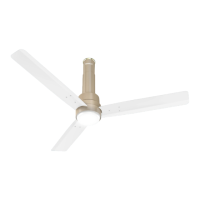
3. Select Device type as FAN and Model name as Elio Fan and tap NEXT ( Figure 40)
Figure 34 Figure 35 Figure 36
Figure 37
Message pop up
Havells Sync
welcomes you.
Your verication
code is XXXXXX
Figure 38 Figure 39 Figure 40


 To Next Page
 Loading...