9
Add New Device or Use Shared Device
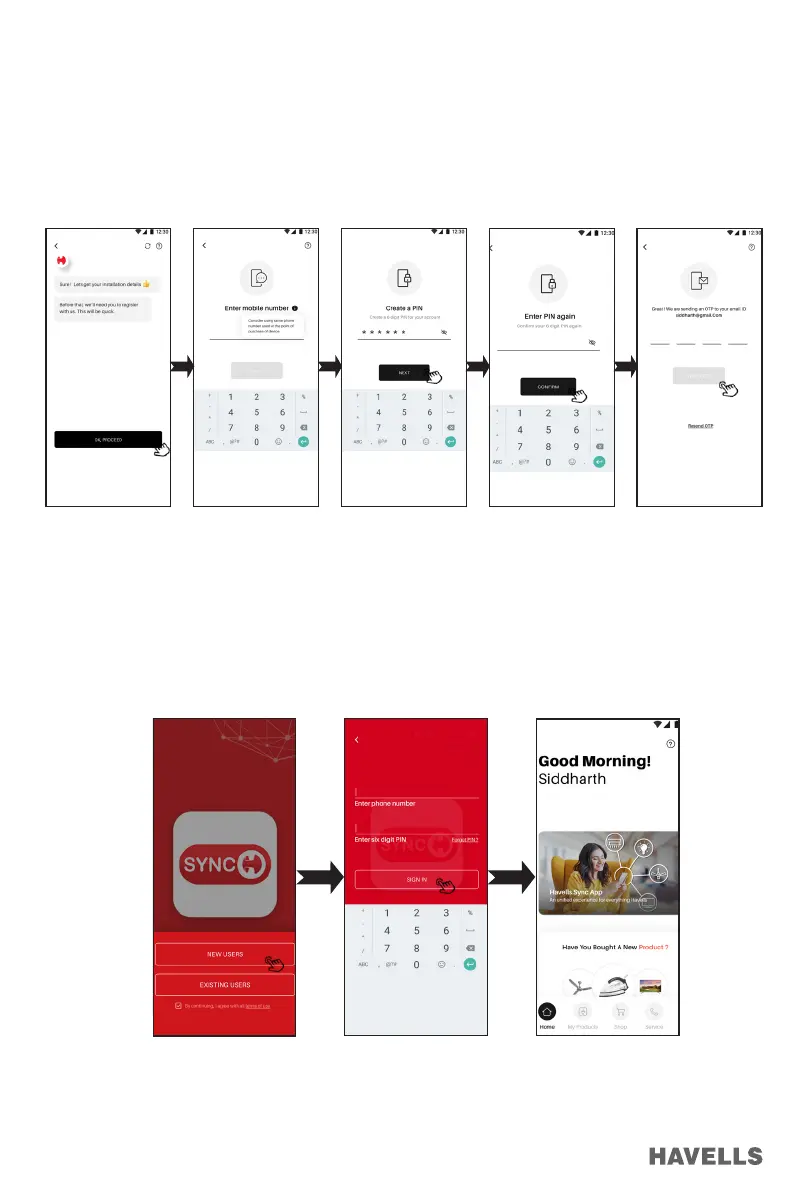
1. Tap on “I want to use a device shared with me” or Add New Device (Figure 25)
2. Click on “OK Proceed” (Figure 26)
3. Enter your mobile number and click on “Next” (Figure 27)
4. Create PIN and click on “Next”. (Figure 28)
5. Again conrm the pin entered by you before. (Figure 29)
6. Enter the OTP received, tap on verify OTP (Figure 30)
7. User registration has been successful.
Existing User Sign-In
1. Tap on “EXISTING USER” and tick by continuing with the terms & conditions. (Figure 31)
2. Enter your registered 10 digit Phone Number and six digit pin to login. (Figure 32)
3. Tap to SIGN IN to enter into your existing registered account.
Figure 26 Figure 27 Figure 28 Figure 29 Figure 30
Figure 31 Figure 32 Figure 33


 To Next Page