18
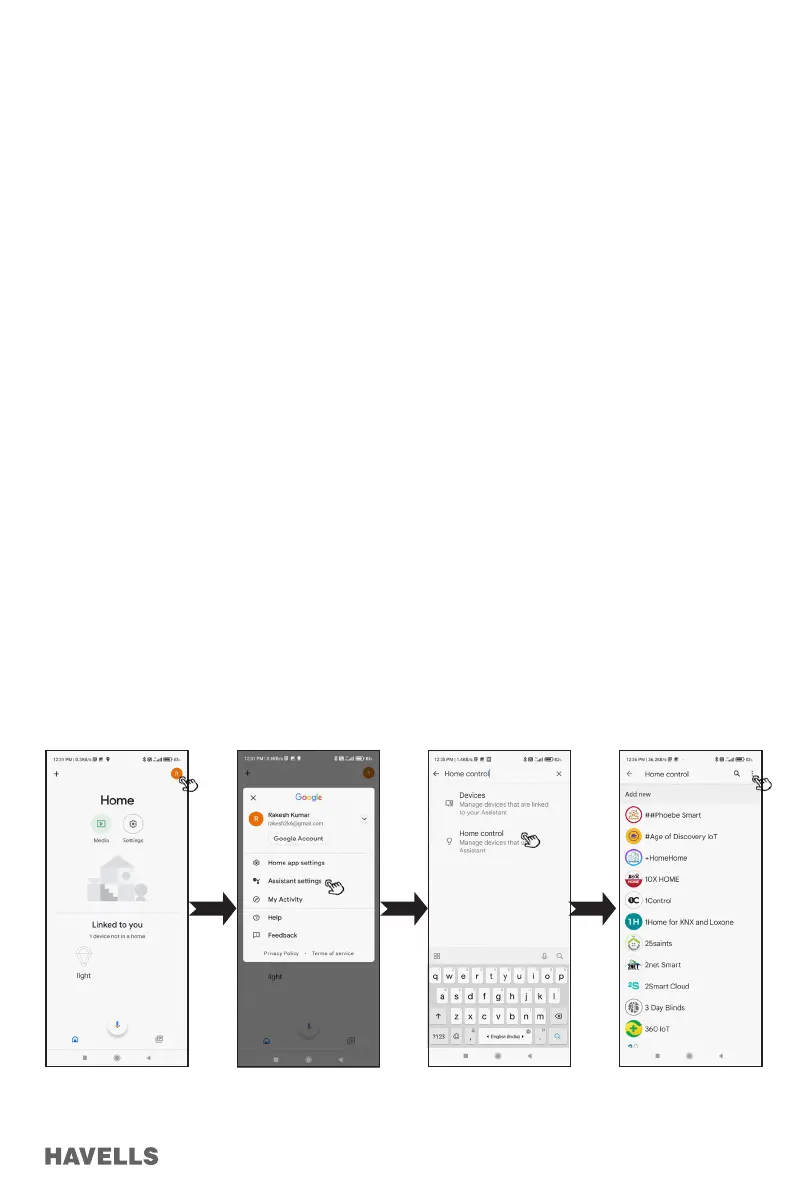
Figure 79 Figure 80 Figure 81 Figure 82
Fan Mode Control
Alexa, “what is the <Device name> mode?”
Alexa, “set <Device name> to Manual Mode / Manual”
Alexa, “set <Device name> to Night Mode / Night “
Alexa, “set <Device name> to Breeze Mode / Breeze”
Light Colour Control
Alexa, “what is the <Device name> Light colour ?”
Alexa, “set <Device name> Light colour / Light to Warm / Warm White”
Alexa, “set <Device name> Light colour / Light to Natural / Natural White”
Alexa, “set <Device name> Light colour / Light to Cool / Cool White”
Google Assistant Conguration and Fan Operation
Pre-requisite
1. Stable Wi-Fi Network.
2. Google Assistant-enabled device ready and signed in with Google Account.
3. Google Home smart phone App signed in with same Google Account.
4. Havells ELIO Fan connected with stable Wi-Fi Network.
5. Latest version of Havells Sync APP on Google Play store.
6. ‘Havells Sync’ signed in and connected to Havells ELIO Fan.
7. ‘Havells Sync’ APP account details.
Note:
1. Refer to Google Device user manual for setup procedure.
2. Refer Section, APP User manual (page 8 to 16) for setup using ‘Havells Sync’ APP Account”.
3. Select Language as India English in Assistant setting.
Connect your Havells device in the Google Home app
1. Tap on your prole photo at the top right corner of the screen. (Figure 79)
2. Select “Assistant Setting” from the options. (Figure 80)
3. Search “Home Control” from the available setting options. (Figure 81)
4. Search “Havells Sync” action in the search bar. (Figure 82)
5. Tap on “Havells Sync” to continue. (Figure 83-85)


 To Next Page
 Loading...