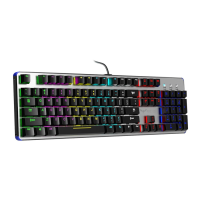
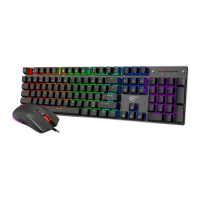
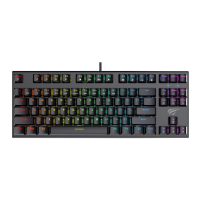
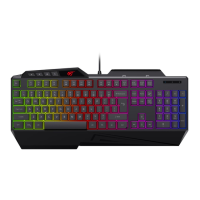
This document describes the HV-KB378L RGB Backlit Mechanical Keyboard.
Function Description
The HV-KB378L is an RGB backlit mechanical keyboard designed for general use with both PC and Mac systems. It features an ergonomic design and multi-light capabilities, offering a customizable lighting experience. The keyboard supports N-key rollover, ensuring accurate registration of multiple simultaneous key presses, which is particularly beneficial for gaming. It is a plug-and-play device, meaning no additional drivers are required for operation.
Important Technical Specifications
- Dimension: 447.5 x 217 x 39.3 mm
- Operating Force: 60 ± 15g
- Key Number: 104 keys
- Travel (Total): 4.0 ± 0.2mm
- Net Weight: 1117 +/- 15g
- Operating Voltage: 5V
- Operating Current: ≤ 400mA
- Cable Length: 1800mm
- N-key-rollover: Supported
- USB Interface: USB full speed 2.0
- Operating Systems: Compatible with Windows Vista/Win7/Win8/Win10, MAC, Linux
Usage Features
Connecting to Your Computer
- Turn on your computer.
- Insert the USB interface of the HV-KB378L mechanical keyboard into a USB port. For optimal performance, especially with mechanical keyboards that may require more power, it is recommended to use a USB port located on the back of the computer chassis rather than the front.
- Wait approximately 1 minute for the keyboard to be automatically registered by your computer; no extra driver is needed.
LED Backlit Adjustment
The keyboard supports 10 different backlit modes, which can be cycled through by pressing the FN + INS key combination.
1. Always On Mode:
- Press FN + INS to enter Always On mode.
- Press FN + DEL to switch between 7 adjustable colors.
- Press FN + ↑ or FN + ↓ to adjust the backlit brightness (four brightness levels available).
2. Single Color Breathing Mode:
- Press FN + INS to switch to single color breathing mode.
- Press FN + DEL to switch between 7 adjustable colors.
- Press FN + ↑ or FN + ↓ to adjust the brightness.
- Press FN + ← or FN + → to adjust the breathing rate.
3. Pro-Gamer Mode:
- Press FN + INS to switch to Pro-gamer mode. By default, only 9 keys (W, A, S, D, ESC, ↑, ↓, ←, →) are lighted.
- There are 5 sets of gaming lighting modes. Press FN + (1~5) to switch between them:
- Game Mode 1 (FPS): Press FN + 1 (L1) to light up keys: A, S, D, W, ↑, ↓, ←, →, ESC.
- Game Mode 2 (CF): Press FN + 2 (L2) to light up keys: A, S, D, W, CTRL, SHIFT, ALT, SPACE, R, G, Q, E, B, 1~5, TAB, F1, F2, F3, HOME, END, PGUP, PGDN.
- Game Mode 3 (COD): Press FN + 3 (L3) to light up keys: Q, W, E, R, T, A, S, D, F, G, C, V, 1~7, CTRL, SHIFT.
- Game Mode 4 (LOL): Press FN + 4 (L4) to light up keys: Q, W, E, R, A, S, D, F, 1~7.
- Game Mode 5 (QQ RACE): Press FN + 5 (L5) to light up keys: W, R, A, S, D, CTRL, ALT, SHIFT, ↑, ↓, ←, →.
Gamer Custom Settings (for Pro-Gamer Mode):
- All lighting modes in Pro-gamer mode are editable.
- Press FN + HOME in the current mode. The NUM, CAPSLK, and PAUSE indicator lights will flash.
- You can then edit every single key by pressing it to choose an optimal color.
- Press FN + HOME once more when editing is finished. The indicator lights will stop flashing and return to normal operation.
4. 7-Color Breathing Mode:
- Press FN + INS to switch to 7-color breathing mode, where colors automatically change during breathing.
- Press FN + ↑ or FN + ↓ to adjust the brightness.
- Press FN + ← or FN + → to adjust the breathing rate of the color.
5. On-Click Key Lighting Mode:
- Press FN + INS to switch to On-click key lighting mode. Only pressed keys will light up, with a random color initially.
- Press FN + DEL to change the color (8 modes in cycle).
- Press FN + ↑ or FN + ↓ to adjust the backlit brightness.
6. Single-Color or Mixed Color Flowing Mode:
- Press FN + INS to switch to Single-color or Mixed color flowing mode, where the backlight flows from left to right.
- Press FN + DEL to switch the color.
- Press FN + ← or FN + → to adjust the flowing rate.
7. Running Forth and Back Mode:
- Press FN + INS to switch to this mode. Keys will light up and then turn off key-by-key and row-by-row (color of each key is random).
- Press FN + DEL to adjust the color of the backlight.
- Press FN + ↑ or FN + ↓ to adjust the brightness.
- Press FN + ← or FN + → to adjust the running rate.
8. Ripple Spreading Mode:
- Press FN + INS. The key you press will become the central point, and colors will spread outwards like a ripple.
- Press FN + DEL to change colors.
- Press FN + ← or FN + → to adjust the spreading rate.
- Press FN + ↑ or FN + ↓ to adjust the backlit brightness.
9. On-Click Zone Lighting Mode:
- Press FN + INS to enter On-click zone lighting mode. The key you press will be set as the central point, and surrounding keys will also light up for a while.
- Press FN + DEL to change colors.
- Press FN + ↑ or FN + ↓ to adjust the backlit brightness.
10. Multi-Color Flowing Mode:
- Press FN + INS to switch to Multi-color flowing mode, with a mixed color flow from left to right.
- Press FN + DEL to switch the direction of flowing.
- Press FN + ← or FN + → to adjust the flowing speed. Press FN + ← repeatedly to reach the lowest speed and stop the flow.
Additional Lighting Controls:
- Press FN + ESC to set a three-color cycle (Green / Red / Blue). The colors change one by one and then revert to the previously set mode.
- Press FN + PRTSC to turn off all backlight.
- Press FN + PAUSE to turn ON/OFF the blue LEDs on the top of the keyboard.
The keyboard includes dedicated function key combinations for multimedia control:
- FN + F1: Open media player
- FN + F2: Volume -
- FN + F3: Volume +
- FN + F4: Mute
- FN + F5: Previous track
- FN + F6: Next track
- FN + F7: Play/pause
- FN + F8: Stop
- FN + F9: Open mailbox
- FN + F10: Open homepage
- FN + F11: Calculator
- FN + F12: Search
Win Key Deactivation
- Press FN + Win key to lock/unlock the Windows key, preventing accidental presses during gaming or other activities.
Maintenance Features
Troubleshooting Steps
If you encounter issues with the keyboard, follow these steps:
- Insert the USB cable into another USB port on your computer.
- If you are using a USB hub, try connecting the keyboard directly to your computer.
- It is recommended to plug the keyboard into USB ports located on the back of the computer chassis rather than the front, as these often provide more stable power.
- Check the USB hub or port for foreign objects or dust that might obstruct the connection.
- Unplug and reinsert the USB connector.
- Restart your computer.

 Need help?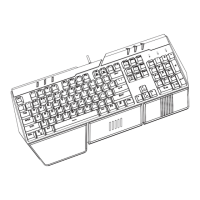

 To Next Page
 General