Set the
time
Open the Heimgard app and follow the steps listed
here to change the time on your camera:
Scroll down to the Info section to nd your
camera’s Ip Address: (ex.123.456.7.89)
Insert the Ip Address into your web browser
Enter username and password
Note: If you have not changed the username
or password, they are pre-set as
username: admin
password: 123456
Manage
Devices
Congure
(camera)
Settings
Settings Congure
(camera)
SettingsVideo 1
Choose your time zone, then Click Apply.
Your time is now set and you can logout.
Troubleshoot
Generic Issues
Check that the cables are inserted correctly
That you have internent connectivity.
If you have issues adding or conguring the camera,
perform a power reset by unpluging the power
supply to the internet router and the hub and
reconnect it. Then try adding the device again.
WiFi specic issues
5 GHz is not supported by the camera make sure
your 2.4 GHz is enabled and discoverable
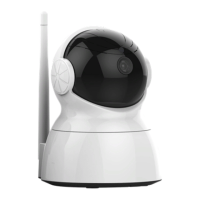
• Make sure the antenna is securely fastened to the
camera when setting up with WIFI.
• Check that you have entered the Network name
and Password correctly (case-sensitive).
• When trying to scan the QR code, set the screen
brightness to max brightness.


 To Next Page