12
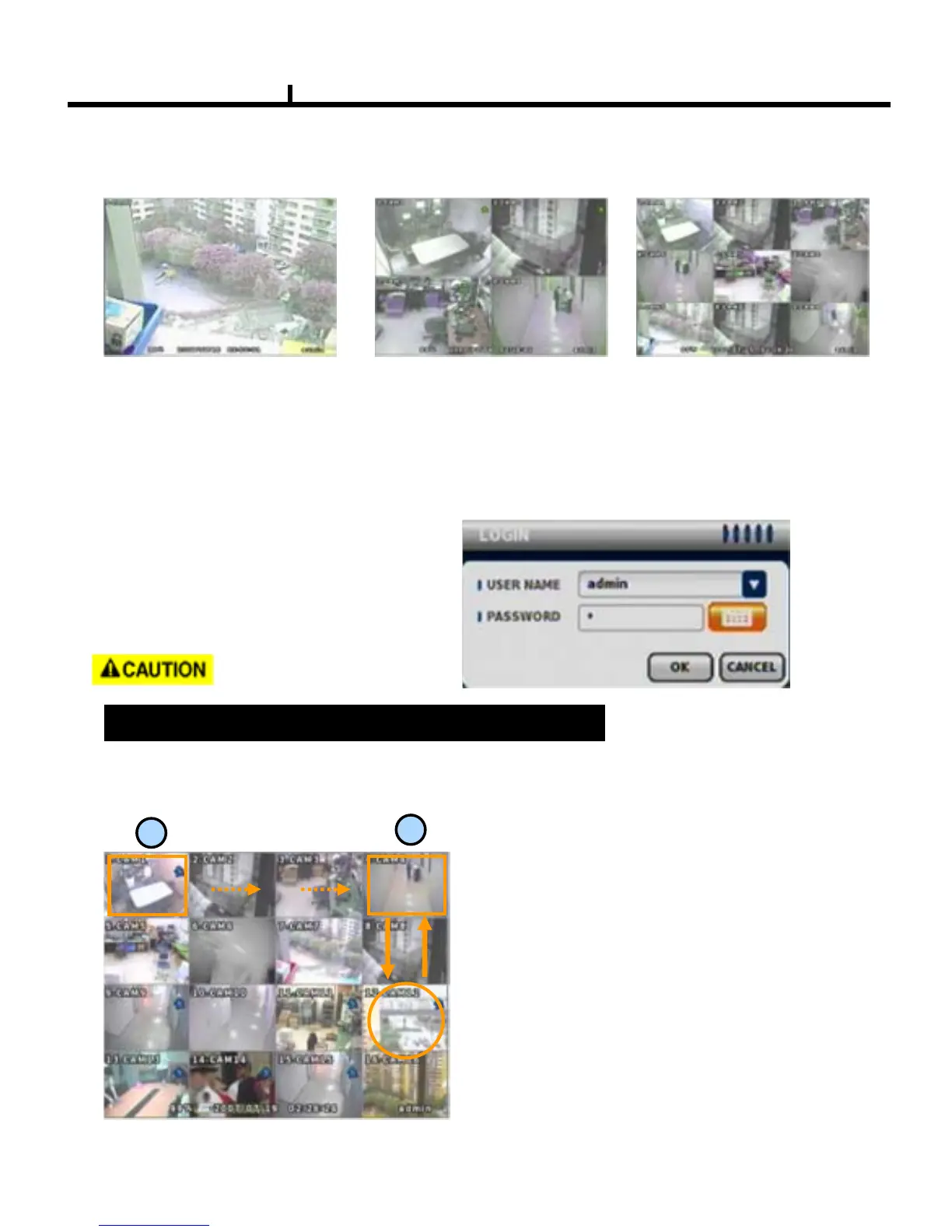
Screen Split
Use mouse press DISPLAY button to change screen display with 1 -> 4 -> 9 -> 16 by turn
Direct Channel
1) Press channel No. on the remote control or front panel.
2) Click the screen to watch specific channel using mouse.
** Pressing No.1 button responds a bit delayed to wait a possible signal input of
No.10~16 (approx 2.5 seconds)
It is recommended to change ID and PW for your safety.
LOG IN
Login to menu for setup
Default: ID – admin
PASSWORD - 1
CAMERA ALLOCATION function (changing camera display position)
Ex) Switching camera No 4 and 12.
1
2
1) Press Enter in the monitoring screen, then
box is selected at No.1 camera.
2) Locate the box to the camera No. you want to
move using direction buttons.
3) Enter the camera number to switch
4) Then, selected camera is switched with the
Camera number you pressed.
5) To exit, press ESC


 To Next Page