Studio Spot
®
250 / Studio Color
®
250 User Manual Understanding the Menu System 4-27
4
Copying User Presets (PRST)
Use this menu item to copy the fixture’s user presets from user A to user B or vice
versa. Each user type includes 16 different presets (scenes) which can be copied to a
different user type.
Note: This options copies all 16 presets at one time.
To copy user presets:
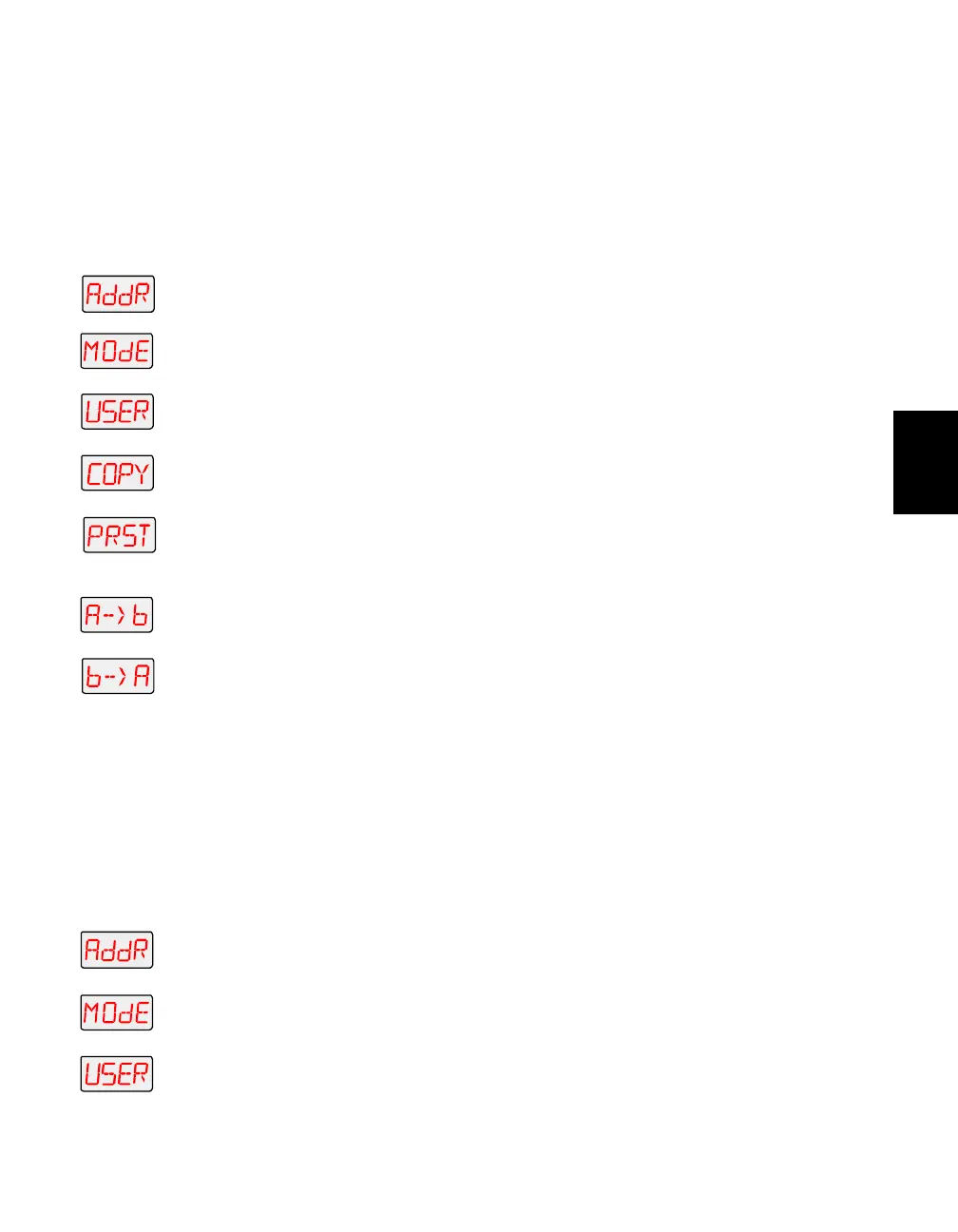
1. Press and hold the <Menu> button until “ADDR” appears on the LED
display.
2. Using the <Up> and <Down> arrow buttons, scroll to the “MODE” menu
and press the <Enter> button to select the “MODE” menu.
3. Using the <Up> and <Down> arrow buttons, scroll to the “USER” menu
and press the <Enter> button to select the “USER” menu.
4. Using the <Up> and <Down> arrow buttons, scroll to the “COPY” menu
and press the <Enter> button to select the “COPY” menu.
5. Using the <Up> and <Down> arrow buttons, scroll to the “PRST” menu.
(This will be the first menu displayed.) Press the <Enter> button to select
the “PRST” menu.
6. Using the <Up> and <Down> arrow buttons, choose the “A → Β”
option to copy user A presets to user B, or the “B → Α” option to copy
user B presets to user A. Press the <Enter> button to select the desired
option.
Copying User Settings (SETT)
Use this menu item to copy the fixture’s user settings from user A to user B or vice
versa. The user settings for each user type are listed in the section titled “Setting the
User Type (USER)” on page 4-26.
Note: This options copies all user settings at one time.
To copy user settings:
1. Press and hold the <Menu> button until “ADDR” appears on the LED
display.
2. Using the <Up> and <Down> arrow buttons, scroll to the “MODE” menu
and press the <Enter> button to select the “MODE” menu.
3. Using the <Up> and <Down> arrow buttons, scroll to the “USER” menu
and press the <Enter> button to select the “USER” menu.
or


 To Next Page