EasyManua.ls Logo

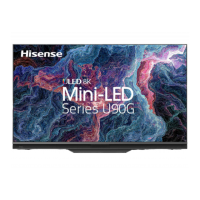
Hisense 75U90G - User Manual

Hisense 75U90G
41 pages
Print Icon
To Next Page IconTo Next Page
Loading...
Bar code

Other manuals for Hisense 75U90G

Questions and Answers

  • A
    Andrew FlemingAug 20, 2025
    What to do if there is no sound and picture on my Hisense 75U90G?
    • C
      Christopher NicholsAug 20, 2025
      First, ensure the power cord of your Hisense TV is securely plugged into a working AC outlet. Then, check if the LED light on the TV is lit. If it is, the TV is receiving power. Finally, try pressing the power button on the remote to take the unit out of Standby mode.
  • P
    phamdawnAug 22, 2025
    Why do I get no picture and/or sound when connecting an external device to my Hisense 75U90G?
    • S
      Sarah AdamsAug 22, 2025
      There are a few things to check if you've connected an external device to your Hisense TV but aren't getting any picture or sound. First, double-check the connection between the external device and the TV to ensure it's correct. Second, make sure you've selected the correct input source on your TV.
  • D
    Donald BarnettAug 25, 2025
    How to fix a Hisense TV with no picture, or black and white picture?
    • J
      John MillerAug 25, 2025
      If your Hisense TV has no picture or displays a black and white picture, try the following: Unplug the TV from the AC outlet, wait 60 seconds, and then plug it back in. Also, check that the Saturation setting is set to 50 or higher. Finally, try changing to different TV channels.
  • A
    Anthony VasquezAug 26, 2025
    What to do if my Hisense 75U90G cannot connect to your network or apps?
    • K
      ksandersAug 27, 2025
      If your Hisense TV can't connect to your network or apps, ensure the TV has a network connection. If problems persist, contact your Internet service provider.
  • C
    Crystal BeckAug 28, 2025
    What to do if my Hisense 75U90G picture is normal, but there is no sound?
    • J
      James FlemingAug 28, 2025
      If your Hisense TV has a normal picture but no sound, first check the volume settings to make sure they are appropriately adjusted. Also, confirm that 'Mute' mode is not enabled.
  • A
    Anthony BurtonAug 30, 2025
    Why is the picture distorted on my Hisense 75U90G TV?
    • M
      Mike DavisAug 30, 2025
      To resolve distortion on your Hisense TV, be aware that the compression of video content may cause picture distortions, especially in fast-moving scenes. Also, weak signal reception can cause screen distortion, but this is not a malfunction. Additionally, mobile phones used close to the TV may cause noise.
  • Z
    zwashingtonSep 1, 2025
    How to fix a weak wireless network signal on Hisense TV?
    • V
      Vincent BriggsSep 1, 2025
      To address a weak wireless network signal on your Hisense TV, position your wireless router, modem router, or access point in a central location, avoiding corners.
  • S
    Shawn CarlsonSep 2, 2025
    What to do if the wireless network connection failed on Hisense 75U90G TV?
    • J
      Jennifer TylerSep 3, 2025
      If the wireless network connection on your Hisense TV has failed, make sure your wireless modem/router is turned on and connected to the internet.
  • D
    David CarrilloSep 5, 2025
    Why are the sound and picture distorted or wavy on my Hisense TV?
    • N
      Natasha MartinezSep 5, 2025
      Some electrical appliances may affect your Hisense TV. If you turn off the appliance and the interference goes away, move the appliance further away from the TV. Also, try inserting the TV's power plug into a different power outlet.
  • K
    Keith QuinnSep 7, 2025
    Why are the speakers making an odd sound on my Hisense TV?
    • K
      Kevin WilliamsSep 7, 2025
      If the speakers on your Hisense TV are making an odd sound, ensure the audio cable is connected to the correct audio output connector on the external device. For antenna or cable connections, check the signal information, as a low signal level may cause sound distortions.

Summary

Important Safety Precautions

Disposal of Used Electrical & Electronic Equipment

Proper disposal guidelines for electronic equipment to protect the environment.

Safeguards

Essential guidelines and precautions for safe TV operation and handling.

Live TV

Channel Scan

Procedures for automatically or manually scanning for TV channels.

Channel Edit

How to manually reorder and manage the TV channel list.

Channel List

Displaying, searching, and editing the TV channel list.

Favourite

Adding, moving, and deleting favorite TV channels for quick access.

EPG (GUIDE)

Using the Electronic Program Guide to view upcoming shows and set reminders.

PVR

Recording TV programs using the Personal Video Recorder functionality.

Recording List

Viewing and managing recorded programs and scheduled recordings.

Timeshift

Pausing and rewinding live TV broadcasts with a connected storage device.

Connection

Establishing a Wired Internet Connection

Steps to connect the TV to the internet using an Ethernet cable.

Establishing a Wireless Internet Connection

Steps to connect the TV to a wireless network (Wi-Fi).

Connecting Bluetooth Devices

Pairing and connecting Bluetooth devices like headphones or speakers.

Using HDMI&CEC

Controlling external HDMI devices using the TV remote.

Connecting a Digital Audio System to Use eARC;ARC

Connecting audio systems via HDMI for enhanced sound output.

Connecting an AV device, a PC or a Game Console with an HDMI cable

Connecting various devices like PCs or game consoles using HDMI.

Connecting USB Devices

Connecting USB storage devices for media playback or other functions.

Multi-screen

Screen Sharing

Mirroring the screen content from a mobile device to the TV.

Content Sharing

Sharing media files from devices to the TV for playback.

Smart Functions

Getting Familiar with the Home Screen

Introduction to the TV's home screen interface and navigation.

Apps

Installing, managing, and organizing applications on the TV.

Using Far-Field Google Assistant to Control your TV

Controlling the TV using voice commands with Google Assistant.

Installing Mobile App to Control your TV

Setting up a mobile application for remote TV control.

Media

Accessing and playing media content from various sources.

Picture and Sound

Adjusting the Picture Quality

Customizing picture settings like brightness, contrast, and color.

Adjusting the picture quality for each picture mode

Fine-tuning picture settings within specific viewing modes.

Configuring advanced picture settings

Adjusting advanced picture parameters for enhanced viewing.

Configuring calibration settings

Adjusting color space and gamma for precise picture calibration.

Adjusting the Sound Quality

Customizing audio settings for optimal sound experience.

Setting sound mode

Selecting and configuring various sound modes for different content.

Configuring advanced sound settings

Fine-tuning advanced audio parameters like balance and output.

Configuring audio type

Setting audio types and managing voiceover features.

Accessibility and System

Using Parental Control

Setting up parental controls to restrict access to content.

Configuring Device Preferences Settings

Adjusting device settings like date, time, language, and keyboard.

Home screen

Customizing the TV's home screen, app layout, and previews.

Accessibility

Providing options for visually and hearing impaired users.

Configuring Advanced System Settings

Adjusting system settings like timers, power options, and store mode.

Power

Managing power settings including sleep timers and power modes.

Support

Enabling features like HbbTV, Do Not Track, and Setup Assistant.

Remote Control Service

Enabling remote control for diagnosing and managing TV issues.

Help

Accessing system messages, software version, and signal diagnosis.

Troubleshooting

Picture Problem

Solutions for common TV picture issues.

Sound Problem

Solutions for common TV sound issues.

Picture and Sound Problem

Solutions for issues affecting both picture and sound simultaneously.

Internet Problem

Troubleshooting common problems with TV internet connectivity.

Recording;Timeshift Function Isnt Working

Resolving issues with the TV's recording and timeshift features.

My File Wont Play

Solutions for problems encountered when playing media files.

Other Issues

Solutions for other miscellaneous operational problems with the TV.

Hisense 75U90G Specifications

General IconGeneral
HD type8K Ultra HD
Screen shapeFlat
LED backlightYes
Display diagonal75 \
Anti-glare screenAlways gives an optimal view, even in direct sunlight.
Display resolution7680 x 4320 pixels
Display technologyLED
Native aspect ratio16:9
Native refresh rate60 Hz
LED backlighting typeULED
Display diagonal (metric)189 cm
Motion interpolation technology-
Tuner typeDigital
Digital signal format systemDVB-T, DVB-T2
Operating system installedAndroid
Audio decodersDTS Virtual:X, Dolby Atmos, Dolby Digital
RMS rated power20 W
Number of speakers8
Wi-Fi standards802.11a, 802.11b, 802.11g, Wi-Fi 4 (802.11n), Wi-Fi 5 (802.11ac)
Bluetooth version5.0
Product colorBlack, Grey
Panel mounting interface600 x 400 mm
Game featuresAuto Low Latency Mode (ALLM), Variable Refresh Rate (VRR)
Processor cores4
Video formats supportedMPEG2, MPEG4
High Dynamic Range (HDR) technologyDolby Vision, High Dynamic Range 10 (HDR10)
Package typeBox
Package depth1175 mm
Package width1847 mm
Package height397 mm
Package weight71000 g
AC input voltage100 - 240 V
AC input frequency50/60 Hz
Power consumption (standby)0.5 W
Power consumption (typical)- W
Programming period7 day(s)
HDCPNo
HDCP version2.2
USB 2.0 ports quantityUSB 2.0 ports have a data transmission speed of 480 Mbps, and are backwards compatible with USB 1.1 ports. You can connect all kinds of peripheral devices to them.
Ethernet LAN (RJ-45) ports1
Weight and Dimensions IconWeight and Dimensions
Depth (with stand)321 mm
Width (with stand)1676 mm
Height (with stand)1016 mm
Weight (with stand)56000 g
Depth (without stand)67 mm
Height (without stand)1006 mm

Related product manuals